


Calendly is an appointment scheduling software, which you can embed on your site via HTML code. This guide will walk you through integrating your landing page with Calendly to allow your users to schedule a meeting with you easily.
Get your code from Calendly
1. Log in to your Calendly account.
2. In the Event Types tab, click on the gear icon near your events and then click Add to Website.

3. Choose the embed type – in our example, we selected Inline Embed. Then click Continue.

4. Adjust your calendar look (1) and copy the code (2).

5. If you want to add more meeting options, click New Event Type and set up your event. Then go to the code settings.

Install the code in Landingi
1. Log in to your Landingi account and navigate the editor of your landing page.
2. Find the HTML widget, then drag and drop it into the active area of the editor.
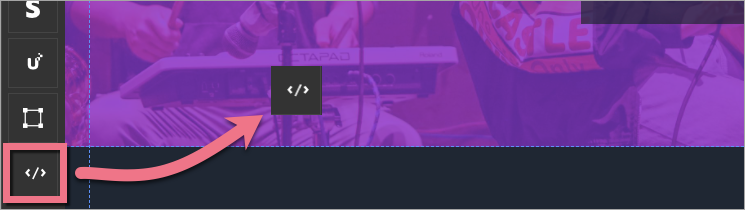
3. Double-click the HTML widget to edit it.
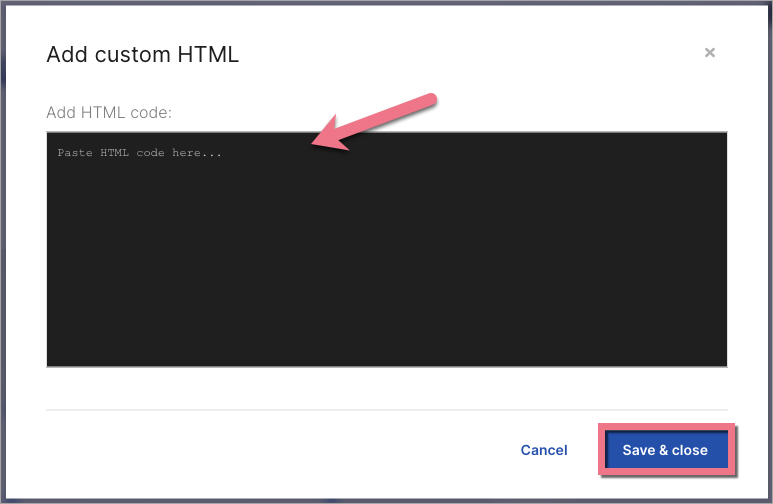
4. Paste the code from Calendly in the Add HTML code field. Then Save & close.
5. Publish your landing page.
See if your calendar displays correctly. If needed, go back to the editor and adjust the widget’s width and position.

Browse all integrations in our Integrations Catalog to see tools you can connect Landingi with.

