


The hamburger menu is a popular type of navigation, often found on mobile views. After clicking on the icon (three horizontal lines), the drop-down menu displays.
From this manual, you will learn how to create a simple hamburger menu on the mobile view of your landing page. It is also possible to create this menu type for the desktop view.

Hamburger menu on a landing page
1. Log in to your Landingi account and go to the editor of your landing page. Enter the mobile view.
2. Add a new section at the top of your landing page.
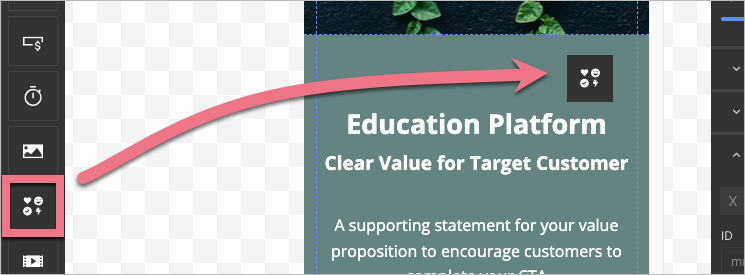
3. Add an icon to this section – drag and drop the icon widget to the chosen place.

4. Search for menu and select your icon (or choose any other icon).

You can adjust the icon size or color. To learn more about icons, read this guide.
5. Make a navigation menu in the newly created section. You can create them from any elements and widgets. In our example, we used the text widget. Expanding and collapsing will be available after publication. Every menu position links to the landing page section or to the outside URL address. The section background will be the background for both the narrow bar at the top of your landing page (visible when the menu is collapsed) and the expanded menu.

6. Select the section and, in the right-side toolbar, find the Other tab. Enter menu-section in the Classes field.

7. Select the icon and, in the right-side toolbar, find the Other tab. Enter trigger in the Classes field.

8. Add one more icon and place it in the section below the menu.
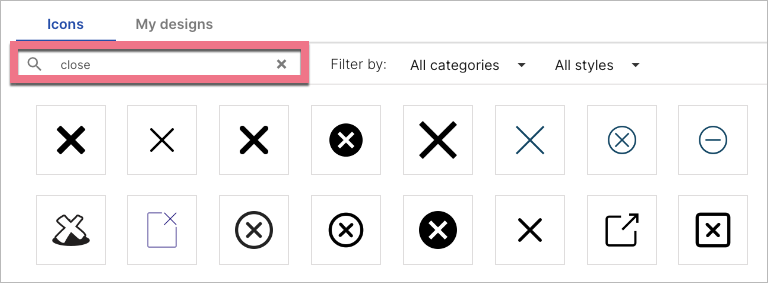
This time, look for a closing icon (e.g., you can search for close).
It should be placed like this:

9. Enter the Page Settings on the right panel and click on the Add custom CSS button.

When editing, you can go back to Page Settings by clicking on the arrow:

10. In the Main page tab, paste the CSS code indicated below. If you also have other codes here, add it above them, at the top (@import rule in our code cannot be placed below other CSS codes).
@import 'https://s3-eu-west-1.amazonaws.com/landingi-ftp/script/wow/animate.css';
.trigger {
	cursor: pointer !important;
}

.animated {
	-webkit-animation-duration: .35s !important;
	animation-duration: .35s !important -webkit-animation-fill-mode: both;
	animation-fill-mode: both;
}

11. Click on Save & close and publish your landing page. Open the landing page in a new browser tab. Narrow the browser to see a mobile view.
12. You need to get the icons’ URL addresses: on a published landing page, right-click on an icon and select Copy Image Address. Repeat for both icons.

13. In the editor, open the menu on the left and go to the JavaScript Code tab. Click Add script.

14. Name (1) the script, choose the Body bottom (2) position on the Main page (3) and, in the Content (4) field, paste the JavaScript code indicated below (more about custom codes you can find in the guide about HTML, CSS, and JavaScript codes).
<script src="https://s3-eu-west-1.amazonaws.com/landingi-ftp/script/wow/wow.min.js"></script>
<script src="https://cdnjs.cloudflare.com/ajax/libs/underscore.js/1.12.0/underscore-min.js"></script>
<script>
  let editorHeight = $('.menu-section').height()
  let minHeight = ($('.trigger').position().top * 2) + $('.trigger').height()
  $('.menu-section .container').css('height', 'inherit')
  $('.menu-section').height(minHeight)
  $('.menu-section > div > div').children().not('.trigger').not('.logo').addClass('menu wow')
  $('.menu').hide()
  new WOW().init()
  function burgerControl() {
    $('.trigger').toggleClass('close')
    if ($('.trigger').hasClass('close')) {
      $('.trigger').attr('src', 'https://closingiconlink.svg')
      $('.menu-section').animate({height: editorHeight})
      $('.menu').removeClass('bounceOutLeft')
      $('.menu').fadeIn()
      $('.menu').addClass('fadeInLeftBig')
    } else {
      $('.trigger').attr('src', 'https://openingiconlink.svg')
      $('.menu').removeClass('fadeInLeftBig')
      $('.menu').addClass('bounceOutLeft')
      $('.menu').hide()
      $('.menu-section').animate({height: minHeight})
    }
  }
  var burger = _.throttle(burgerControl, 650)
  $('.trigger').click(burger)
</script>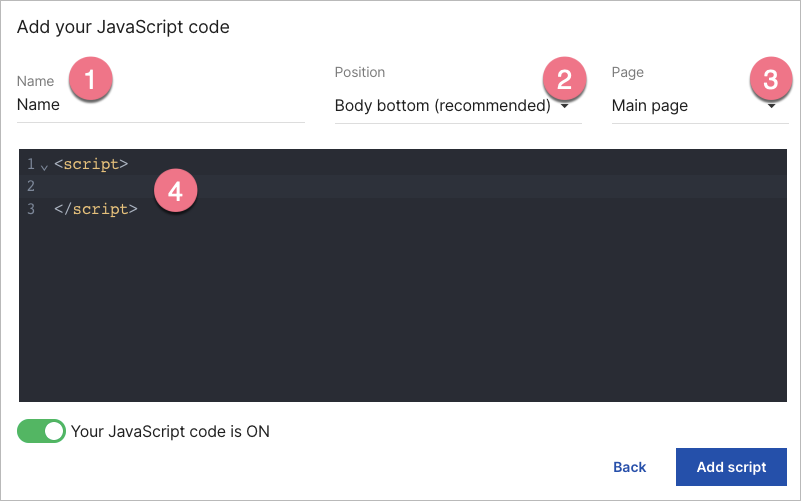
15. In lines no. 14 and 20, change https://closingiconlink.svg and https://openingiconlink.svg to the icons addresses copied from your landing page.

16. Click Add script to save the changes.
17. Go back to the editor. In the mobile view, click the closing icon and turn off its visibility.

18. Republish your landing page.
Enter your landing page on the mobile device and check if the menu displays correctly.
Logo next to the hamburger menu
If you want your logo to be visible in the same section as the hamburger menu, you have to add a class to it.
1. Click on the image (your logo) and in the right-side toolbar, find the Other tab. Type logo in the Classes field.

2. Publish your landing page again.
Now, your logo will be visible when the hamburger menu is both collapsed and expanded.

