


Slack is a messenger that you can connect with other apps to receive notifications from those apps in Slack. With Landingi’s in-app form integration, notifications about new leads can be sent to your channel or conversation in Slack.
- You can also connect Landing and Slack using Zapier.
Get an email address from Slack
1. Open your Slack app.
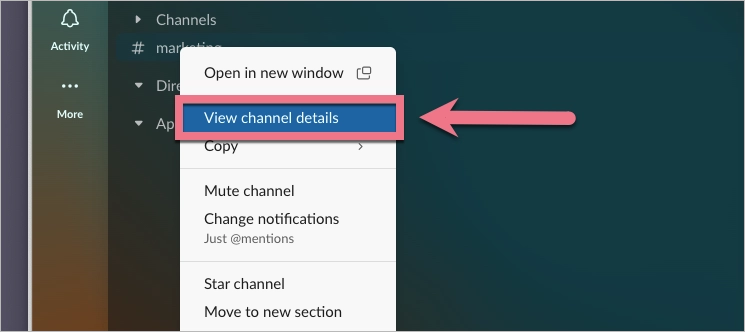
2. Select Slack channel or conversation and right-click on it.
3. From the dropdown menu, select View channel/conversation details.
4. Go to the Integrations (1) tab and select Send emails to this channel/conversation (2).

5. Click Get Email Address.

6. Copy the generated email address. You’ll paste it in your form settings in Landingi.

Set up lead transfer in Landingi
1. Log in to your Landingi account and go to the editor of your landing page.
2. Click on a form and go to its settings.

3. In the Email integration (1) tab, enable the integration (2), and paste the email address you copied earlier (3).

4. Save the changes and publish the landing page.
5. Fill out the form to test if the leads are correctly transferring to Slack.

You can also find detailed instructions in the Integrations tab after searching for Slack.


Browse all integrations in our Integrations Catalog to see tools you can connect Landingi with.

