


Microsoft Advertising tracking tag (Universal Event Tracking/UET tag) records what customers do on your website. You can install the tag on your landing page in Landingi to track your visitors’ behavior.
TIP: You can also integrate your landing page with Microsoft Clarity to analyze recordings and heatmaps.
Get your UET tag from Microsoft Advertising
1. Log in to your Microsoft Advertising account.
2. From the left-side menu, select Conversions and UET tag.

3. Click Create.

4. Enter a name and description (optional) for your tag. Then click Save and next.
The Enable Microsoft Clarity checkbox is optional.

5. Select Install the tag yourself.

6. Copy your tag. Then click Next.

Install the tag in Landingi
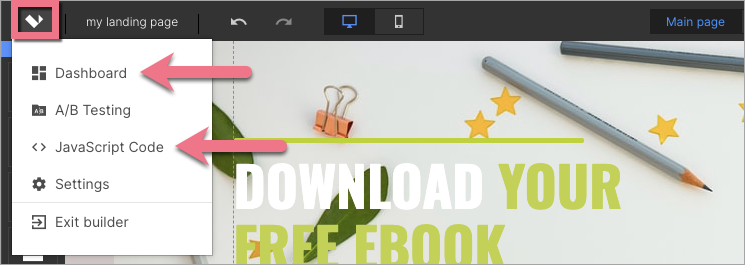
1. Log in to your Landingi account and navigate to the Dashboard of your landing page.
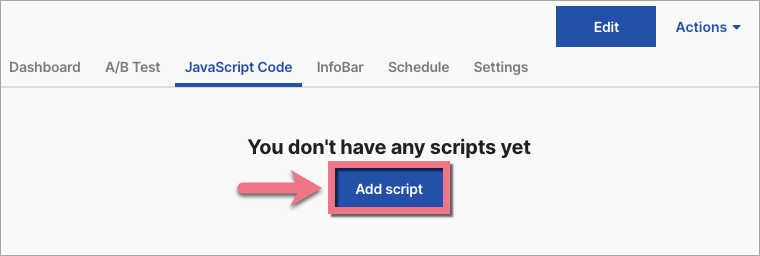
2. Go to the JavaScript Code tab. Click Add script.
You can access the JavaScript Code section also directly from the editor:
3. Name (1) the script and paste the tag in the Content (2) field. Choose the Head (3) position on the Main page (4).
Save by clicking Add.

4. Your UET tag has been installed! Now, you can create conversion goals and audiences.
The tag has to be verified by Microsoft – it can take up to 24 hours.
You can check your UET tag status and test whether your conversion goals are set up correctly using the UET Tag Helper. Install this browser extension on Microsoft Edge or Google Chrome.

Browse all integrations in our Integrations Catalog to see tools you can connect Landingi with.

