


Let Pinterest track your landing page visitors and the actions they take after seeing your Pinterest ad by adding the Pinterest tag to your landing page.
Pinterest tag consists of two components:
- base code – it is the foundation of the Pinterest tag; it has to be placed on every page of your website;
- event code – event codes have to be placed on pages where you want to track specific conversions taken by people on your landing page.
Get your Pinterest tag
To install the Pinterest tag, you need to own a business account on Pinterest and access Ads Manager.
1. Log in to your Pinterest account, and in the top menu, click the Ads tab and then Conversions.

2. From the left-side panel, choose the Tag manager tab.

3. Scroll down to the Install your Pinterest tag section. Choose Add code to website and click Add code.

4. You will see a tag (base code) configuration window. Scroll down and click Copy code.

5. Do not close this browser tab.
Install the tag in Landingi
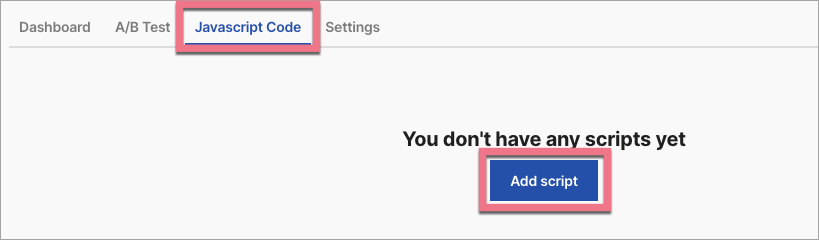
1. Log in to your Landingi account and go to the JavaScript Code tab of a landing page to which you want to add the Pinterest tag.
2. Click Add script.
3. Name the script and paste the tag in the Content field. Choose the Head position on the Man Page. Then click Add.

If you want to add the tracking code also to a thank you page (page after conversion), add one more JavaScript code and choose the Conversion page.
4. Go back to the tag configuration window. Click Continue.
5. In the next window, click Install tag.

6. To track specific conversions (events) on your landing page, in the next window, choose event codes that you want to add to the base code. Copy the chosen code and go back to the Landingi platform.

7. Go to the JavaScript Code tab and edit the code.

8. Paste the event code in a new line, before an end code </script> (without open and end tags, i.e. <script> and </script>). Save and close.
In this way, you can add more event codes.

9. Go back to Pinterest and click Done.
10. The information on the properly added tag will show in the Tag manager tab. It may take up to several minutes.
If you want to learn more about a Pinterest tag, go to the official Pinterest Help Center.
Browse all integrations in our Integrations Catalog to see tools you can connect Landingi with.

