


Brevo (formerly Sendinblue) is a marketing tool for businesses that want to send and automate email marketing campaigns. You can create forms in the Brevo platform and embed them on your website to gather all leads in one place. This guide will walk you through installing Brevo forms on your landing page in Landingi.
- You can also connect your landing page with Brevo via Zapier to add or update leads in Brevo.
Get your code from Brevo
1. Log in to your Brevo account.
2. Navigate to the Contacts (1) tab and select Forms (2). Click Create a new subscription form (3).

3. Configure your form details, design, and other settings.

4. In the Share section, go to Embed and Iframe tab. Copy the code.

Install the code in Landingi
1. Log in to your Landingi account and navigate to the editor of your landing page.
2. Find the HTML widget, then drag and drop it into the active area of the editor.

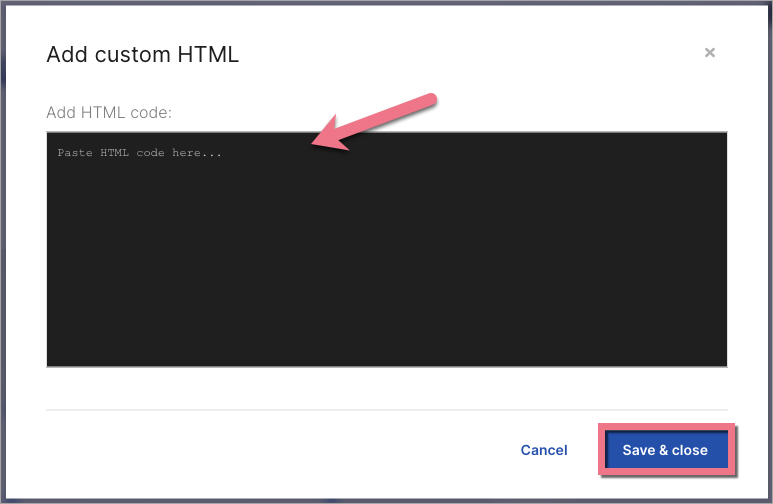
3. Double-click the HTML widget to edit it.
4. Paste the code from Spotify in the Add HTML code field. Then Save & close.
5. Publish your landing page.
See if your Brevo form displays correctly. If needed, go back to the editor and adjust the widget’s width and position.

Browse all integrations in our Integrations Catalog to see tools you can connect Landingi with.

