


The TikTok Pixel is a measurement tool that tracks your TikTok ads impact on your website and enables you to monitor sales, user activity, or find the right audience for your ads.
You can add the TikTok pixel code to your landing page by implementing it in the JavaScript codes.
Get your pixel code from TikTok
1. Log in to your TikTok Ads Manager account.
2. Navigate to the Assets tab and select Event.

3. Choose Website Pixel, and click Manage to reach Events Manager.

4. Click Create Pixel.

5. Name your pixel and choose the Manually install pixel code installation type. Then click Next.

6. Select the mode of setting your event rules and click Next. We recommend selecting the Standard Mode.

7. Copy the base code of your pixel. Save it as you will need it later. Then click Complete & Set Rules.

8. Do not close this page.
Install the TikTok pixel in Landingi
1. In a new tab, log in to your Landingi account and go to the Dashboard of your landing page.
2. Navigate to the JavaScript Code tab. Click Add script.
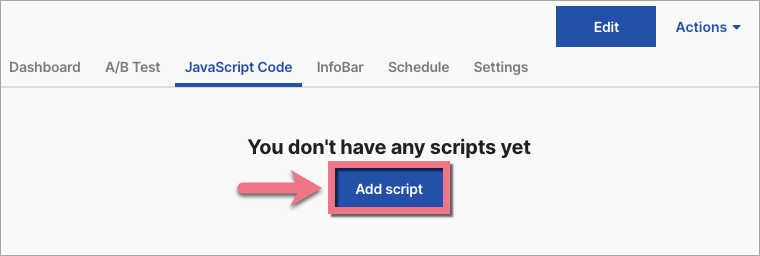
You can enter the Dashboard and JavaScript Code tab also directly from the editor:

3. Name your script and paste the pixel code in the Content field. Choose Head position on your Main page. Save by clicking Add.

4. Go back to TikTok Events Manager and rules setting. Choose the type of events you want to track.

5. Set up your events and click Next.

6. Define the rules for your event funnel:
- Enter your Website URL and click Update. It may not update immediately – in that case, follow the steps provided by TikTok or wait several minutes.
- Choose your tracking method and follow the steps that will display.
Then click Complete.

7. Your TikTok pixel is now set up. You can see your statistics by entering Assets > Event > Website Pixel.

You can also install the TikTok Pixel Helper plugin to see if the installation process was successful.
Browse all integrations in our Integrations Catalog to see tools you can connect Landingi with.

