


Visual Website Optimizer is an A/B testing tool that companies use on their websites, apps, and products for experimentation and conversion rate optimization. In Landingi, you can integrate your landing pages with VWO via SmartCode.
Get your code from VWO
1. Log in to your Visual Website Optimizer account.
2. In the right-side menu, navigate to Configurations > Websites and Apps (1). In the SmartCode for Websites section, click Connect Your Website (2).

3. Enter your domain name and click Add domain.

4. When you see a window with your code, divide it into two parts:
(1) Copy the second line of the code and paste it into your landing page’s metatags.
(2) Copy the remaining code (excluding the second line) and paste it as JavaScript code.

Install the code in Landingi
1. Log in to your Landingi account and go to the editor of your landing page.
2. In Page Settings, unfold the Meta tags tab and paste the second line of VWO’s code.

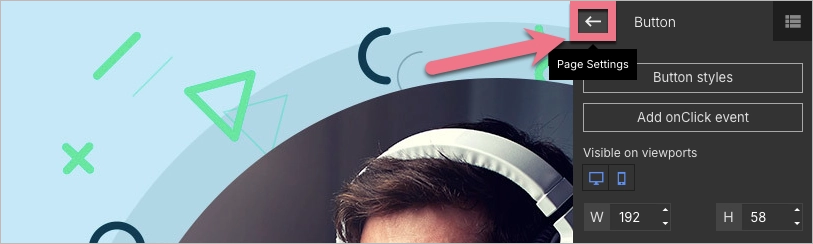
When editing, you can go back to Page Settings by clicking on the arrow:
3. Publish the landing page (or save changes).
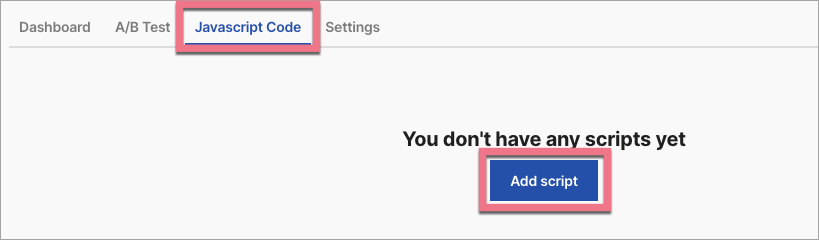
4. Navigate to the JavaScript Code tab.

5. Click Add script.
6. Name (1) the script and choose the Head (2) position on the Main page (3). Paste the rest of the code in the Content (4) field.

7. Save by clicking Add script.
From now on, you can make use of VWO’a features to optimize your landing page.
Browse all integrations in our Integrations Catalog to see tools you can connect Landingi with.

