


In Landingi editor, there are two ways of adding gifs to your landing page – using the Image or HTML widget.
Add GIFs with the image widget
1. Log in to your Landingi account and go to the editor of your landing page.
2. On the left side of the editor, find the Image widget, then drag and drop it into the active area of your landing page.

3. You will be automatically taken to its settings. If not – double-click on the widget. Click Upload (1) or drag and drop (2) a file directly into the editor.

4. Once the gif has been uploaded successfully, you will see it in the gallery. Select it and click on Save & close.
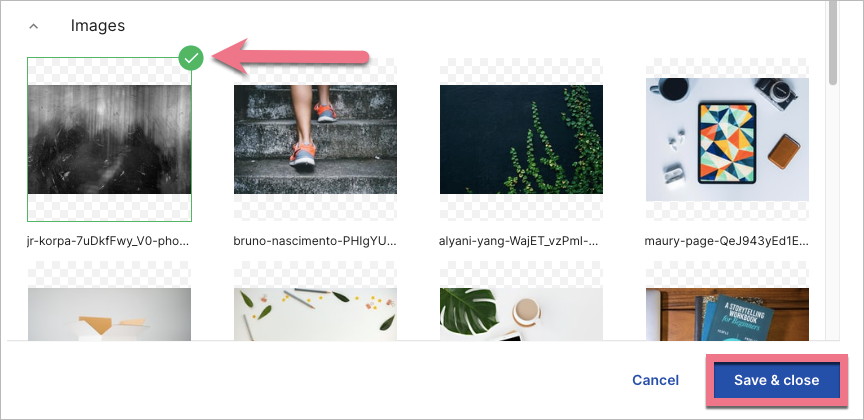
5. You can now publish your landing page.
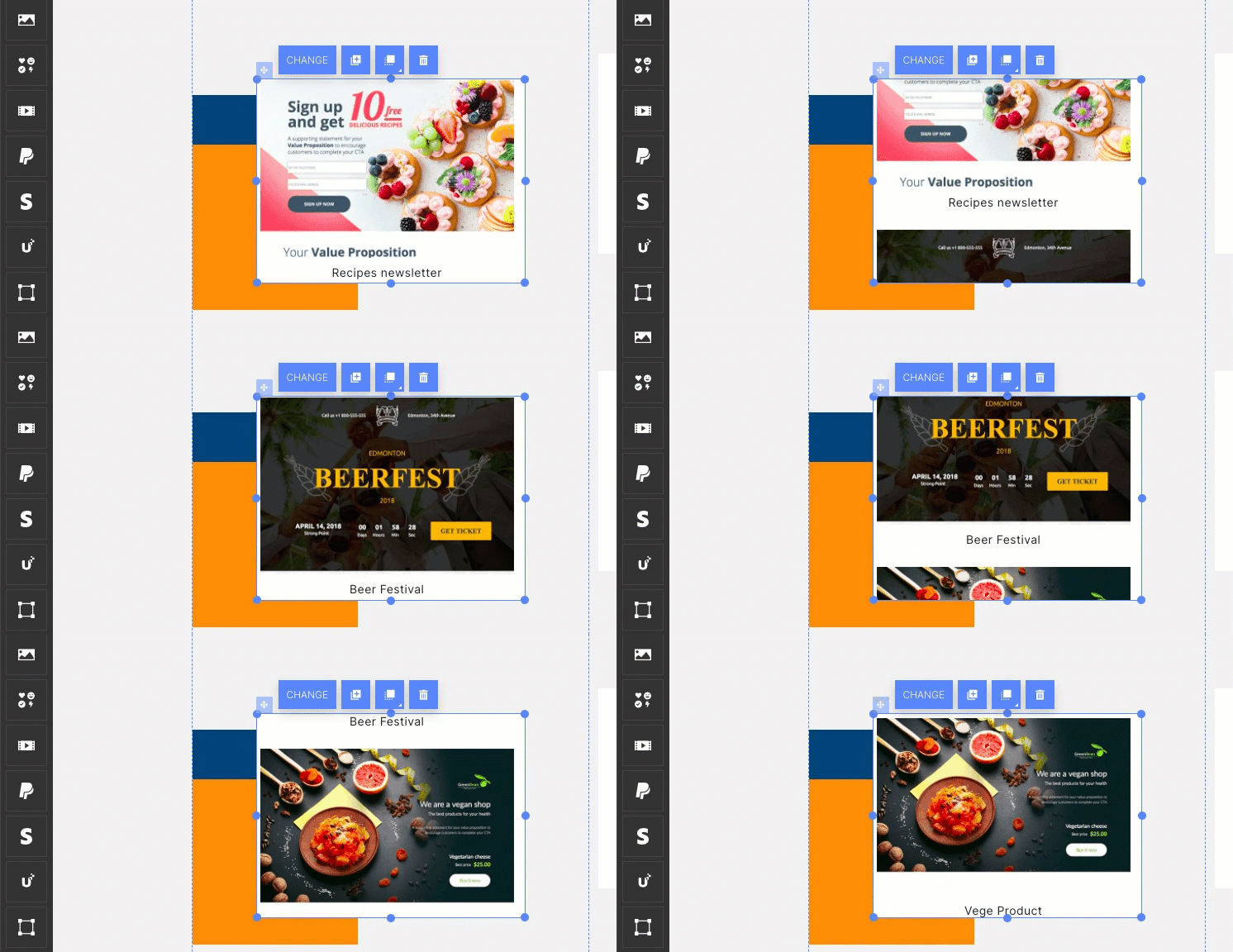
Add GIFs with HTML widget
1. Log in to your Landingi account and go to the editor of your landing page.
2. On the left side of the editor, find the HTML widget, then drag and drop it into the active area of your landing page.

3. Double-click on the widget to start editing.
4. Copy the following code:
<img src="GIF ADDRESS.gif">Replace “GIF ADDRESS.gif” with the URL of your gif. Paste the code and click on Save & close.
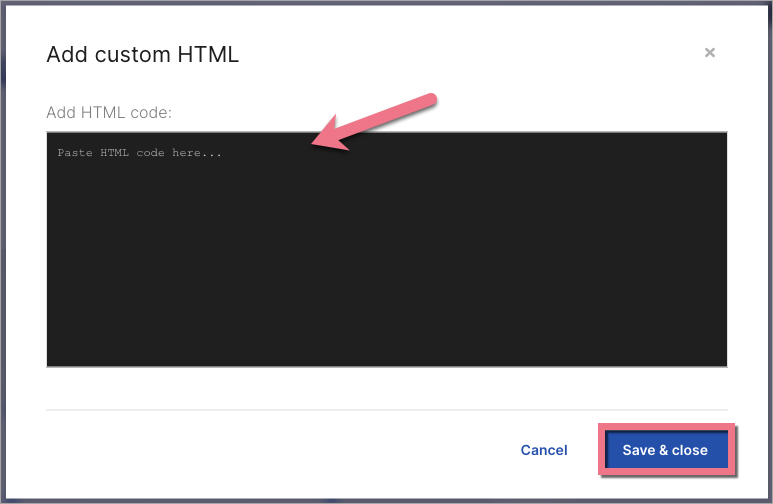
5. You will see the gif once you have published your landing page.
To see inspiring landing pages, read our article about the best landing page examples.

