


With Google Search Console’s meta tags, you can verify domain ownership for your landing pages. It is necessary to ensure Google you are the web page owner and you are allowed to see the landing page’s private data.
You can add meta tags to your landing page in a couple of ways. This instruction shows how to do so with HTML tags and DNS records.
Add Google HTML tag
1. Go to Google Search Console.
2. In the URL prefix field, enter your landing page URL address (with https:// prefix). Click Continue.

3. In a pop-up window, find Other verification methods and click the arrow next to the HTML tag.

4. Copy the meta tag.

Do not close the Google Search Console page.
5. In a new browser tab, open the editor of your landing page and navigate to Page Settings.
When editing, you can go back to Page Settings by clicking on the arrow:

6. Find the Meta tags tab and unfold it.

7. Paste the meta tag. Click the plus icon (+) to confirm.

If needed, you can delete (1) the meta tag or edit (2) it.

8. Publish your landing page and go back to Google Search Console.
9. Click Verify.

Verification confirmation will show.
Verify your domain with DNS
1. Go to Google Search Console.
2. In the Domain field, enter your landing page domain. Click Continue.

3. In a pop-up window, choose instructions (1) depending on your domain provider and follow the directions, or choose Any DNS provider and Copy (2) the TXT record.
Verification with a TXT record always means that you verify ownership of the root domain. You can enter your subdomain in Google Search Console, but add a TXT record for the root domain.

4. In a new browser tab, log in to your domain provider panel. Go to the edition of DNS records. Add a new TXT record to the root domain and paste the record copied from Google Search Console. Save the changes.
5. Go back to Google Search Console and click Verify.
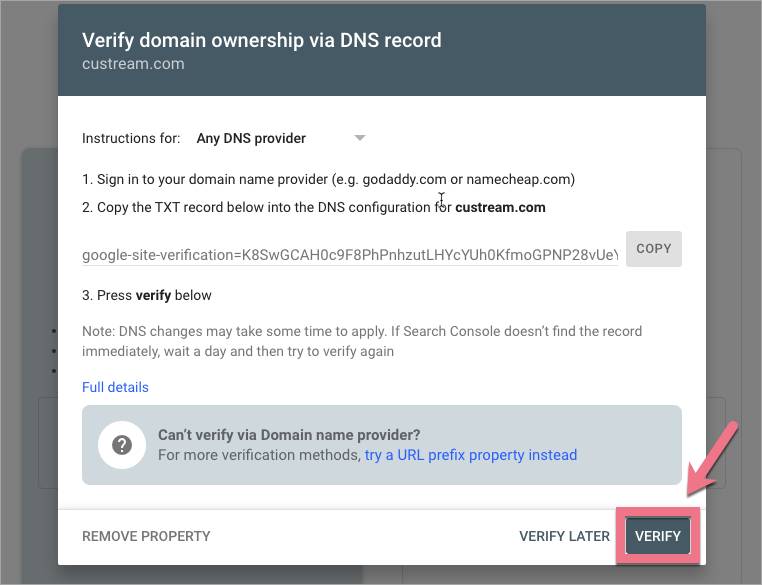
Verification may not happen immediately. In case of delays, try to finish the verification the next day.
- If you need to verify your domain ownership on Facebook, read how to verify your page with Facebook Business Manager.
- Don’t forget to optimize your landing page for search engines.

