
An Instagram ad not delivering means your campaign is active in Meta Ads Manager but generates 0 impressions and $0 spend. This indicates that your ad isn’t entering or winning auctions, despite appearing to be correctly configured. Advertisers typically discover this when the delivery status seems normal, yet performance metrics show no activity.
This issue is more common than many marketers expect. Many of Meta’s ads fail to deliver due to setup errors or restricted assets, rather than solely due to creative quality.
This article explains what Instagram ad not delivering really means, how to diagnose the problem using delivery statuses in Meta Ads Manager, why it happens, and how to fix it step by step. You’ll also learn how to prevent delivery failures in future digital advertising campaigns by improving structure, targeting, bidding, and post-click experience.
What Does “Not Delivering” Mean in Meta Ads Manager?
“Not delivering” in Meta Ads Manager means your ad has completely stopped being shown to users – it’s receiving zero impressions. This is distinct from “low delivery,” where ads are still active but generating minimal impressions.
To fully understand what “Not delivering” means, you need to distinguish it from other delivery statuses that Meta displays in the Delivery column of Ads Manager. Each status represents a different phase or issue in your ad’s lifecycle.
In Review
“In review” means that Meta is currently evaluating the content and settings of your ad. This process typically takes around 24 hours, though it can occasionally take longer. Your ad won’t receive any impressions during this time, but this is a temporary phase that precedes Meta’s approval or rejection of your ad.
Preparing
“Preparing ad delivery” status appears when Meta’s systems are setting up your campaign to go live. This includes verifying targeting parameters, making learning phase adjustments, and confirming budget availability. It’s a transitional state – not a permanent stop.
Rejected
“Rejected” means your ad has violated Meta’s advertising policies. It won’t be delivered until you make the necessary changes, resubmit the ad, and receive approval.
Ad Off
“Paused” or “Off” indicates a manual action – either you or another system setting has deactivated the ad. It won’t run again until you manually turn it back on.
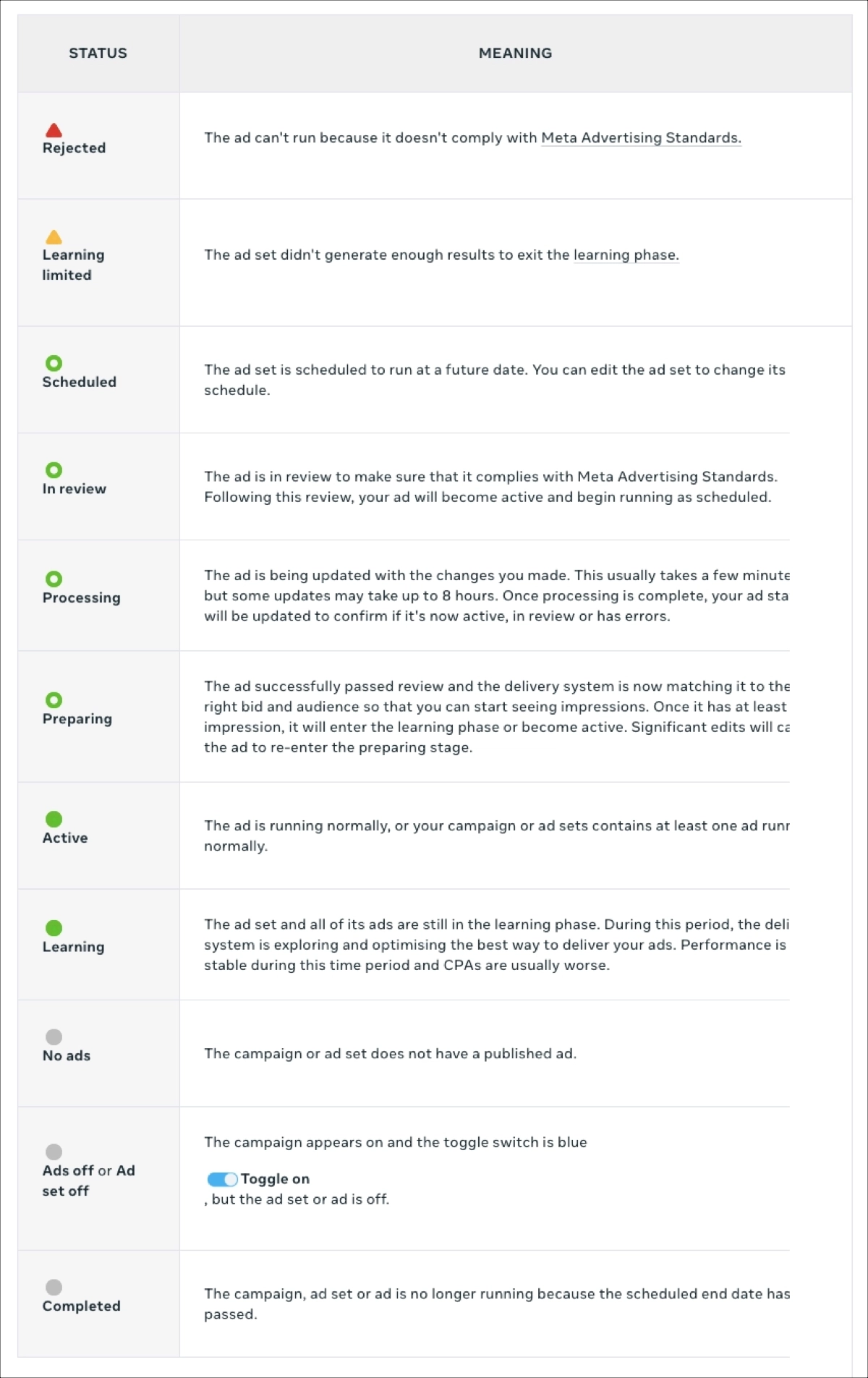
If you see “Not delivering”, it means that the ad will not receive any impressions unless corrective action is taken. This may result from budget exhaustion, targeting conflicts, bidding issues, or disapproved assets not clearly flagged under “Rejected”. Unlike the statuses above, this is not a temporary or user-triggered state – it requires troubleshooting to restore delivery.
Not Delivering vs. Low Delivery
Not delivering means the ad is not entering auctions at all – it generates no winning bids and no impressions. In contrast, low delivery means the ad is active but receives limited impressions due to performance, targeting, or budget inefficiencies.
In the Results table of Meta Ads Manager, the difference is visible across key metrics.
For ads marked “Not delivering”, Impressions, Reach, Spend, CPM (cost per 1,000 impressions), and CPC (cost per click) all remain at zero – confirming that the ad hasn’t entered or won any auction.
In contrast, ads with low delivery show small but non-zero values. For example, an ad may generate a few dozen impressions, minimal reach, low spend (e.g., $0.50), and an unusually high CPM or CPC, which typically signals poor performance, overly narrow targeting, or an insufficient budget.
Low delivery can also negatively impact key efficiency metrics, such as ROAS (Return on Ad Spend), especially when spending is spread thinly across underperforming placements. To correctly interpret ROAS and compare it with broader financial outcomes like ROI, refer to this breakdown: ROI vs. ROAS. Understanding what qualifies as a good ROAS for your industry and objective can help you decide whether low delivery is still profitable or needs adjustment.
Fix delivery issues, then maximize ROI with high-converting Landingi landing pages.
Why an Approved Instagram Ad Can Still Show “Not Delivering”?
An Instagram ad can show “Not delivering” even after approval if it encounters technical, strategic, or account-level issues that prevent it from entering Meta’s ad auction. Approval simply confirms your ad complies with Meta’s advertising policies – it doesn’t guarantee delivery. Meta tracks approval and delivery statuses separately, displaying them in different columns in Ads Manager.
Delivery is most commonly blocked by issues like exhausted budgets, overly narrow or overlapping targeting, restrictive bid settings, or account spending limits. Another frequent culprit is asset disapproval at the ad set level, such as a blocked custom audience or expired pixel. These issues don’t always trigger a “Rejected” status, making “Not delivering” a silent failure that requires you to manually investigate and resolve.
How Does Meta Decide Whether Your Ad Gets Served?
Meta uses a real-time auction system to determine which ads are shown to users. Every time there’s an opportunity to display an ad, Meta ranks all eligible ads competing for that impression based on their total value. This total value is calculated using three components: bid, estimated action rates, and ad quality:
- Bid is the amount you’re willing to pay for a desired outcome, such as a click or conversion.
- Estimated action rates reflect the likelihood that a user will complete the desired action after seeing your ad, based on historical data and user behavior.
- Ad quality measures factors like relevance, user feedback, and content clarity.
When your ad has a low bid, poor estimated action rates, or weak quality scores, it receives a lower total value and gets outcompeted in the auction. This can result in zero delivery, even if your ad is approved and technically active. That’s why improving creative relevance and aligning your bids with campaign goals is essential for entering – and winning – Meta’s ad auctions.
Ads work best with the right destination. Create Instagram-ready landing pages with Landingi today.
6 Common Reasons Instagram Ads Are Not Delivering
Instagram ads marked as “Not delivering” in Meta Ads Manager typically fail to enter auctions due to technical misconfigurations, budget limitations, or strategic errors. Even when your ad is approved, Meta stops serving it if system checks detect any barriers to delivery.
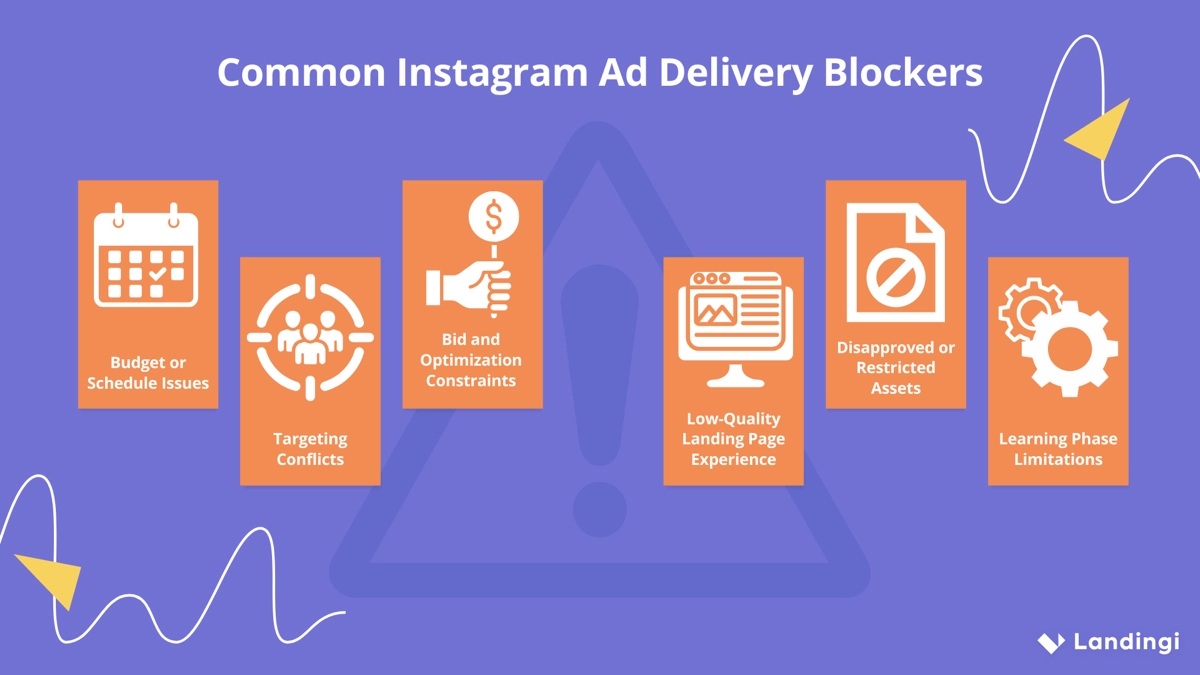
1. Budget or Schedule Issues
When your budget is too low or already exhausted, Meta automatically stops serving your ads. This applies to both daily and lifetime budgets. Once you hit the spend limit, the system blocks further impressions to prevent overspending, resulting in a “Not delivering” status – even if everything else is configured correctly.
Ad scheduling can also block delivery if your selected time window hasn’t started yet or has already ended. This commonly occurs in campaigns with custom schedules set to run only during specific hours or days. These restrictions prevent your ad from participating in auctions, making delivery impossible outside your designated time slots.
2. Targeting Conflicts
Targeting conflicts occur when multiple ad sets compete for the same audience, reducing delivery across all affected sets. Meta’s system detects these overlaps and limits impressions to prevent internal competition. This often results in one or more ad sets showing “Not delivering,” even when budgets and bids are sufficient.
Overly narrow or misaligned targeting can also restrict reach. For example, selecting an audience that doesn’t match your offer – such as targeting interests unrelated to your product – leads to low engagement and poor estimated action rates. This lowers your total value in auctions and can prevent your ad from being shown entirely.
Conflicts can also arise when you combine lookalike audiences with detailed interest targeting in ways that unintentionally narrow your reach. When your target audience becomes too limited or includes overlapping segments across campaigns, Meta deprioritizes delivery to maintain efficiency across its platform.
3. Bid and Optimization Constraints
Using an unsuitable bid strategy can prevent your ad from entering auctions. When your bid is too low compared to competitors, Meta deprioritizes your ad because it contributes less total value. This results in zero impressions, even when your ad is approved, and the budget is available.
Mismatched optimization goals can also block delivery. For example, optimizing for conversions without sufficient historical event data provides Meta with limited information to predict user actions. This lowers your estimated action rate, weakens your auction competitiveness, and prevents your ad from being served.
4. Low-Quality Landing Page Experience
Meta evaluates your destination URL as part of overall ad quality. When your landing page loads slowly, fails to display properly on mobile devices, or contains technical glitches, it negatively impacts delivery. Even with strong ad creative, a poor landing page experience reduces Meta’s confidence in showing your ad to users.
Pages with misleading claims – such as exaggerated product benefits or unclear pricing – violate Meta’s advertising policies. This lowers your ad quality scores and can trigger a “Not delivering” status without a formal rejection. The system prioritizes user trust and penalizes ads linked to deceptive or low-quality content.
A weak landing page experience also undermines your broader ad strategy by reducing link clicks and conversion rates. When users bounce quickly or fail to engage, Meta registers your ad as ineffective. This feedback loop lowers your estimated action rates and makes it progressively harder for your ad to win auctions.
5. Disapproved or Restricted Assets
Even when your ad itself is approved, connected elements such as custom audiences, product catalogs, or event tracking tools can be restricted or expire. When these assets fail, your ad cannot run as intended, resulting in a “Not delivering” status without a clear rejection notice. These issues often go unnoticed because they’re flagged at the ad set level rather than during initial ad creation.
Meta’s standard ad review process focuses on the content and format of your ad, so it may not catch these asset-level issues. The delivery system checks all linked components separately. When any of these are disapproved or inactive, your ad becomes ineligible for delivery – regardless of its approval status.
6. Learning Phase Limitations
When you launch a new ad set, it enters the learning phase – a period during which Meta’s system gathers data to optimize delivery. If your ad set doesn’t generate enough conversion events (typically around 50 per week), it may remain in learning indefinitely. This limits Meta’s ability to predict performance and reduces your ad’s chances of winning auctions.
Remaining in the learning phase lowers your auction priority. Meta favors stable ad sets with predictable results, so ads stuck in learning receive fewer impressions or trigger a “Not delivering” status. To exit learning and restore delivery, your campaigns need clearer conversion signals, increased budget, or broader targeting to generate more conversion events.
6-Step Troubleshooting Checklist
To resolve common delivery issues, check your budget, targeting, bidding strategy, landing page, connected assets, and learning phase status. These six areas directly determine whether Meta can serve your ad.
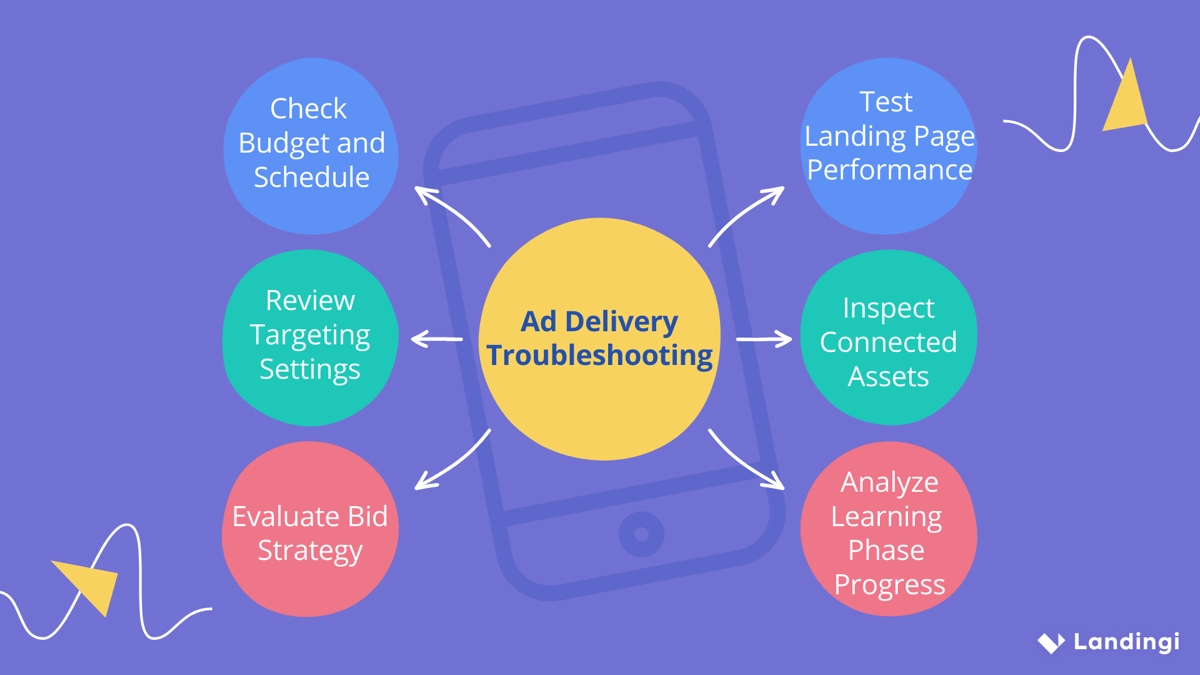
Use this checklist to identify what’s blocking delivery and take the necessary action to restore performance:
1. Check Budget and Schedule
To restore delivery, first verify that your campaign has enough available funds and is scheduled to run during the intended timeframe. Budget and schedule misconfigurations are common mistakes that often result in a “Not delivering” status, even when the ad is approved.
Start by checking your daily budget in Meta Ads Manager. If your daily or lifetime budget has already been spent, the system automatically stops delivery. You can increase the budget or adjust the spend limits to allow the ad to resume. Ensure that the campaign, ad set, and ad levels display the correct budget settings and are not limited by account-level spend caps. Also, check your payment method to ensure it’s valid and has not been declined.
Next, confirm that ad scheduling is active. If you’ve set a custom schedule (e.g., weekdays only, specific hours), your ad will only be eligible for delivery during those exact times. If the current time falls outside this range, delivery will be paused. To resolve this, either adjust the schedule to accommodate the current time or wait for the next scheduled window.
2. Review Targeting Settings
To resolve targeting conflicts, start by checking for audience overlap between ad sets that are running simultaneously. Use Meta’s audience overlap tool to identify and reduce internal competition. If multiple campaigns target identical demographics or interests, consolidate them or adjust targeting parameters to avoid duplication across Facebook and Instagram placements.
If your audience is too narrow, consider expanding it by targeting a broader audience. Instead of stacking multiple detailed interests or behaviors, try using one or two high-level targeting options, or rely on lookalike audiences built from existing customer data. This increases the number of eligible impressions and helps your ad enter more auctions. By widening the targeting scope, you give Meta more flexibility to find conversions and improve delivery.
3. Evaluate Bid Strategy
Review the current bid strategy selected in your ad set: for example, “Lowest Cost,” “Cost Cap,” or “Bid Cap.” If you’re using manual bidding (e.g., Bid Cap), make sure the amount is realistic based on your historical performance. An unrealistically low bid compared to competitors leads to zero impressions.
Also, check the performance history of your ad account. If previous campaigns consistently under-delivered, Meta may assign a lower quality or action rate estimate, further reducing auction eligibility. To improve future delivery, consider switching to “Lowest Cost” while testing new creatives or objectives, allowing Meta’s algorithm to optimize within budget without restrictive bid limits.
4. Test Landing Page Performance
To ensure your ad delivers successfully, your landing page must load quickly, function properly across all devices, and align with the ad’s message. A poor landing experience can reduce ad quality and even halt delivery, directly impacting campaign results and lowering auction competitiveness.
Utilize tools like Landingi to create optimized, personalized landing pages that align with the ad’s objective. Ensure the content adheres to Meta’s advertising policies – avoid misleading headlines, sudden pop-ups, or nonfunctional elements. The landing page should clearly reflect the promise made in the ad and provide a smooth user experience.
To improve performance, run A/B testing to identify which page version best holds your audience’s attention and supports conversions. Monitor behavior using EventTracker to confirm that clicks from your ad campaign lead to meaningful actions. A strong landing page increases user engagement, improves estimated action rates, and raises your ad’s total value in Meta’s auction system – all of which help maintain consistent delivery.
Don’t let approved ads underperform – optimize the post-click experience with Landingi.
5. Inspect Connected Assets
To restore delivery, inspect all assets connected to your ad set, including custom audiences, product catalogs, tracking events, and pixels. Even if the ad is approved, a blocked or expired asset can prevent it from running. These issues often appear at the ad set level and don’t always trigger a rejection notice.
Double-check that each asset is active, correctly configured, and approved. For example, confirm that your pixel is firing properly, your product catalog is synced, and your custom audiences are populated. If any of these are missing or disapproved, Meta’s system may mark the ad as “Not delivering” without showing a clear error.
Many of these problems are not flagged during the initial ad review process, so manual checks are essential. Go to the Events Manager and Audience Manager in Meta Ads Manager to verify asset status. Fixing inactive or restricted assets allows the system to properly track engagement and resume delivery.
6. Analyze Learning Phase Progress
To achieve stable delivery, your ad set must exit the learning phase, which requires around 50 optimization events within 7 days. During this phase, Meta is testing ad performance to refine how and where it’s shown. If not enough data is collected, the ad remains in learning, resulting in limited impressions or a “Not delivering” status.
Give the system time to reflect the changes. If your ad remains in learning for too long, consider simplifying the setup by broadening targeting, increasing budget, or selecting a higher-frequency event (such as “Add to Cart” instead of “Purchase”). These adjustments enable Meta to collect data more efficiently and increase the likelihood of consistent delivery.
How to Prevent “Not delivering” from Recurring?
To prevent the “Not delivering” status from recurring, structure your campaigns for clarity and scalability from the start. Use broad targeting where possible, avoid overlapping audiences, and choose automatic bidding strategies unless you have reliable performance benchmarks. Align your optimization goals with the available data – for example, only optimize for purchases if your ad set generates a sufficient number of conversions.
Maintain a healthy ad account by regularly reviewing asset statuses, budget pacing, and landing page quality. Allow the learning phase to complete before making major edits. These practices ensure your campaigns remain eligible for auctions and maintain consistent delivery over time.
Landing Pages and Post-Click Experience for Instagram Traffic
A consistent post-click experience is essential for converting Instagram ad traffic. A strong message match between your ad and landing page builds trust and reduces bounce rates. When users click on a promise but land on a page that doesn’t deliver it, conversions drop, and Meta’s system deprioritizes your ad. Matching visuals, headlines, and offers ensures a smooth transition that supports both performance and user expectations.
High mobile speed, functional forms, and accurate tracking are crucial for maintaining ad quality and providing Meta with the optimization signals it needs to improve delivery. A well-optimized landing page increases conversions and helps your campaigns exit the learning phase faster. Tools like Landingi let you build, test, and optimize pages without coding – supporting everything from A/B tests to real-time landing page monitoring.
Try Landingi now to improve your Instagram campaign results with reliable testing, fast load times, and conversion-focused design.