
Product

Build pages with total design freedom

Launch faster with flexible templates

Elevate copy, SEO, and visuals

Compare variants and lift results

Track clicks and uncover intent

Scale pages from one smart layout

Connect pages to your campaign flow

Use a reliable and secure platform

Solutions

Capture more leads with less friction

Expand pages into new markets

Turn more visits into conversions

Get more return from paid traffic

Strengthen your presence across channels

Launch pages tailored to your brand

Scale page operations with control

Match content to visitor intent

Resources

Practical advice for marketers

Guides, setup, and how-tos

Free tools and learning for marketers

See how teams improve results

Explore the platform with our team

Get expert help with page design

HomeHelp CenterSecurity & GDPRCookie Management with CookieHub (GTM)

Cookie Management with CookieHub (GTM)

CookieHub is a cookie content management platform (CMP). It offers tools and services for managing cookies and online privacy. This guide will walk you through installing CookieHub on your landing page via Google Tag Manager.

There are few more tools you can integrate Landingi with that can help you manage your cookies and privacy policy:

IMPORTANT: Before you start, make sure your landing page is connected to Google Tag Manager.

Customize your CookieHub settings

1. Log in to your CookieHub account and go to your domain details. If you haven’t added a domain yet, click on Add domain.

Add domain to CookieHub

2. Adjust options in Settings and Content.

Settings and Content tabs in CookieHub

3. When you’re ready, click Save changes or Save & publish.

Saving changes for CookieHub integration

Implement CookieHub to the landing page via GTM

1. Go to your Google Tag Manager. In the relevant container, navigate to the Tags section and click New.

Adding new tag in GTM

2. Click the Tag Configuration (1) section and choose Discover more tag types in the Community Template Gallery (2).

Choosing tag type in GTM

3. Look for the CookieHub CMP (1) tag template. Select it and Add to workspace (2). Accept the permissions requested by the CookieHub CMP template.

CookieHub in Google Tag Manager

4. Go back to CookieHub to copy your domain code.

How to find domain code in CookieHub

5. Paste the domain code in GTM.

Adding CookieHub domain code to GTM

6. Below, click the Triggering (1) area to select the trigger. Select Consent Initialization – All Pages (2) from the list.
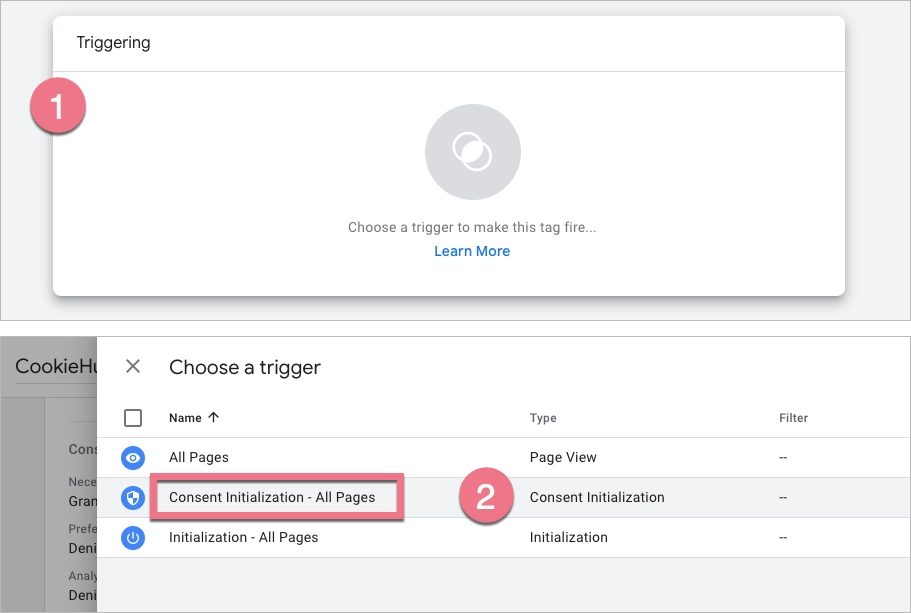
CookieHub and Landingi integration

7. Click the Save button in the top right corner.

8. When you’re ready, click Submit to publish the changes.

Submitting changes in GTM to integrate a landing page and CookieHub

9. Remember to publish all changes in CookieHub.

Publishing changes in CookieHub

The CookieHub tag is now configured in your Google Tag Manager container and linked to your landing page domain.

NOTE: Keep in mind that CookieHub and Google Tag Manager are third-party solutions and are continually being developed. We do our best to keep this guide updated, but if you come across any changes in the set-up process, let us know.

Browse all integrations in our Integrations Catalog to see tools you can connect Landingi with.

TABLE OF CONTENT
G2 reviews for Landingi