


If you own an Agency account, you can create image galleries that will be available for use on your landing pages and by your subaccounts.
Create galleries for subaccounts
1. Log in to your Landingi agency account and go to the editor.
2. Find the Image widget, then drag and drop it into the active area or double-click on any image widget.
3. Add images. Click Upload (1) or drag files directly from your computer and drop them into the gallery (2).

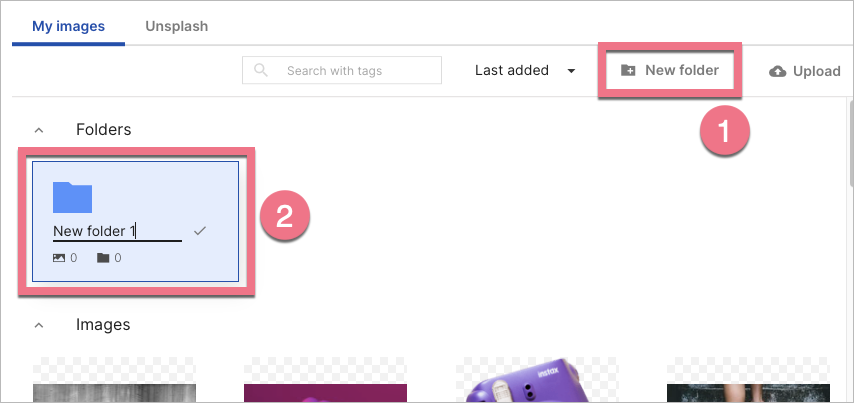
4. Images can be organized in folders. Click New folder (1) to create a new one, then name it and save (2).
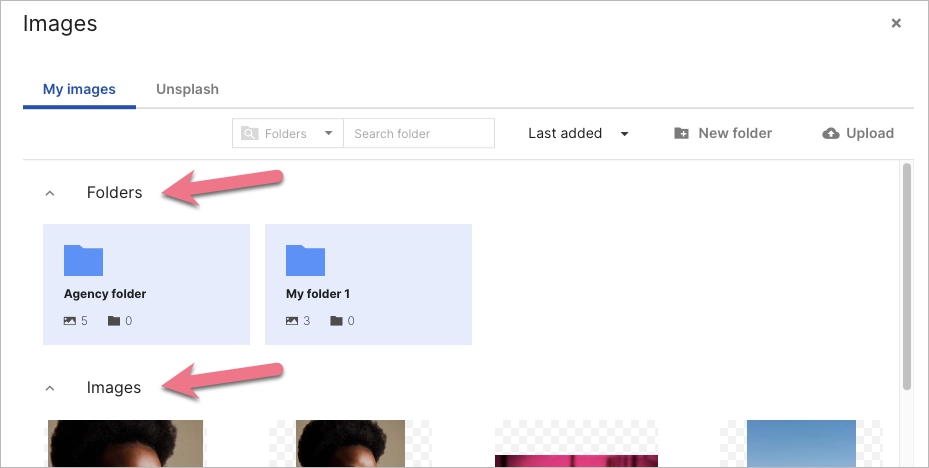
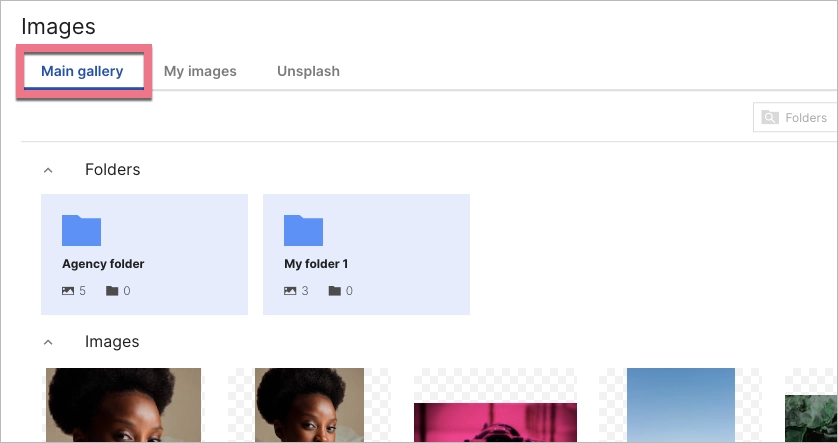
5. Both Images and Folders from your My images gallery will be automatically available for subaccounts in their Main gallery tab.
Owner of an Agency account:
Subaccounts:
6. You can use tags to categorize your images and search them. To add them, select an image (1), click Tags (2), and enter keywords that describe the file (3). Do not forget to Save.

Learn more:

