


Solis is Landingi’s AI-powered agent that provides insights, discoveries, and alerts related to the effectiveness of your landing pages. It analyzes user behavior and micro-conversions to help identify factors that may impact engagement, conversions, and overall page performance.
Solis analyzes data gathered through event tracking on landing pages and turns it into actionable recommendations presented directly in the Landingi platform.
How does Solis work?
Solis analyzes landing page interaction data collected by EventTracker, including micro-conversions and user actions such as clicks, scrolling, and form activity.
Based on this data, Solis automatically generates:
- suggestions – recommendations aimed at improving page performance and reducing friction,
- discoveries – insights that highlight patterns in user behavior or traffic quality,
- alerts – notifications about potential issues that may affect tracking accuracy or conversions.
Each insight is generated for a specific landing page and updated continuously as new data is collected.
NOTE: The insights are generated by AI and may contain inaccuracies. Solis is currently available in Alpha, and its recommendations may evolve over time.
How to enable Solis?
Solis must be enabled manually and requires user consent to process landing page data with AI. To generate insights for a landing page, Solis requires an active EventTracker add-on.
EventTracker is an add-on available by default on the Enterprise plan.
Users on other plans can purchase EventTracker separately in the Add-ons section.
Solis continues to analyze data and generate recommendations as long as it remains enabled.
You can enable Solis in two ways:
Option 1: From the Solis section
1. Log in to your Landingi account and in the left-side menu, click Solis.
2. Click Activate Solis.
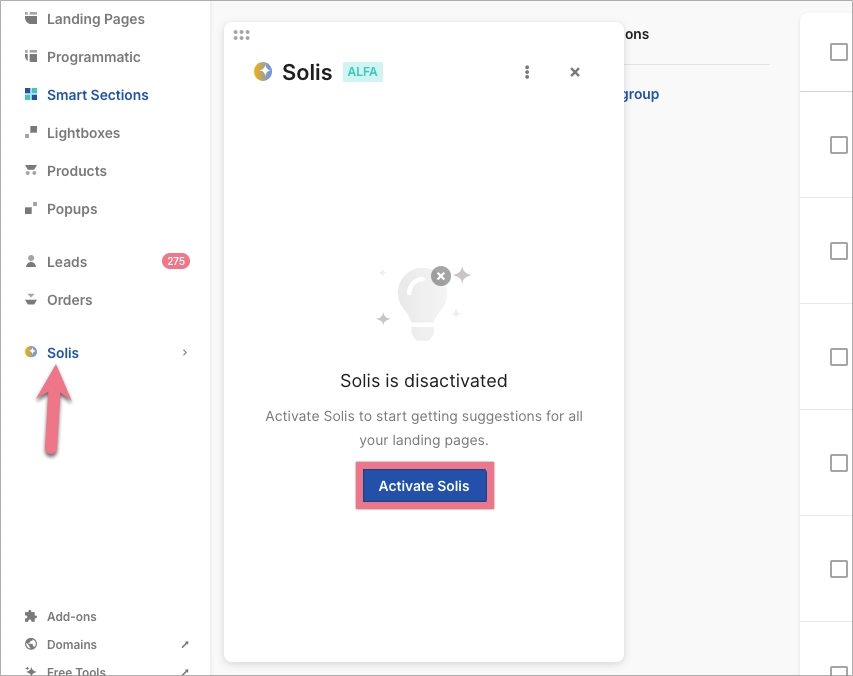
3. Confirm your consent to process landing page data with AI.
Option 2: From Account Settings
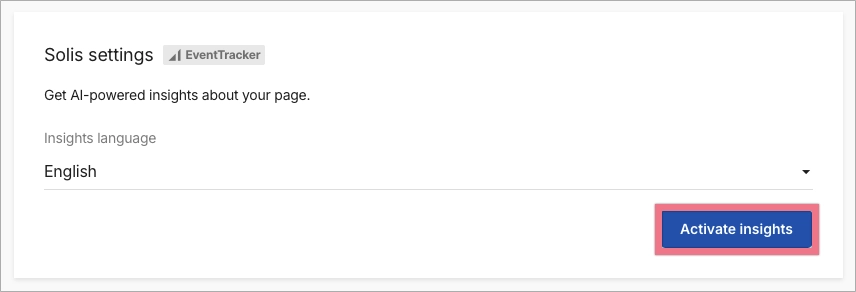
1. In the left-side menu, go to your account Settings.
2. Scroll down to the Solis settings section.
3. Click Activate insights to enable Solis and confirm your consent.
Selecting the language for Solis insights
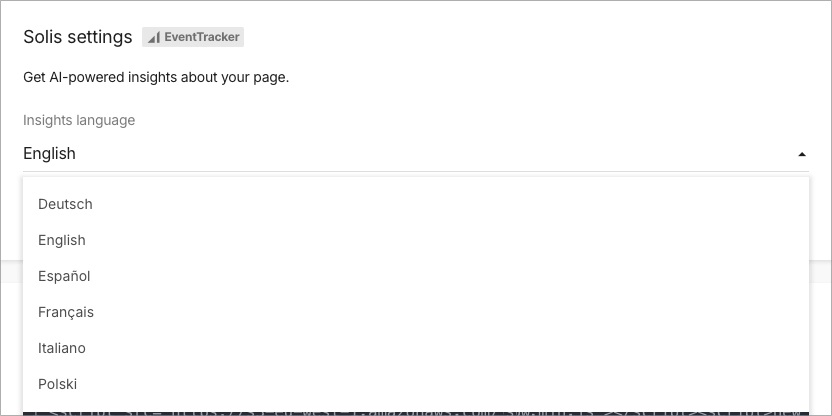
After enabling Solis, you can choose the language in which Solis insights will be displayed.
1. In the left-side menu, go to your account Settings.
2. Go to the Solis settings section.
3. From the drop-down menu, select your preferred language for Solis insights.
4. Save your changes.
Where to find Solis insights?
Once Solis is enabled:
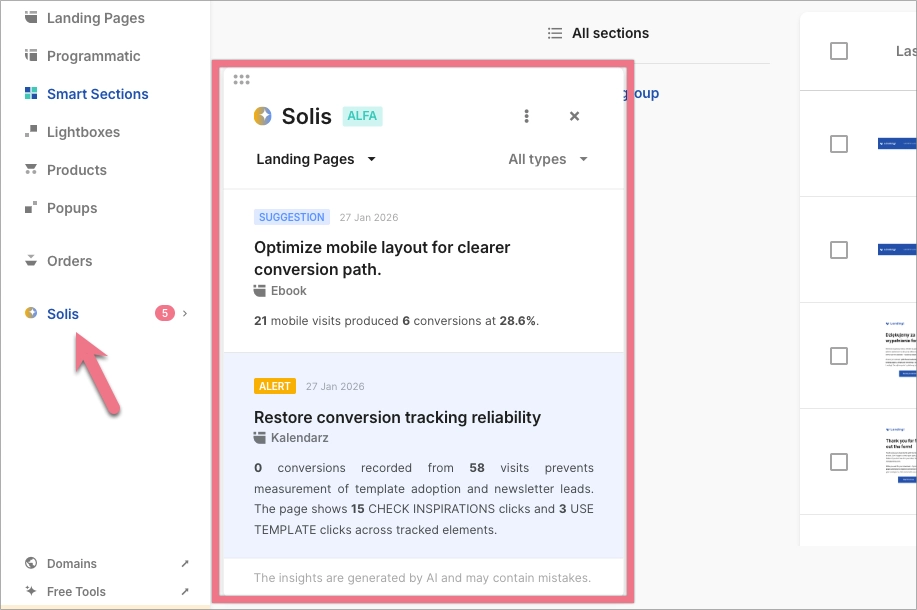
- Insights are available in the Solis section, accessible from the platform’s left-side menu.
- A dedicated panel opens with a list of suggestions, discoveries, and alerts.
- New insights appear automatically as data is analyzed.
- The number displayed next to Solis in the menu indicates newly generated insights.
Filtering and organizing Solis insights
In the Solis panel, you can customize which insights are displayed:
- Choose whether insights are shown for all landing pages or for a selected landing page or group.
- Filter insights by type (suggestions, discoveries, alerts).
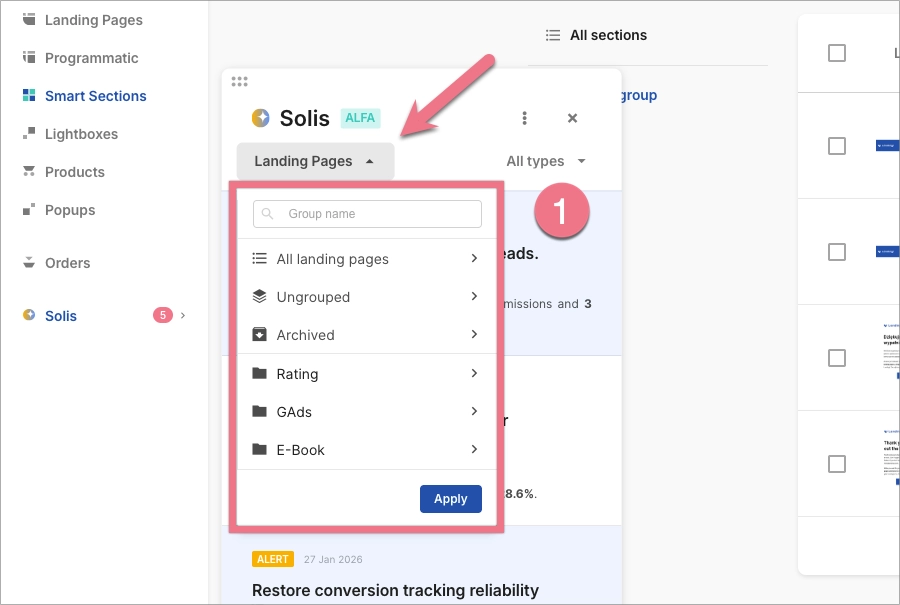
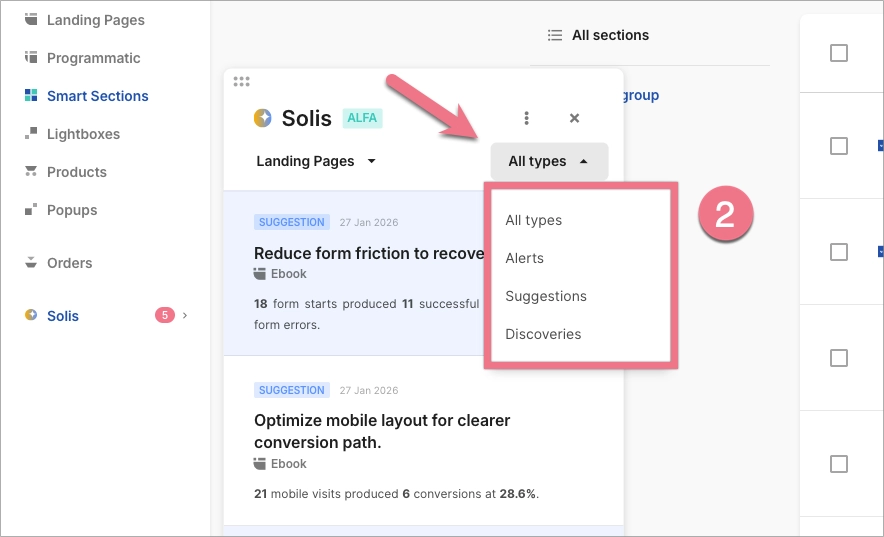
These filters help you focus on the most relevant insights and prioritize optimization actions.
