


Referral links are links to your landing page that contain a unique user ID. This instruction will show you how to add a referral link to a conversion page to track a landing page referral process by those who filled out a form.
Add JavaScript codes
1. Log in to your Landing account and go to the Dashboard of your landing page. Navigate to the JavaScript Code tab and click Add new script.
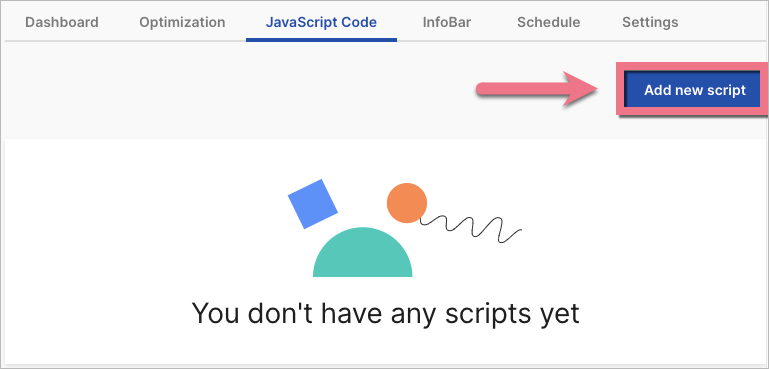
2. Copy the following code:
<script>
function generateId() {Â
return Math.floor(Math.random() * 10000000000);
}
document.querySelector('.widget-input-button').onclick = function () {Â
document.querySelector('[name=user_id]').value = generateId();
};
</script>Name (1) the script and choose the Body bottom (2) position on the Main page (3). Paste the code in the content field (4). Click on Add Script.
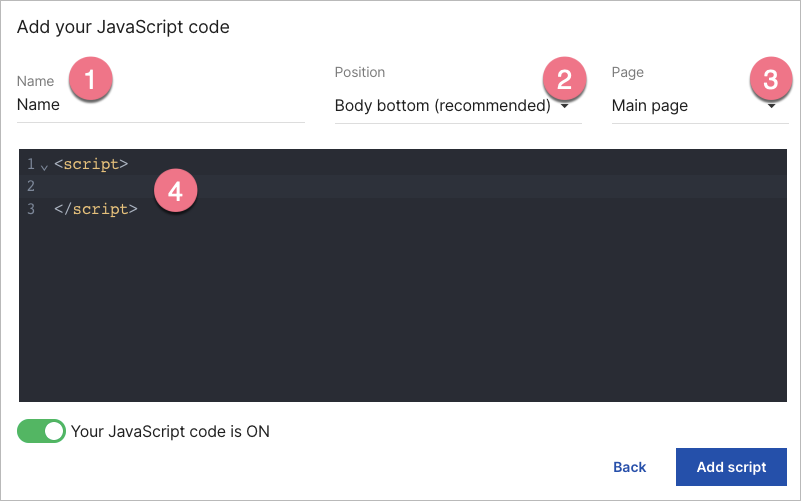
3. Add a second script. Paste the code indicated below:
<script>
document.querySelector('.reflink-area').innerHTML = 'your_address_here.com?user_id=' + conversion.user_id;
</script>
Replace your_address_here.com with the URL of a landing page, where you add the code, such as mylanding.com.
Name (1) the script and choose the Body bottom (2) position on the Thank you page (3). Paste the code in the content field (4). Click on Add script.

Edit form and Thank You Page
1. Go to the editor of your landing page. Click on the Form widget and go to its Settings.

2. In the Form fields tab, click on + Add element (1) and select Hidden field (2).

3. Click on Show name attribute (1) and change the field value of the name attribute to user_id (2). Then Save and close.

4. Navigate to the conversion page (Thank You Page).

5. Add a Text widget. The referral link will appear here.
6. In a right-side toolbar, find the Other tab and enter reflink-area in the Classes field.

7. Publish the landing page.
After the form is correctly filled and submitted, a 10-digit user code will be generated and stored in the hidden user_id field and the lead. The same code will also be added to the link that will appear on the conversion page. The user should use this link to recommend your landing page further.
