


Unsplash is a platform with free, high-definition images. It’s completely free to download, use, copy, or modify the images. You can use the images for all of your projects, both commercial and non-commercial ones. Read the Unsplash Terms of Service.
You can browse Unsplash images and add them to your landing pages, popups, or lightboxes in our landing page builder.
Add Unsplash images
1. On the left side of the editor, find the Image widget, then drag and drop it into the active area of your landing page.

If you are building your landing page using one of our templates, you can swap the default images for any images in your gallery. Simply double-click on the image or click on Change (image).
2. You will find the Unsplash tab (1) on the left. You can create a new folder (2) to sort your images.

3. Filter the images by category (1) – the categories may change as they follow current trends, or use the search engine (2). Select your image and either click on Choose (3) or double-click on it. You will find the image in the main gallery.

4. You will find a link to Unsplash Terms of Service (1) in the upper left corner of the gallery, and you can access the Unsplash License (2) of each image at any time.

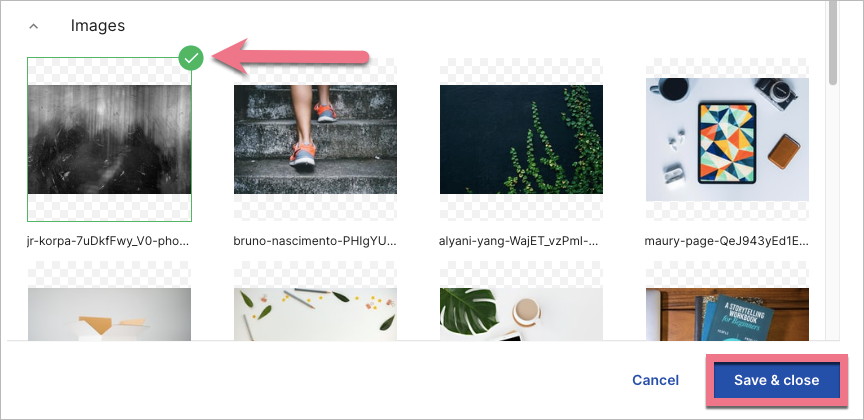
5. Once the Unsplash image has been loaded into the gallery, select an image and click Save & close to add it to your project.
6. You can edit the Unsplash image the same way as any other image. Unsplash provides high-definition images that are perfect for the parallax effect.


