Uploadcare is a tool for editing and uploading images directly from the image gallery. You can edit all of your images in the gallery, including Unsplash free stock images. Just log in and choose your files.
Upload your images
1. Drag and drop a new image widget.

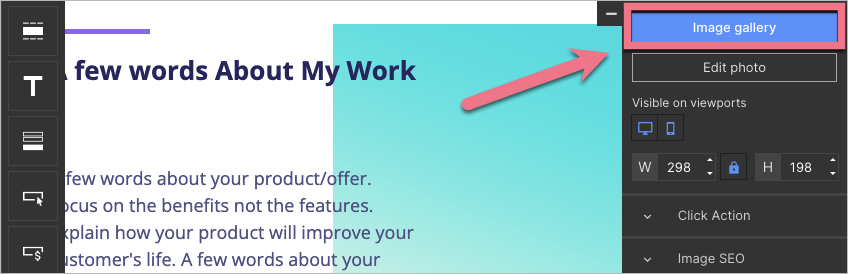
2. Your image gallery will open automatically. You can access the image gallery also by double-clicking on a widget or by clicking Image gallery in the right-side toolbar.
3. Add files to the gallery: click Upload (1) or drag files from your computer and drop them in the editor (2).

Learn more about image widget options.
Edit your images
With Uploadcare, you can edit all the images in your gallery.
1. In your gallery, select an image and click on the three dots icon. You have two options: Edit image and Remove background.

You can also access the editing mode from the editor. Click your image and then click Edit photo.

2. Edit image option: under the image, you will find all the basic options for editing images. When you are done editing, click Apply and Add.

3. Remove background option: this option automatically removes the background from your image.

4. The edited image will be added to the gallery as a new image, and the original version of the file will keep its initial format.

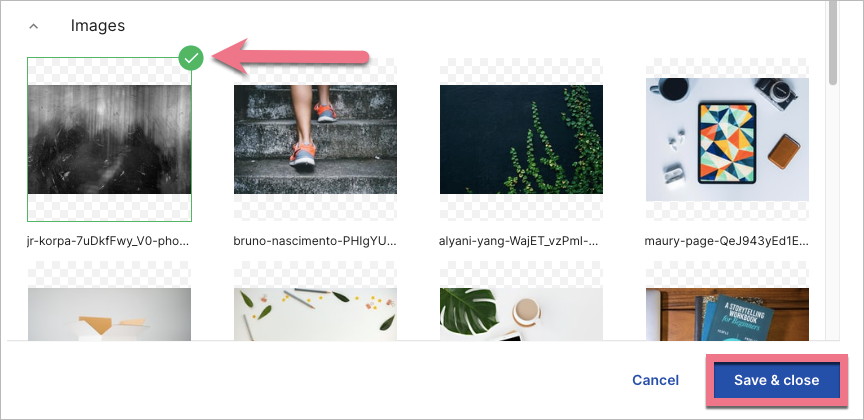
5. Now, you can add the image to your project. Select the file and click Save & close.