In Landingi, you can add your own HTML (incl. iframe tags), CSS, and JavaScript codes to create custom actions and visuals for your landing pages and extend their functionality.
Browse our Help Center:
Please note that we are not able to provide full technical support for custom scripts that are not listed in our Help Center.
Add custom HTML
1. Log in to your Landingi account and go to the editor of your landing page.
2. On the left side of the editor, find the HTML widget, then drag and drop it into the active area of your landing page.
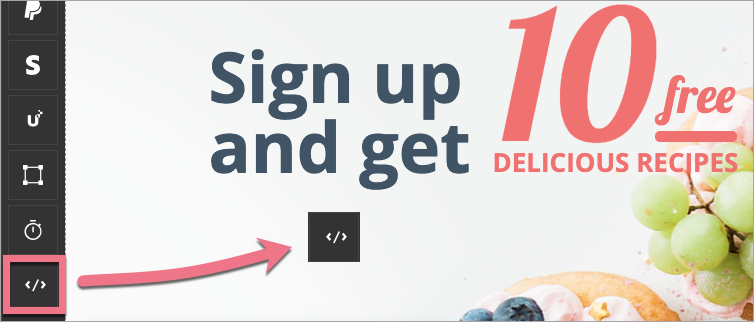
3. Double click on the widget to start editing.
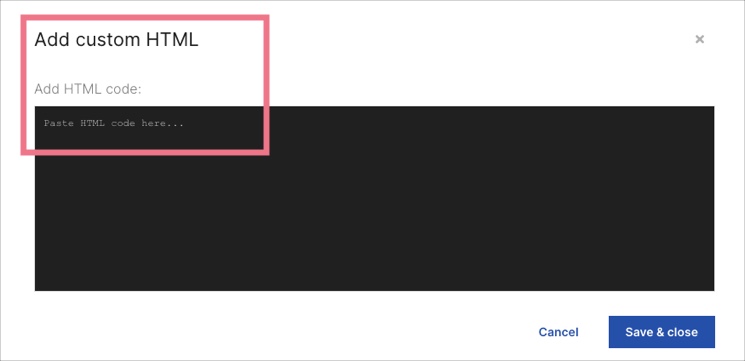
4. Add your custom HTML code. Save & close.
You will see the HTML action once you have published your landing page.
Add custom CSS
1. Log in to your Landingi account and go to the editor of your landing page.
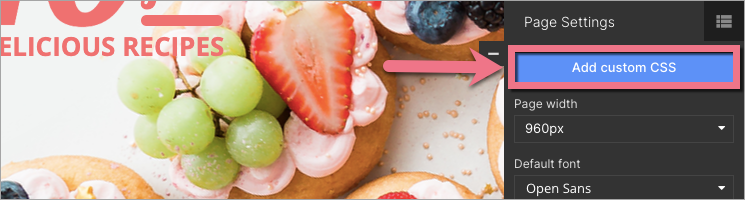
2. Navigate to Page Settings (right side of the editor) and click Add custom CSS.
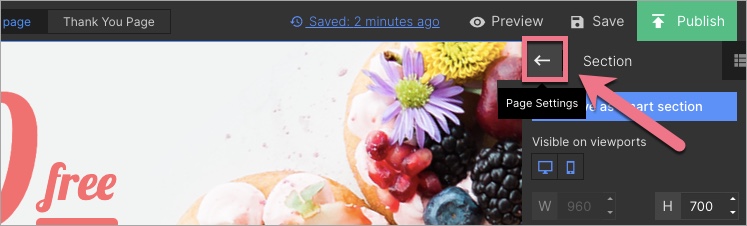
When editing, click on the arrow to return to Page Settings.
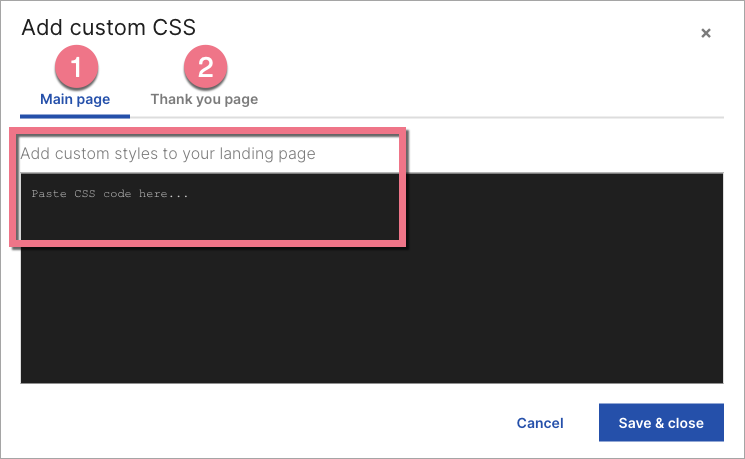
3. Add a custom CSS code to your landing page (1) and/or to the conversion page (2). Then Save & close.
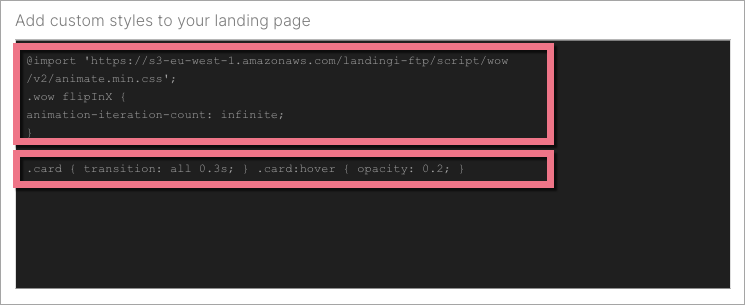
4. You can add multiple CSS codes. Paste them one below the other (the @import rule should be above the others).
You will see the CSS action once you have published your landing page.
Add custom JavaScript
With JavaScript codes, you can implement for example chats, conversion pixels, tracking codes, sliders, or animations.
Go HERE to learn how to add the same JavaScript code for all landing pages.
NOTE:
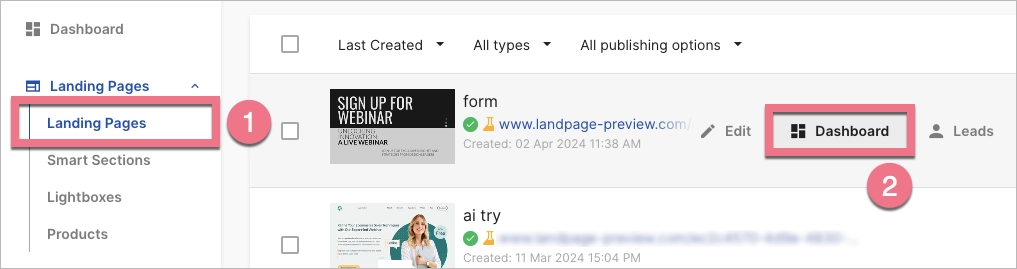
1. Log in to the platform and go to the Landing Pages (1) tab. Navigate to the Dashboard (2) of the landing page to which you want to add a code.
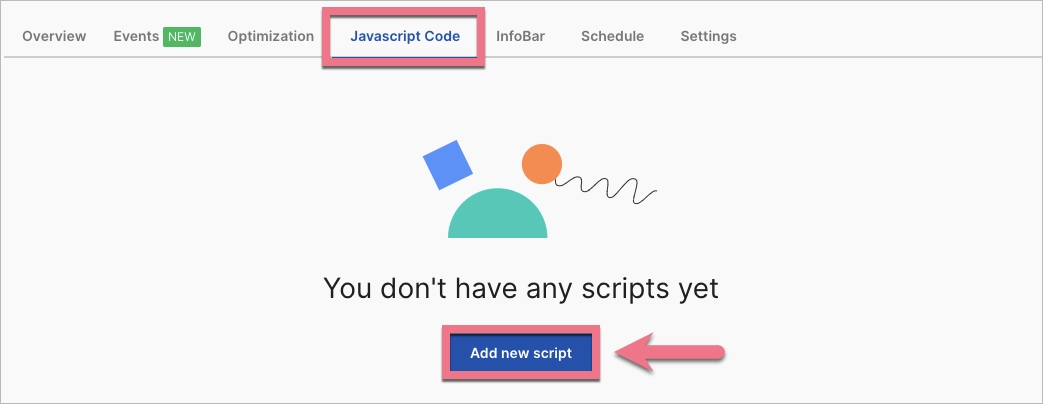
2. Go to the JavaScript Code tab and click Add new script.
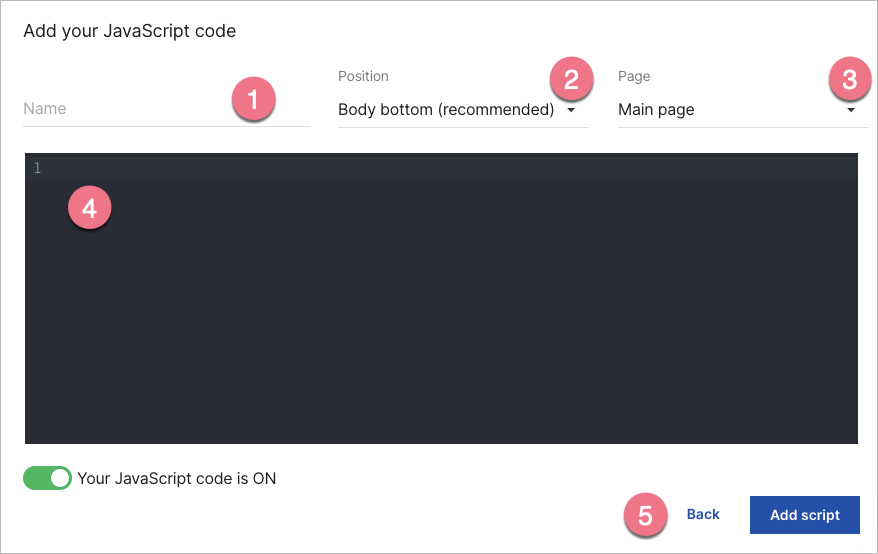
3. Name (1) your script.
Choose the Position (2) for your code:
- head,
- body top,
- body bottom
and the Page (3):
- main page,
- conversion page,
- both.
Paste the code into the Content (4) field.
Click Add script (5) to add the script to your landing page.
4. Check if the code works correctly on your landing page.
Please, remember that we are not able to provide technical support for custom scripts added to your landing page.
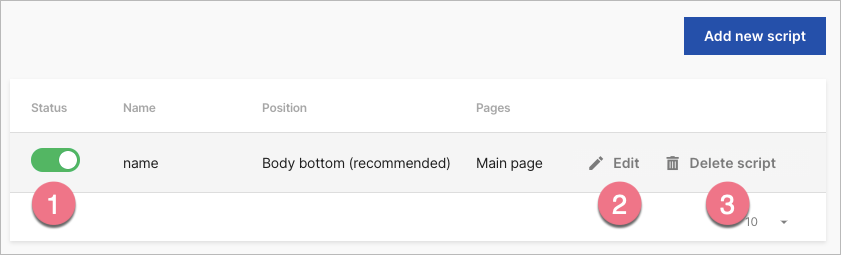
5. Once created, you can edit a script, temporarily disable or permanently delete it. To do this, go to the JavaScript Code tab and choose one of the actions:
- Disable/Enable
- Edit
- Delete