


You can track landing page conversions on the LinkedIn platform to adjust your campaigns more successfully.
Before you configure the LinkedIn conversion tracking, install the LinkedIn Insight Tag on your landing page.
Set up conversion tracking on LinkedIn
1. Go to your LinkedIn Campaign Manager account.
2. Go to Analyze (1) > Conversion tracking (2) > Conversions (3) tab.

3. Click Create Conversion and choose Online Conversion.

4. Enter your settings.
5. In the last step, in the Manually set up conversions tab, select Page load as your conversion tracking method.
TIP: You can also set up tracking using Google Tag Manager – to do so, go to the Use a tag manager tab and follow the given instructions. To get an idea of setting tags and triggers in GTM, read our guides on tracking button clicks, tracking custom events, and tracking A/B tests.

6. In the Page load conversion section, enter the URLs of landing pages you want to track with your conversion. Then click Create.
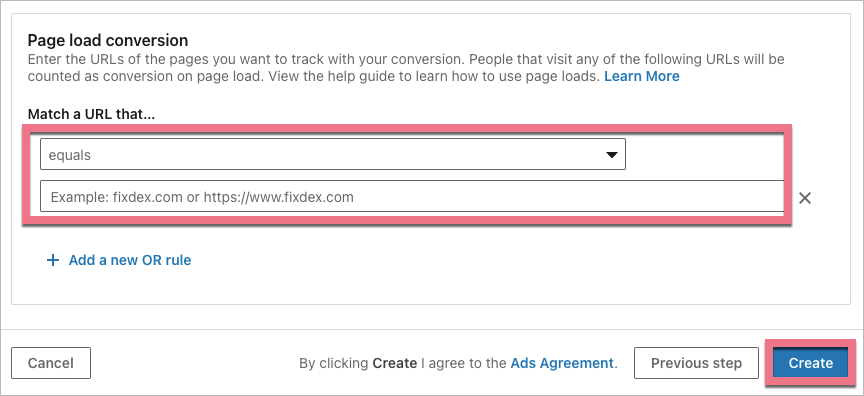
7. If you want to track conversion on a thank you page and you use a default TYP with a dynamic URL (that includes a dynamic hash value), select the starts with option and enter your address in a https://example.com/send?hash= form. Change example.com to your URL address.

Add the LinkedIn Insight Tag to both pages if you want to track conversions also on a thank you page.

8. Similar settings can be configured in the Analyze > Website demographics tab.

Remember that it might take a couple of hours for data to appear in your statistics.

Browse all integrations in our Integrations Catalog to see tools you can connect Landingi with.

