


In the Landingi platform, you can choose from four types of background for each section – full color, gradient, image, and video (from YouTube or Vimeo).
Setting a section background
1. Go to the editor of your landing page.
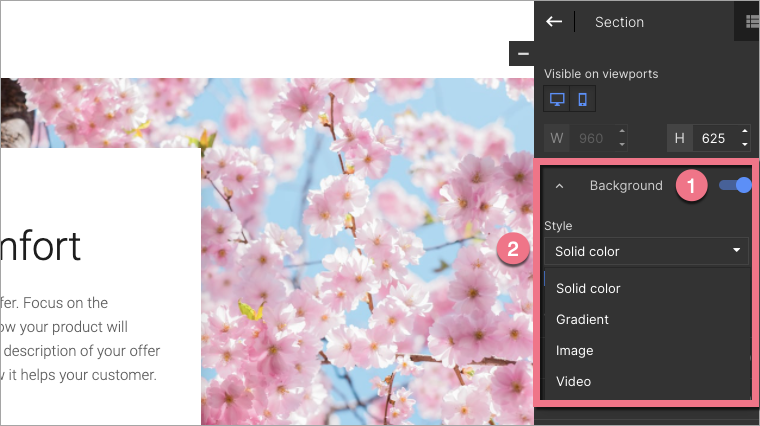
2. Drag and drop a section widget or click on a section. In the right-side toolbar, you will see section options. Use the slider to turn on the background (1). Select the background style (2).
Learn more about the background for the whole landing page here.
Image
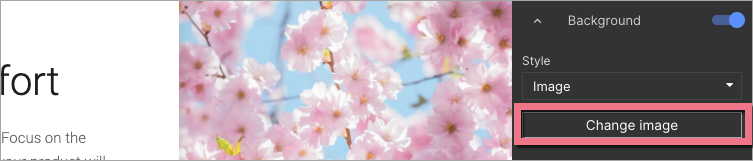
1. Click Change image to select an image for the section.
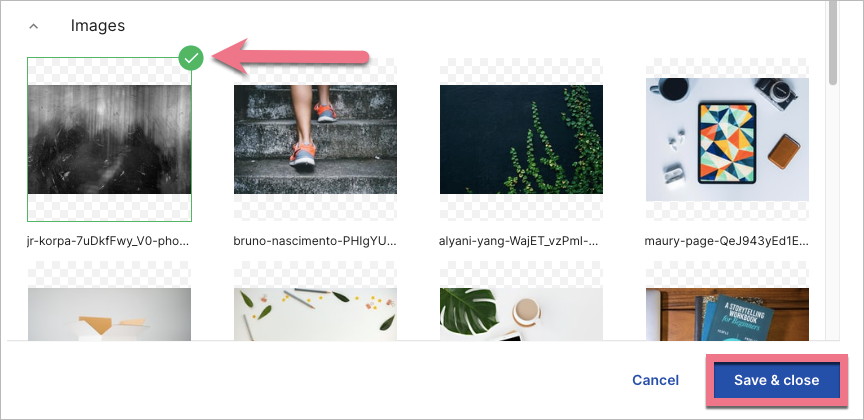
2. Upload the image from your computer or use the Unsplash free image gallery. Choose a picture and double-click or click and Save & close.
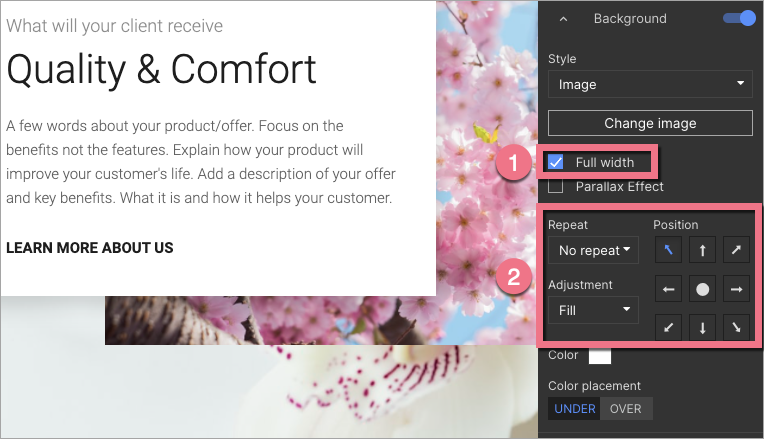
3. Select Full width (1) if you want the image spread over the entire section width. You can set the position and adjustment of the image in the background by using the panel options (2).
TIP: Learn about the parallax effect.
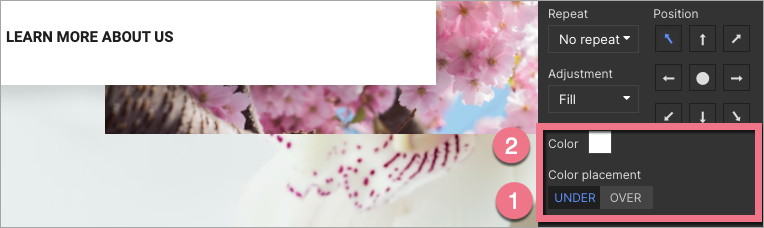
4. You can also apply a layer of color to the image. Click on Under or Over (1), select the color (2), and then set the transparency level.
Solid color
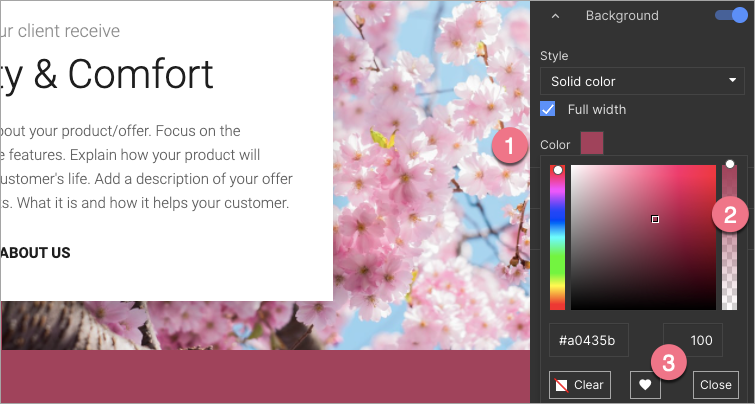
1. Click on the color box (1) to choose a color for the section background and adjust its transparency (2). Select Full width if you want the color to be spread over the entire section width.
2. If you want to save your favorite colors, click on the heart icon (3).
Gradient
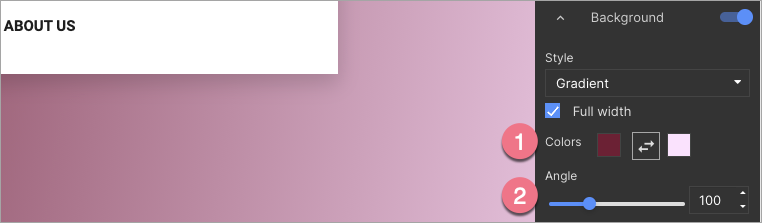
1. For your background, select two colors for a smooth transition between them. Select Full width if you want the gradient to be spread over the entire section width.
2. Set the angle of transition.
Video
A YouTube or Vimeo video embedded as a background will surely attract landing page visitors!
1. Paste the URL (1) of the clip. Select Full width if you want the video to be spread over the entire section width.
2. You can also apply a layer of color to the background video. Click on Under or Over (2) and click on the color box (3).
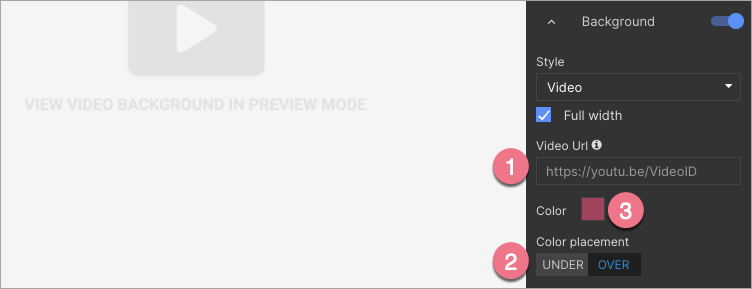
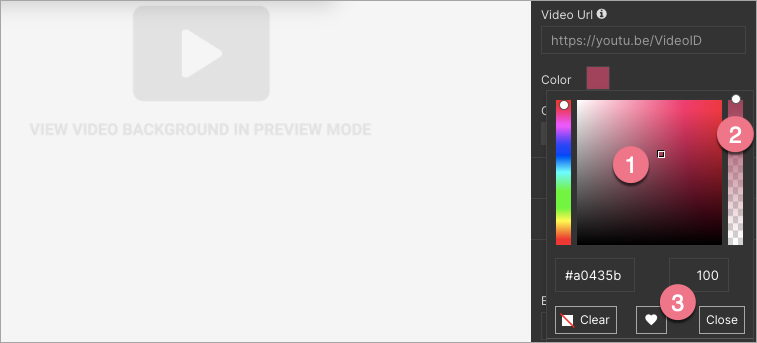
3. Choose your color (1) and set the transparency level (2). If you want to save your favorite colors, click on the heart icon (3).
4. A video as a section background does not work on mobile devices – you will only see its thumbnail. If you want, you can set a different background on the mobile view. Take a look here and find out how to hide elements on the selected view.

