


As an owner of an agency on the Agency plan, you can add users with limited access to some features.
What are user permissions
In the Landingi platform, we distinguish several types of users depending on your plan. The table below specifies the user permissions for the Agency plan.

Learn more about users for other plans.
Add subaccount users
IMPORTANT: Before you add a subaccount user, be sure to create at least one subaccount. Learn how to create a subaccount.
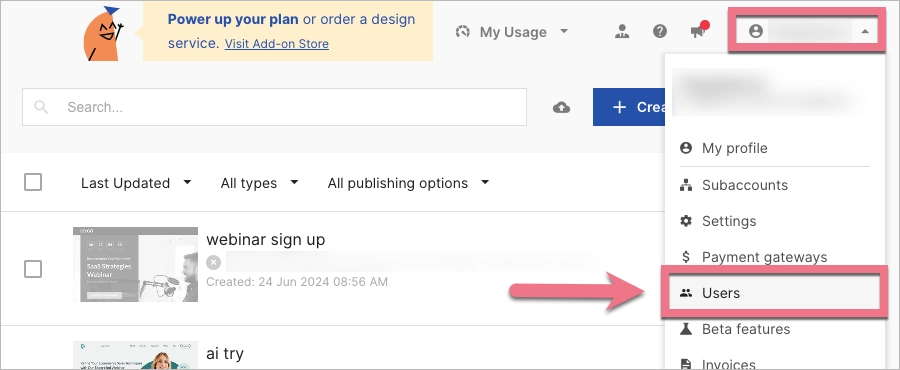
1. In the top panel, go to the drop-down menu, then select the Users tab.
2. Click Create new.

3. In a pop-up window:
(1) Enter a username, password, and email address, and choose the user type.
(2) Assign the user to a subaccount.
Click Create user.

4. You need to provide the new user with the login (email) and password. There are no automatic messages.
5. You will see your users in the Users tab, as well as in the Subaccounts tab, and in the Main Account menu in the top panel.
Add admins and managers
Adding administrators and managers is the same as adding subaccount owners. You need to provide the new user with the login (email) and password. There are no automatic messages.
When adding a new user, choose Admin or Manager as a User type:

You might need to refresh the page to see your new user on the list.
How to manage users
In the Users tab, you can manage your users: add new, edit (1), or delete (2) them.

When a user uses the Two-Factor Authentication, you will see the 2FA (3) label next to its name. The account owner and admin can disable the 2FA (4) for their users.


