


The video embedded as a background for the whole landing page will surely attract the attention of visitors. In this guide, you will learn how to set up a video from YouTube or Vimeo as a background in a few steps.
Set up the video background
1. Go to the editor of your landing page.
2. Navigate to the Page Settings in the right-side toolbar, then use the slider to turn on the Background.

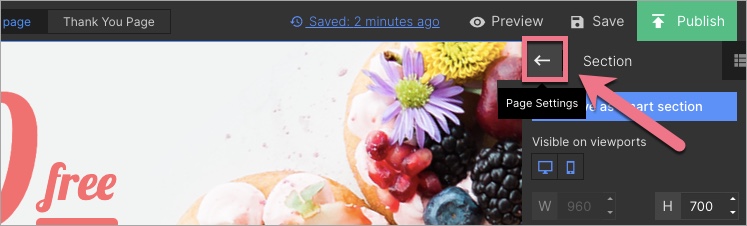
While editing, you can go back to Page Settings by clicking on an arrow:
3. Then choose the background style – video (1). Paste the URL (2) of the clip.
IMPORTANT: If you use a Vimeo clip, make sure that its URL is in a form: https://vimeo.com/example. Videos from a player (https://player.vimeo.com/example) won’t work.

4. You can set a layer of color over or under the video background. Click on the color box (1) to choose a color (2) and adjust its transparency (3).

Hints
- If you are working on the template landing page and the background is not visible on individual sections, enter the Section settings and use the slider to turn off the background.

- A video as a section background does not work on mobile devices – you will only see its thumbnail. If you want, you can set a different background on the mobile view. Take a look here and find out how to hide elements on the selected view.
- If you want to learn more about landing page backgrounds, read this guide.


