
Product

Create, publish and optimize pages with a drag&drop, pixel perfect and mobile-friendly builder

Speed up the creation process with 400+ customizable templates for landing pages, pop-ups and sections

Track microconversions in your Dashboard and analyze events and clicks with visual map

Build one layout, generate pages in bulk, and power them with dynamic data

Integrate your pages with your favorite mar-tech apps and solutions to get the flow of your campaign going

Use a reliable and secure platform that smoothly handles millions of visits

Solutions

How to generate more traffic and get more leads.

How to reach global audience with language versions of landing pages.

How to take care of your digital footprint.

How to publish non-generic, handcrafted pages.

How to manage larger volumes of pages and clients.

How to deliver personalized content to potential customers.

Resources

Master digital marketing with the help from savvy professionals and increase your website’s conversions

Guides for beginners, set-up instructions and creation tips to get started and optimize your pages

Ebooks, webinars, Landing Page Academy, and other free marketing resources. Learn and become an expert!

Read real case studies of marketers and companies who achieved next-level growth with Landingi

Schedule a one-on-one meeting with us and learn more about the benefits of our platform

Hire a Design Expert or order an import of your existing page from other platforms to Landingi

HomeHelp CenterCallback & chatZendesk Chat integration

Zendesk Chat integration

Zendesk Suite offers a tool for real-time messaging. You can effectively communicate with customers looking for support. The platform allows you to create bots-based automation or review conversation history. You can integrate Zendesk Chat with your landing page using a JavaScript snippet.

Get your snippet from Zendesk 

1. Log in to your Zendesk account and go to the Admin panel.

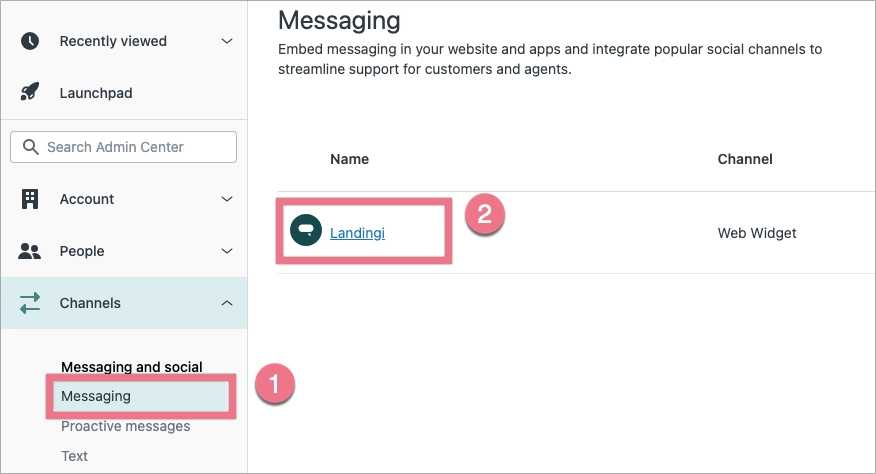
2. In the left-side menu, find the Channels section. Click on Messaging (1) and choose your widget (2).
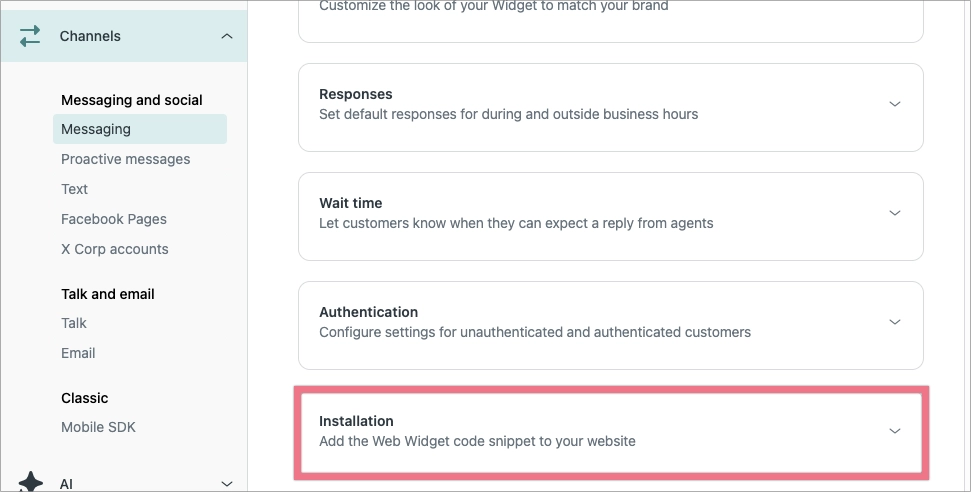
3. Scroll down and click on Installation.
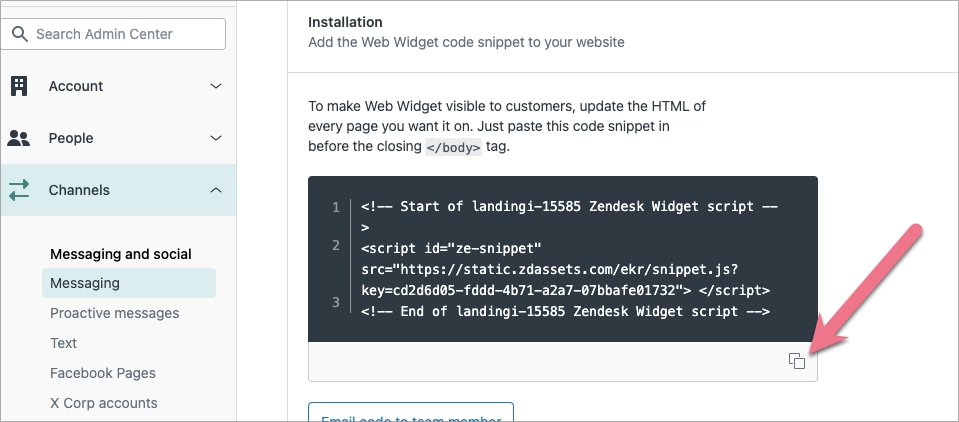
4. You will see a script. Copy it and go to Landingi.
Install the snippet in Landingi

1. Log in to your account in Landingi and navigate to the Dashboard of your landing page. Go to JavaScript Code.

You can also access the JavaScript Code section directly from the editor of your landing page.

2. Click on Add script

3. Name (1) the script and choose the Head (2) position on the Main Page, Thank You Page, or Both (3). Paste your code in the content field (4). Save by clicking Add script

A web form to add a script, with fields for name, content, position, and page selection

4. Publish your landing page. Your visitors will see the Zendesk widget in the bottom right or bottom left corner of your landing page.
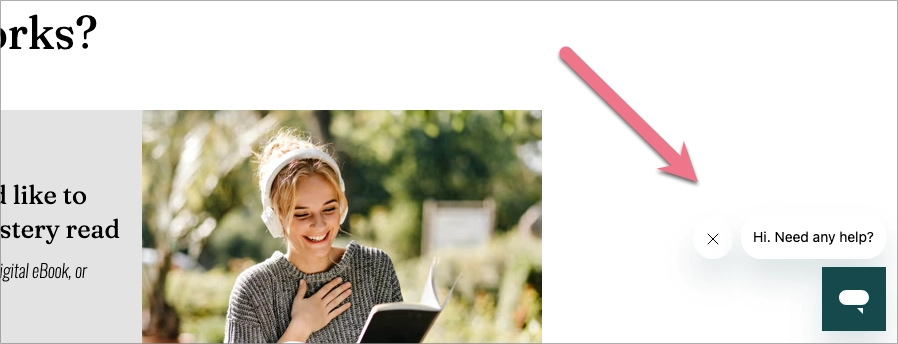
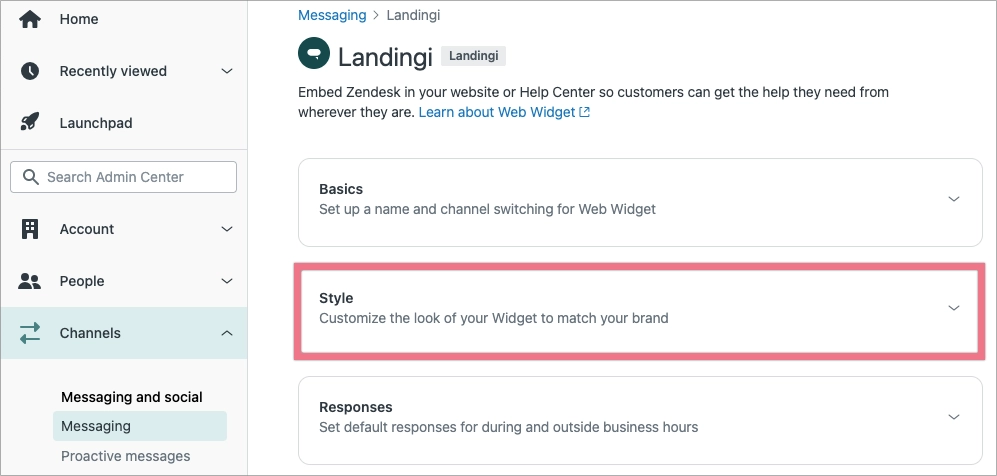
5. You can customize your widget at any time. Go to the Style section in your widget settings. You have to republish your landing page after each change.
NOTE: Keep in mind that Zendesk is a third-party solution and is continually being developed. We do our best to keep this guide updated, but if you come across any changes in the set-up process, let us know.

Browse all integrations in our Integrations Catalog to see tools you can connect Landingi with.

TABLE OF CONTENT
G2 reviews for Landingi