


Pop-ups are a great way to convert your Shopify store visitors into shoppers. Why are these modal display boxes so effective?
They:
- catch users’ attention,
- help grow your newsletter subscription lists,
- promote your new offers,
- suggest relevant products to visitors.
Adding a pop-up to your Shopify website is easy and quick. All you need is a Landingi account, where you can create your own pop-up from scratch or take advantage of a ready-to-use template.
This guide will walk you through publishing your pop-up created in the Landingi platform on your Shopify store.
Setting up pop-ups in your Shopify store
Copy pop-up’s HTML code
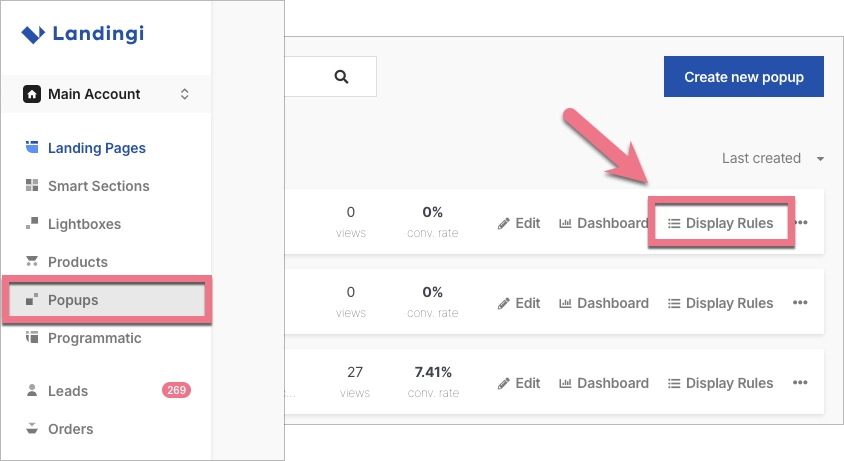
1. When your pop-up is ready, click Next/Publish in the editor. You can also access the settings from the pop-up list by clicking on Display Rules.
2. In the new window, select Add External Pages.

3. Type the URL of your Shopify store. Find out more about pop-up publishing options here.

4. Publish your pop-up by clicking Save changes.

5. Copy the automatically generated code that will be responsible for displaying the pop-up.

Add a pop-up to your Shopify store
1. Go to your Shopify account.
2. On the left side menu, click Online Store and then go to Themes (2). Then select Actions and Edit code (2).

3. Go to theme.liquid (<!doctype HTML>).

4. Paste the code you generated earlier. Remember to add it before closing the tag (</head>).

5. Click Save.
Go to your Shopify store and check if the pop-up is displayed correctly.

