
Product
BUILD
NEW

AI-generated pages, built to evolve

Build pages with total design control

Elevate copy, SEO, and visuals

Launch faster with flexible templates

Engage with forms to capture data

OPTIMIZE
NEW

AI insights for page performance

Compare variants and lift results

Track clicks and uncover intent

Sync sections across every page

Expand pages into new markets

SCALE
SOON

MCP power for AI workflows

Scale pages from one smart layout

Use a reliable and secure platform

Manage large accounts and campaigns

Connect pages to your campaign flow

Solutions

Capture more leads with less friction

Turn more visits into conversions

Get more return from paid traffic

Scale page operations with control

Strengthen your presence across channels

Match content to visitor intent

Launch pages tailored to your brand

Turn shopping traffic into more sales

Resources

Practical advice for marketers

Guides, setup, and how-tos

Free tools and learning for marketers

See how teams improve results

Explore the platform with our team

Get expert help with page design

HomeHelp CenterIntegrationsShopify integration (selling via buy button)

Shopify integration (selling via buy button)

This Shopify button integration allows you to sell products on a landing page published only within our platform. This integration allows you to sell products on a landing page.

NOTE: This integration uses the HTML widget which is not available with the Core plan.

Get the Shopify button code

1. Log in to your Shopify store.

2. Click on the plus icon next to the Sales Channels tab.

3. Choose Buy button.

4. If you do not have and Buy Buttons yet, click Create a Buy Button.

5. Select the type of your Buy Button.

6. Choose your product (or collection) and click Select. In the next window, customize your button and click Next.

7. Copy the code.

Install your Shopify button in Landingi

1. Go to the Landingi platform and navigate to the editor of your landing page.

2. On the left side of the editor, find the HTML widget, then drag and drop it into the active area of your landing page.

3. Double-click the HTML widget to edit it.

4. In the Add HTML code field, paste the code from Shopify.
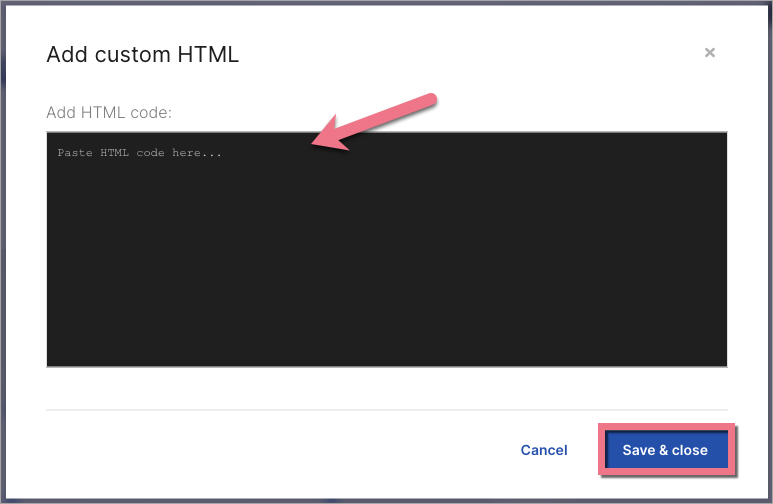
5. Save & close. Then, publish your landing page.

6. Check how your product is visible on the landing page. If you want to change its size, go back to the editor and adjust the HTML widget.

You can also share your downloadable files directly on your landing page. Read how to add them to a button or an autoresponder.

NOTE: Keep in mind that Shopify is a third-party solution and is continually being developed. We do our best to keep this guide updated, but if you come across any changes in the set-up process, let us know.

Browse all integrations in our Integrations Catalog to see tools you can connect Landingi with.

TABLE OF CONTENT
G2 reviews for Landingi