


In the Landingi platform, you can easily set the background for the whole landing page. You can choose a solid color, gradient, image, or video as your landing page background.
Learn more about best practices on landing page images.
Setting a background
1. Go to the editor of your landing page.
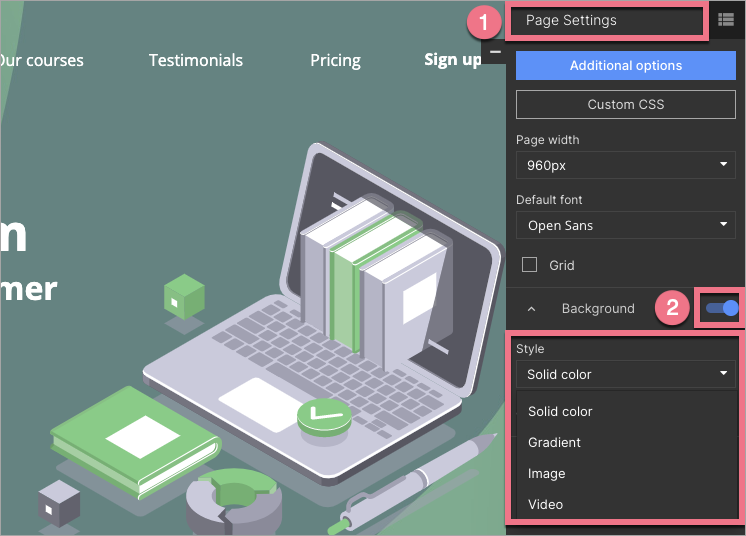
2. Navigate to Page Settings (1), then use the slider to turn on the background (2). Select the background style. You can choose from four types of background – solid (full) color, gradient, image, and video (from YouTube or Vimeo).
- You can find tips on how to set the video as a background here.
- Read more about the parallax effect here.
When editing, you can go back to Page Settings by clicking on the arrow:

Image
If you choose the image background option, you can upload (1) the image from your computer or use Unsplash free images (2). Unsplash is a platform with free, high-definition images. It’s free to download, use, copy, or modify the images.
Select a picture and double-click or Save & close (3).

Image position
You can set the position and adjustment of the image in the background by using the panel options on the right side of the editor.

Color
You can also apply a layer of color to the image as a background.
Click on Over (1), select the color (2), and set the transparency level (3).


TIP: If you are working on the template landing page and the background is not visible on individual sections, click on the section, and in the right-side toolbar, use the slider to turn off the background.

Gradient
You can apply a picture as the page background and then set the gradient for a single section to get the effect as below.
If you want the background image to be visible below the gradient, set one of the gradient colors transparent.

Video
If you choose to set a video as the background of your landing page, it will be visible throughout all sections unless otherwise specified. Learn more about Video background.

