


Ecwid is a free ecommerce platform for online stores. This integration allows you to sell products on a landing page. You can place products by one or all together.
- You can also connect your landing page with Ecwid via Zapier to automatically create customers, coupons, orders, and products.
Place one product on the landing page
Get your code from Ecwid
1. Log in to your Ecwid account.
2. Navigate to the Catalog and the Products tab.

3. Click on the arrow next to the product you want to place on your landing page.

4. Click “Buy Now” Button.

5. Click Embed Product.

6. Customize setup (1) and copy the code (2).

Install the code in Landingi
1. Navigate to the editor of your landing page.
2. Find the HTML widget, then drag and drop it into the active area of the editor.

3. Double-click the widget and paste the code in the Add HTML code field. Then Save & close.
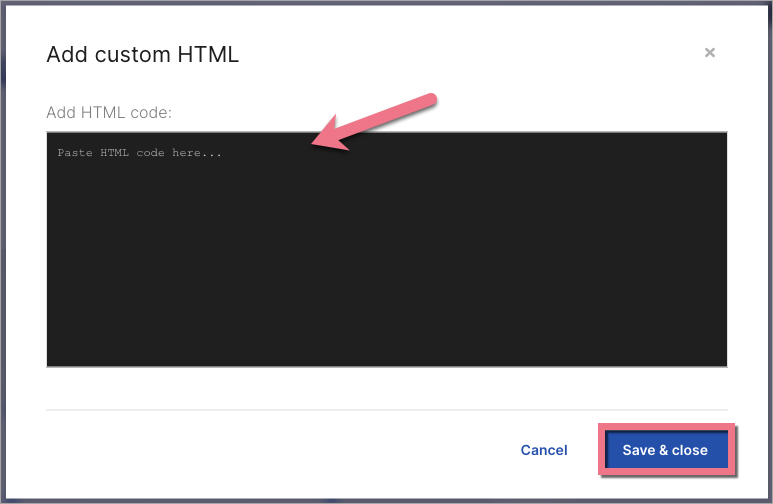
4. Publish your landing page.
From now on, the product will be visible on your landing page. If necessary, go back to the editor and adjust the HTML widget position and size.

Place all products on the landing page
Before placing all your products on the landing page, ensure that you have added all of them to your store in Ecwid.
Get the code from Ecwid
1. Navigate to the Website tab and Overview. Then click Pick Platform.

3. Choose Custom website.

4. Copy your code.

Install the code in Landingi
1. In the editor, find the HTML widget, then drag and drop it into the active area of your landing page.
2. Double-click the widget and paste the code in the Add HTML code field. Then Save & close.
3. Publish your landing page.
- TIP: All your products need more space than one product – increase the HTML widget’s width to avoid squeezing them.
From now on, all your products will be visible on your landing page. If necessary, go back to the editor and adjust the HTML widget position and size.

Browse all integrations in our Integrations Catalog to see tools you can connect Landingi with.

