Product
BUILD
NEW

AI-generated pages, built to evolve

Build pages with total design control

Elevate copy, SEO, and visuals

Launch faster with flexible templates

Engage with forms to capture data

OPTIMIZE
NEW

AI insights for page performance

Compare variants and lift results

Track clicks and uncover intent

Sync sections across every page

Expand pages into new markets

SCALE
SOON

MCP power for AI workflows

Scale pages from one smart layout

Use a reliable and secure platform

Manage large accounts and campaigns

Connect pages to your campaign flow

Solutions

Capture more leads with less friction

Turn more visits into conversions

Get more return from paid traffic

Scale page operations with control

Strengthen your presence across channels

Match content to visitor intent

Launch pages tailored to your brand

Turn shopping traffic into more sales

Resources

Practical advice for marketers

Guides, setup, and how-tos

Free tools and learning for marketers

See how teams improve results

Explore the platform with our team

Get expert help with page design

HomeHelp CenterCallback & chatQikChat integration

QikChat integration

QikChat is a lead conversion and scheduling software that automates meeting bookings by linking form submissions directly to a team member’s calendar.

This guide will walk you through integrating your landing page form with QikChat, allowing you to pass all generated leads to it.

Get your webhook link from QikChat

1. Log in to your QikChat account.

2. Click Integrations (1) and select Zapier & API (2).
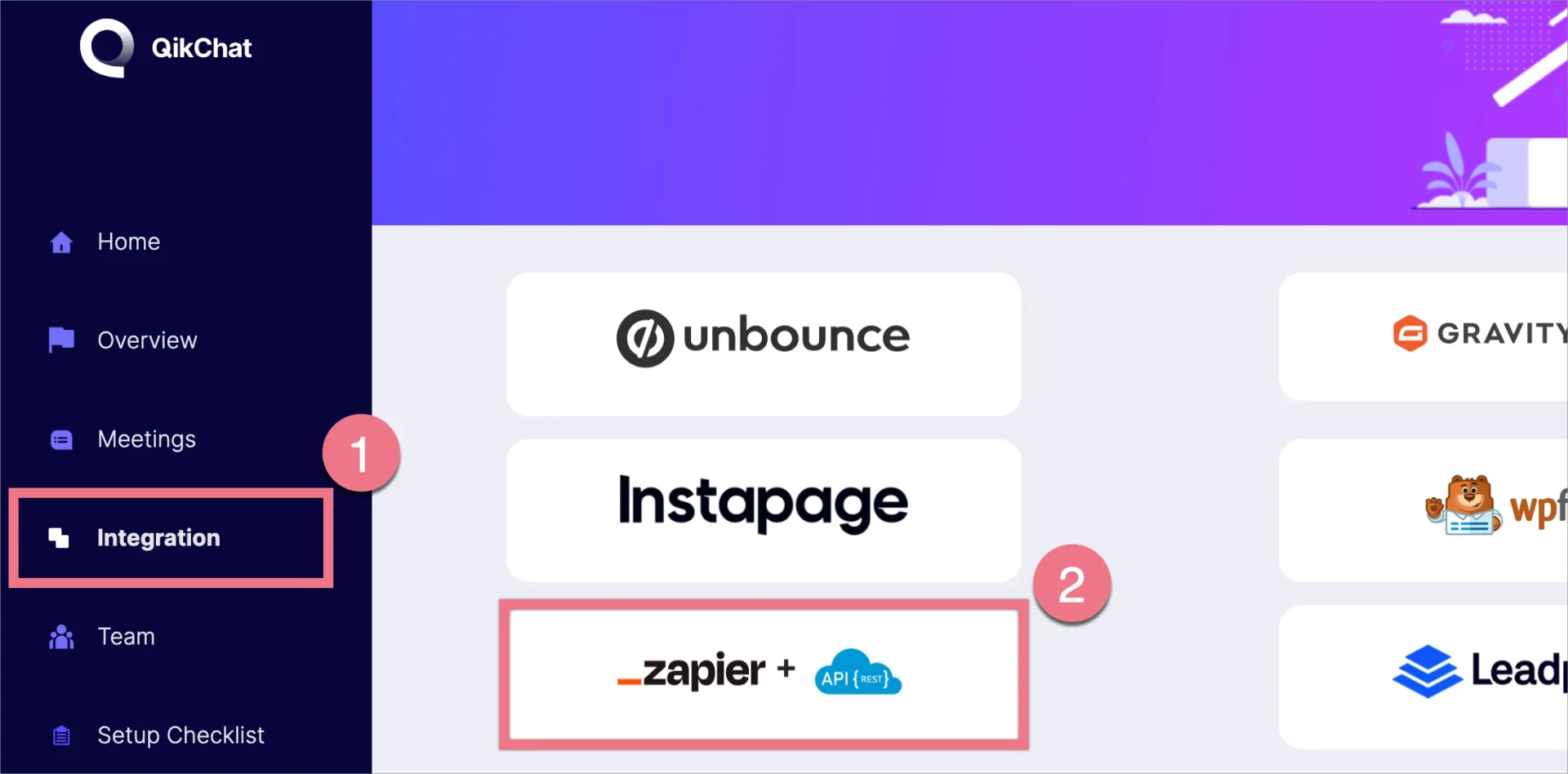
Integrations in QikChat

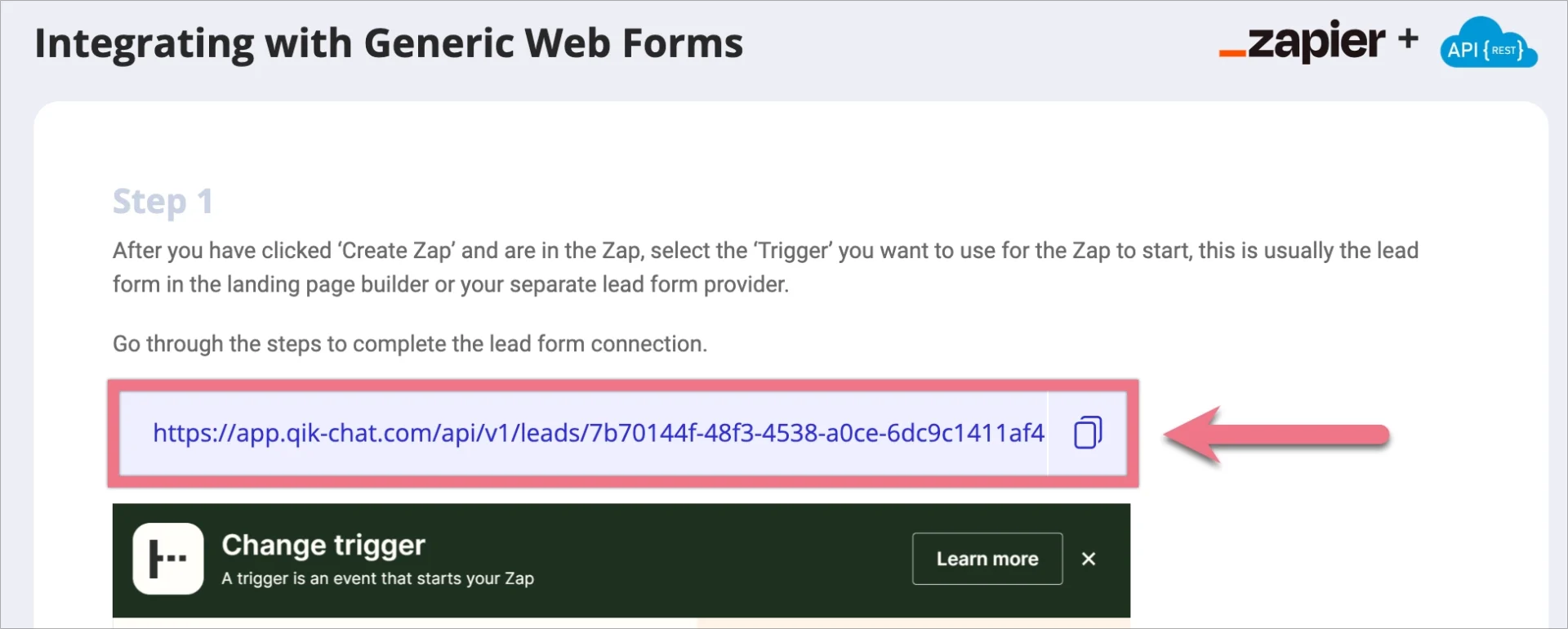
3. Copy the webhook link.

Webhook link from QikChat

Install the webhook in Landingi

1. Log in to your Landingi account and go to the editor of your landing page or pop-up.

2. Click on your form and navigate to its Settings.
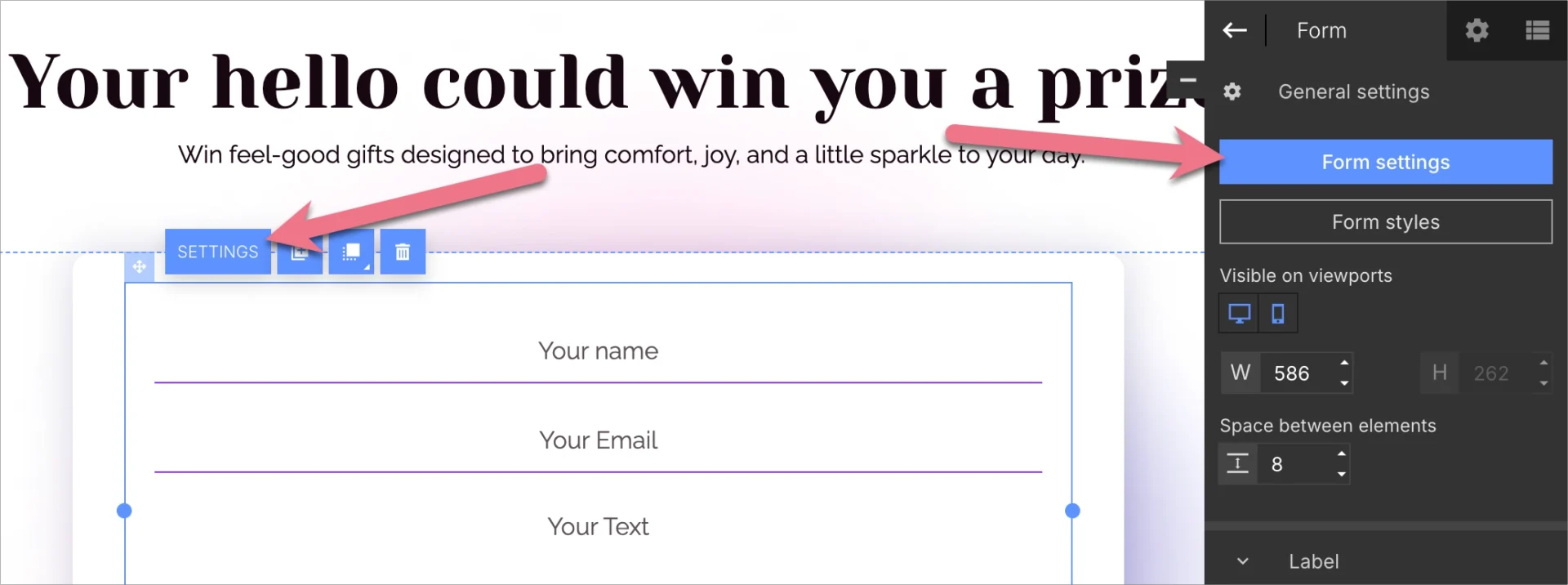
Form settings in Landingi editor

3. In the Integrations tab, choose Webhook.
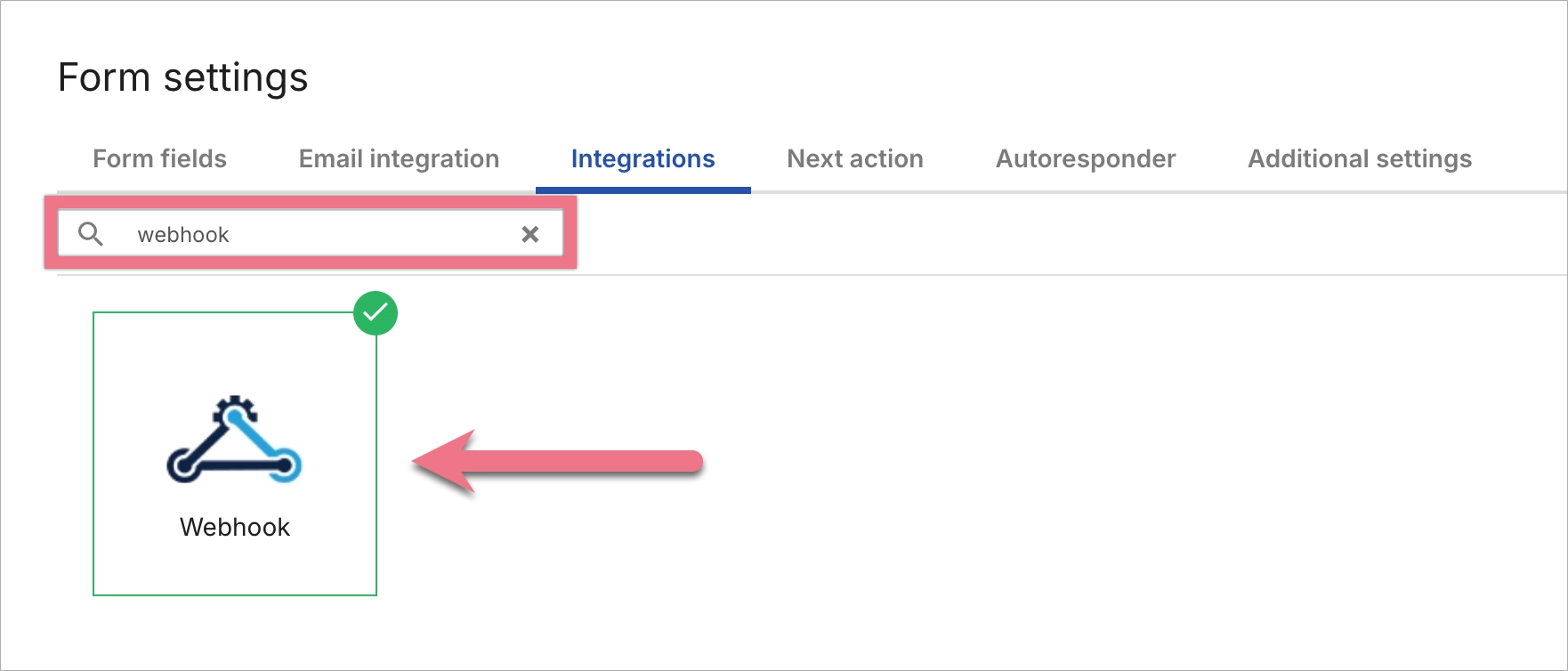
Webhook intregration in Landingi

4. In the Request URL field, paste the URL (1) copied from QikChat. Choose POST as the request method (2).
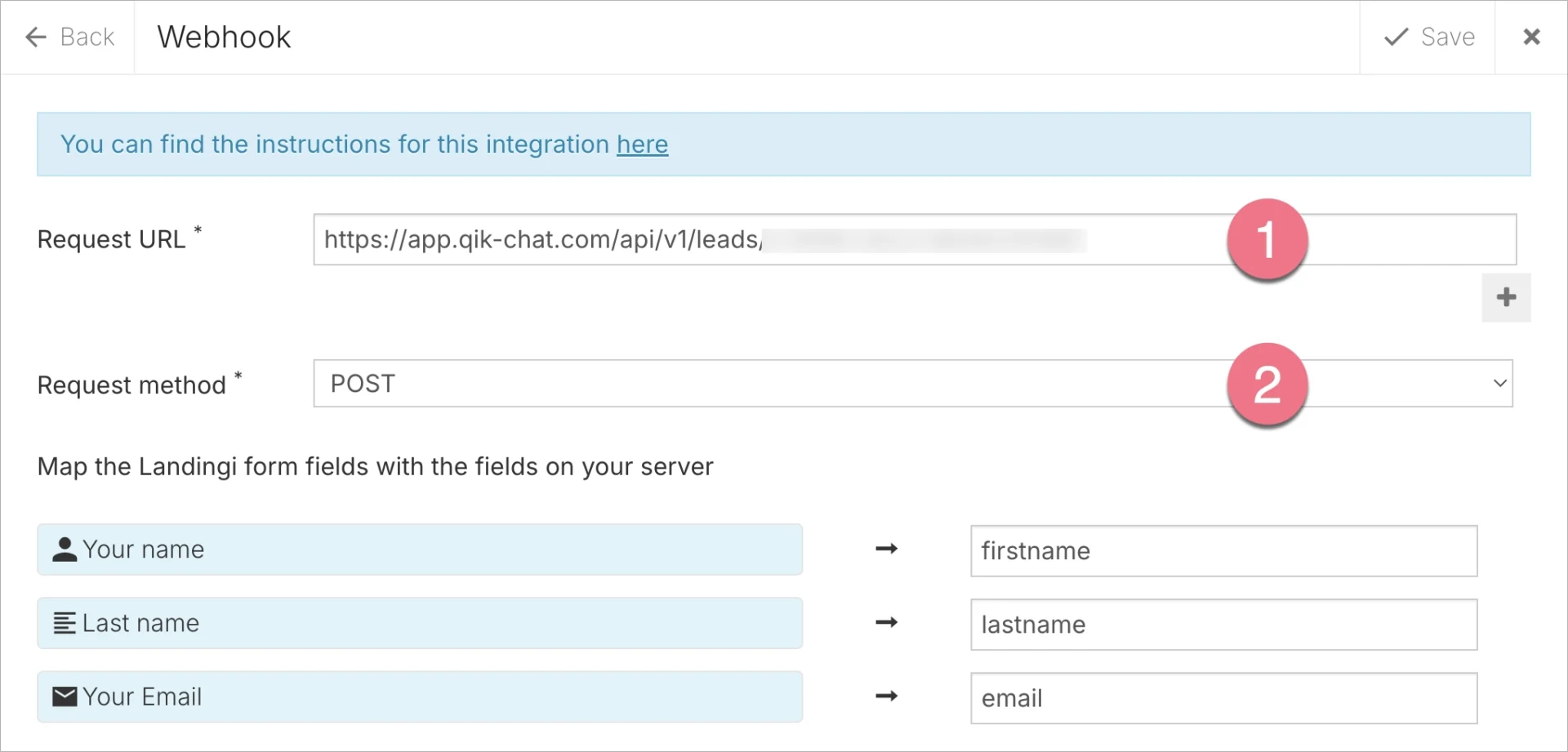
Landingi and QikChat integration

5. Save the changes. Publish your landing page.

6. Fill out the form to verify that lead data is correctly sent to your QikChat account. You can find the leads in the Home tab.
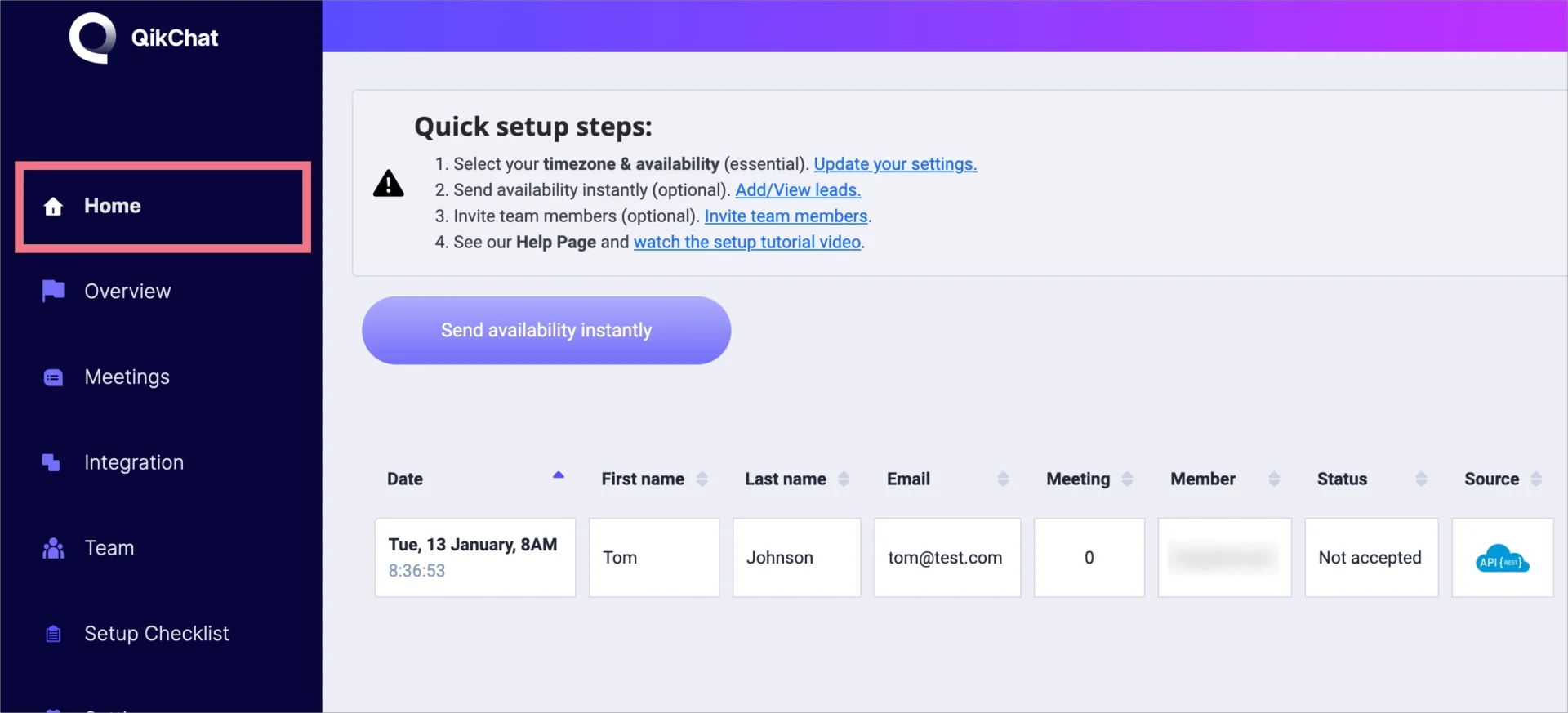
Leads from landing page in QikChat

NOTE: Keep in mind that QikChat is a third-party solution and is continually being developed. We do our best to keep this guide updated, but if you come across any changes in the set-up process, let us know.

Browse all integrations in our Integrations Catalog to see tools you can connect Landingi with.

TABLE OF CONTENT
G2 reviews for Landingi