


Lunar is Landingi’s AI landing page generator that turns your campaign brief into a complete, launch-ready landing page. It helps you create the page structure, layout, and conversion-focused content from a simple prompt, so you can move from idea to publish-ready page faster.
Lunar works inside the Landingi platform, which means every generated page becomes part of your workspace. You can manage your pages, edit them, track performance, optimize campaigns, and publish them on your own domain without switching tools.
How to enable Lunar?
Lunar is available by default on all current Landingi plans (Build, Optimize, Scale, Enterprise). Users on legacy plans can access Lunar after switching their account to one of the current plans.
Using Lunar consumes credits. Each prompt you submit uses credits from the pool available in your account. Subaccounts can use Lunar if the main account allows them to use credits.
Generate a page with Lunar
1. In your Landingi account, choose Lunar (1) from the left-side panel or click Create new landing page (2).
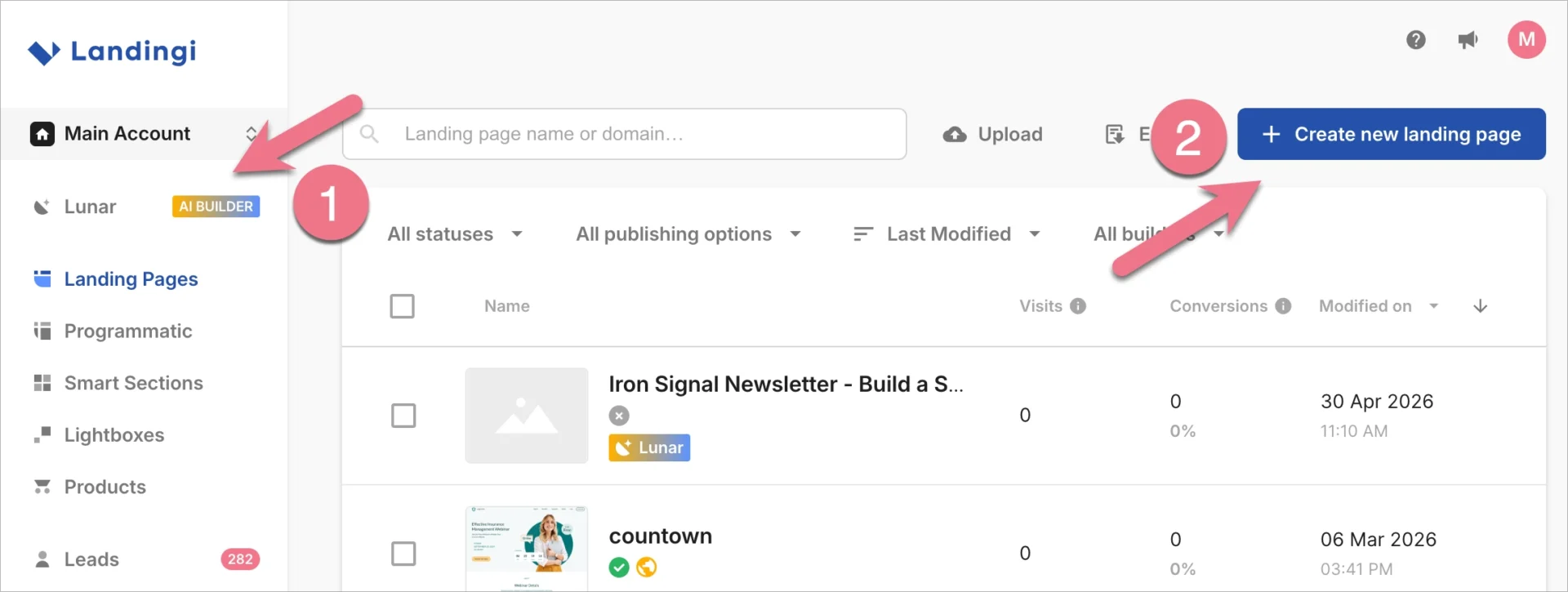
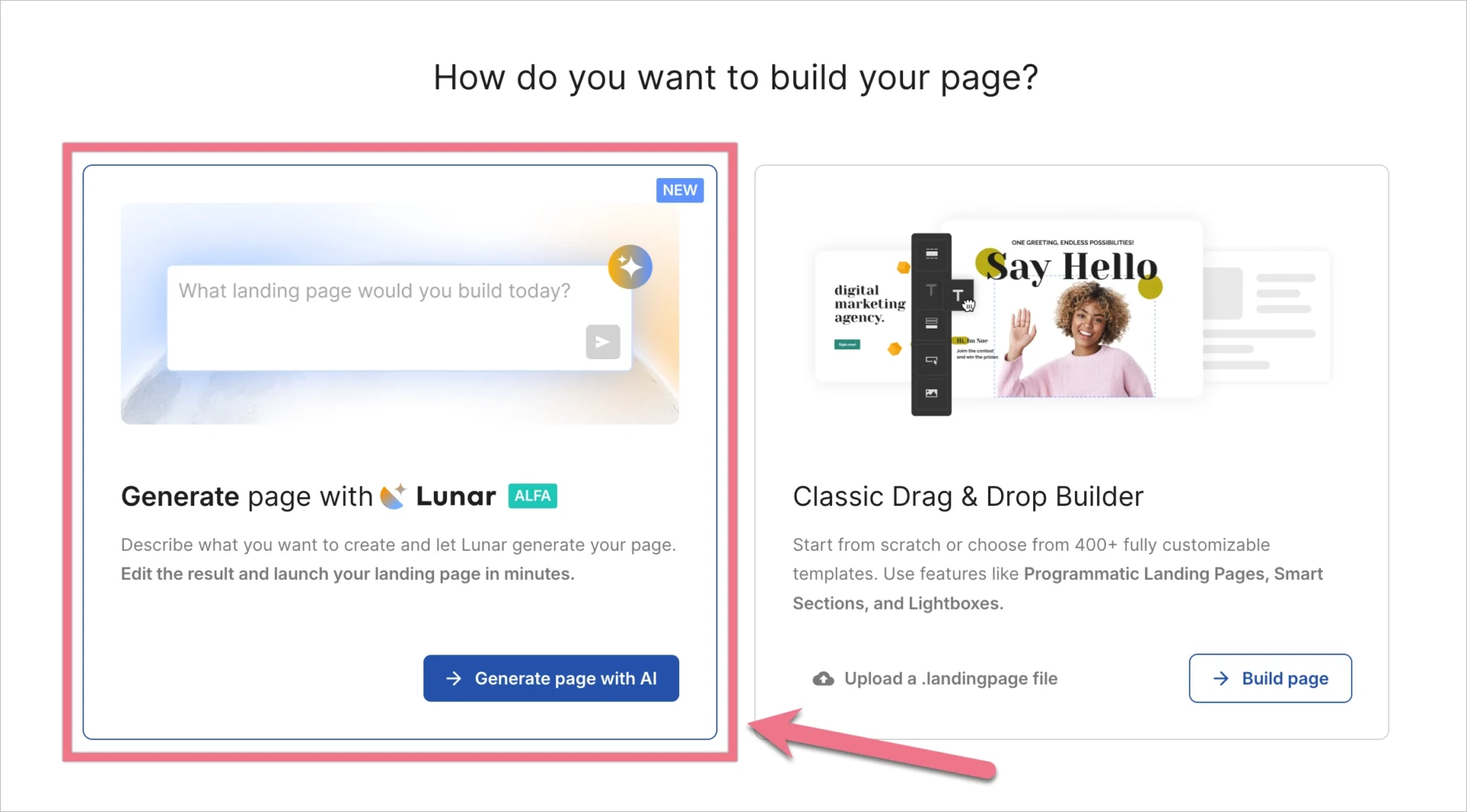
If you choose the second option, select Generate page with Lunar in the next view:
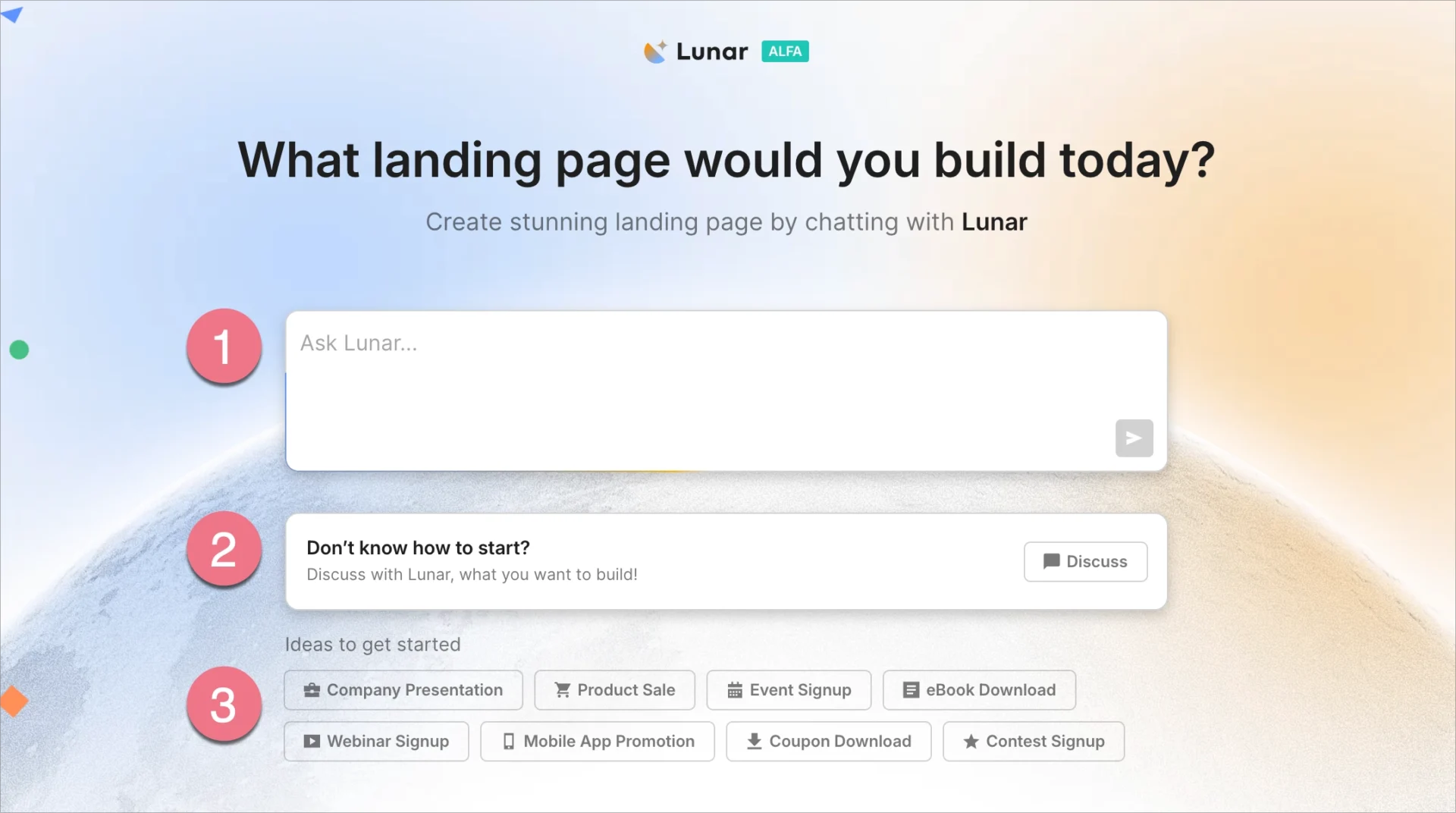
2. In the new window, you’ll see a field for entering a prompt (1), an option to start a discussion (2), and some ideas to get started (3). If you already have a prompt ready, paste it in and click the send icon.
You can chat with Lunar in any language.
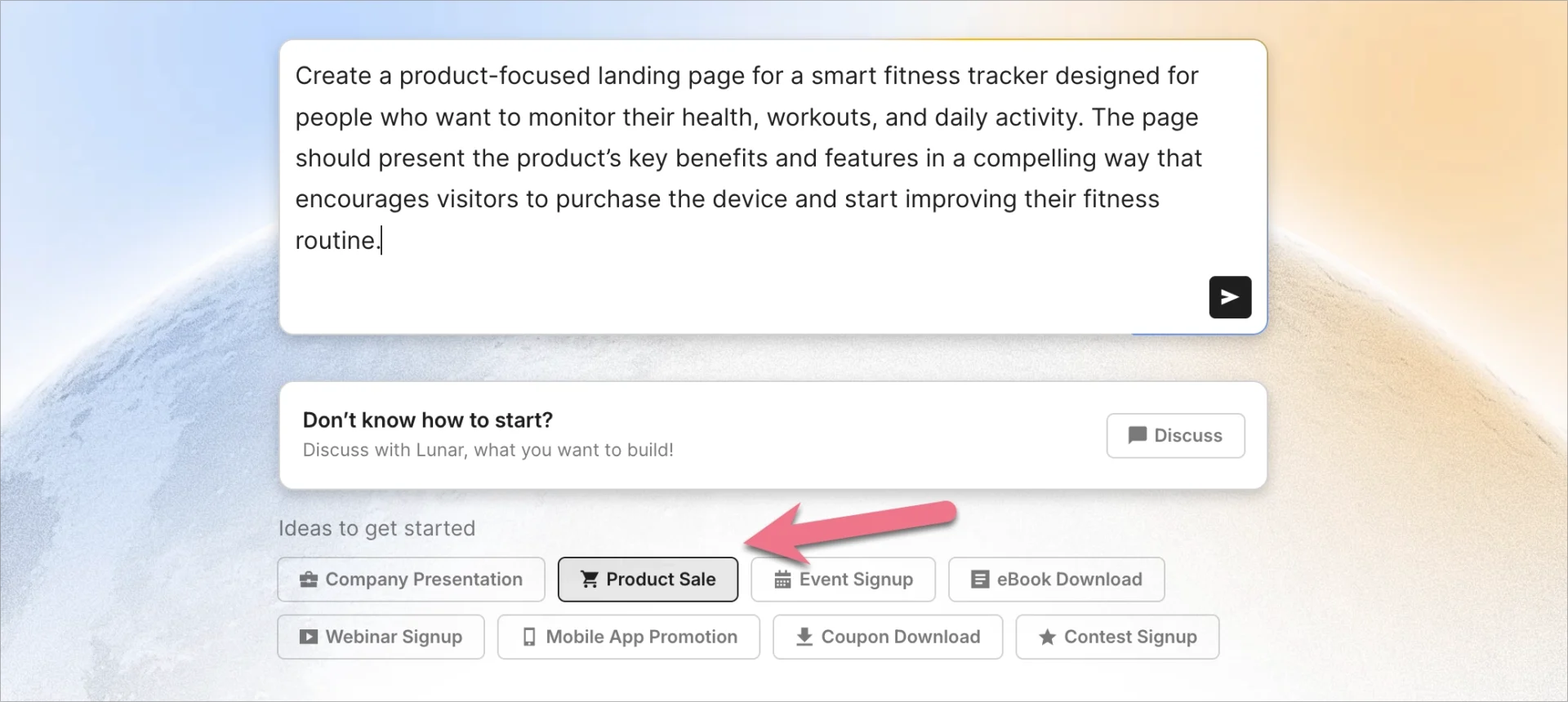
3. If you need inspiration, click one of the suggested ideas, and it will be pasted into the prompt field – you can modify it and send it.
4. If you’re not sure where to start and would like to discuss your website idea with Lunar, select the Discuss option. Lunar will ask you a few guiding questions, and your answers will help generate your page.
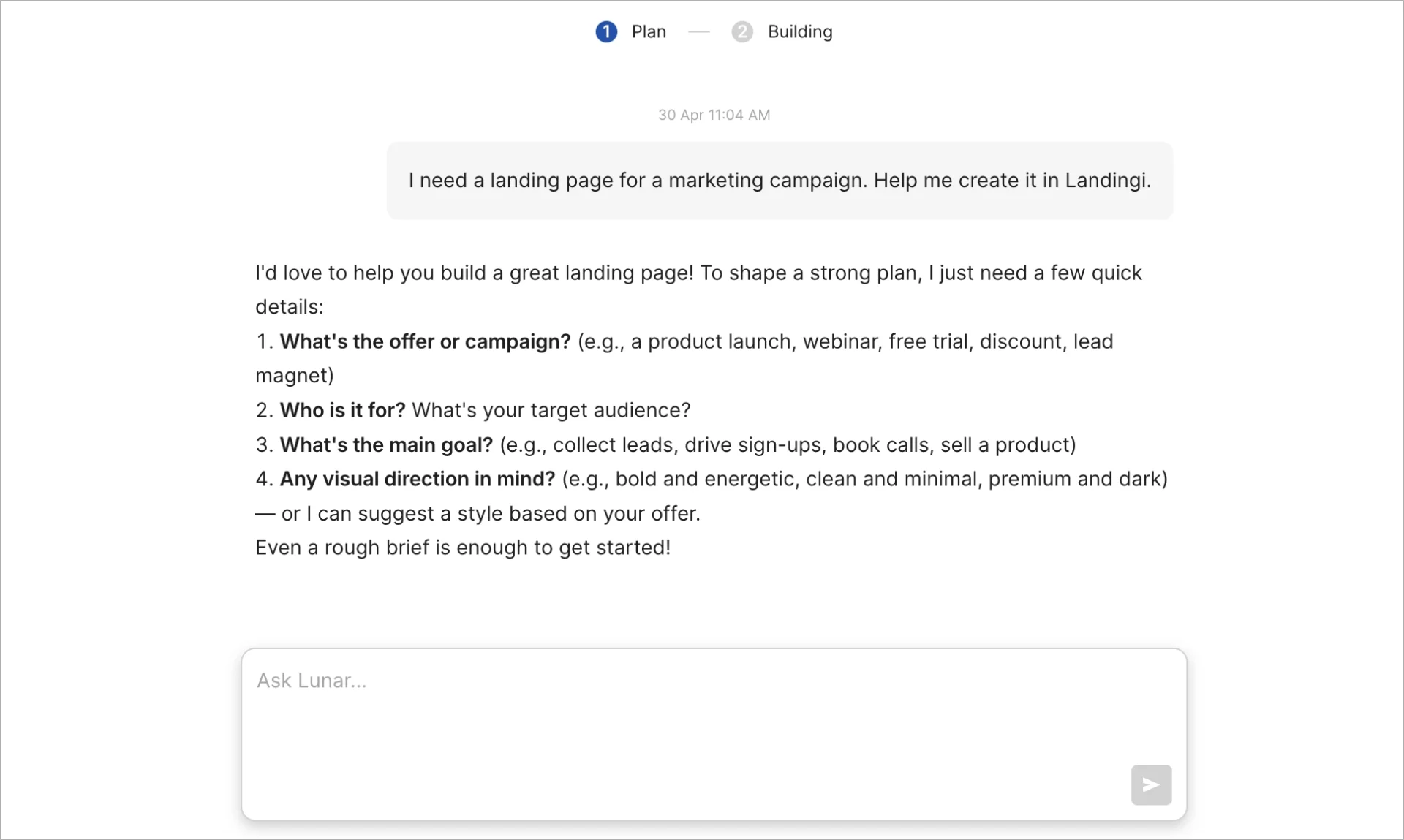
5. After you answer the questions or submit a prompt, Lunar will create a plan for your landing page. You can edit it or accept it and proceed to generation.
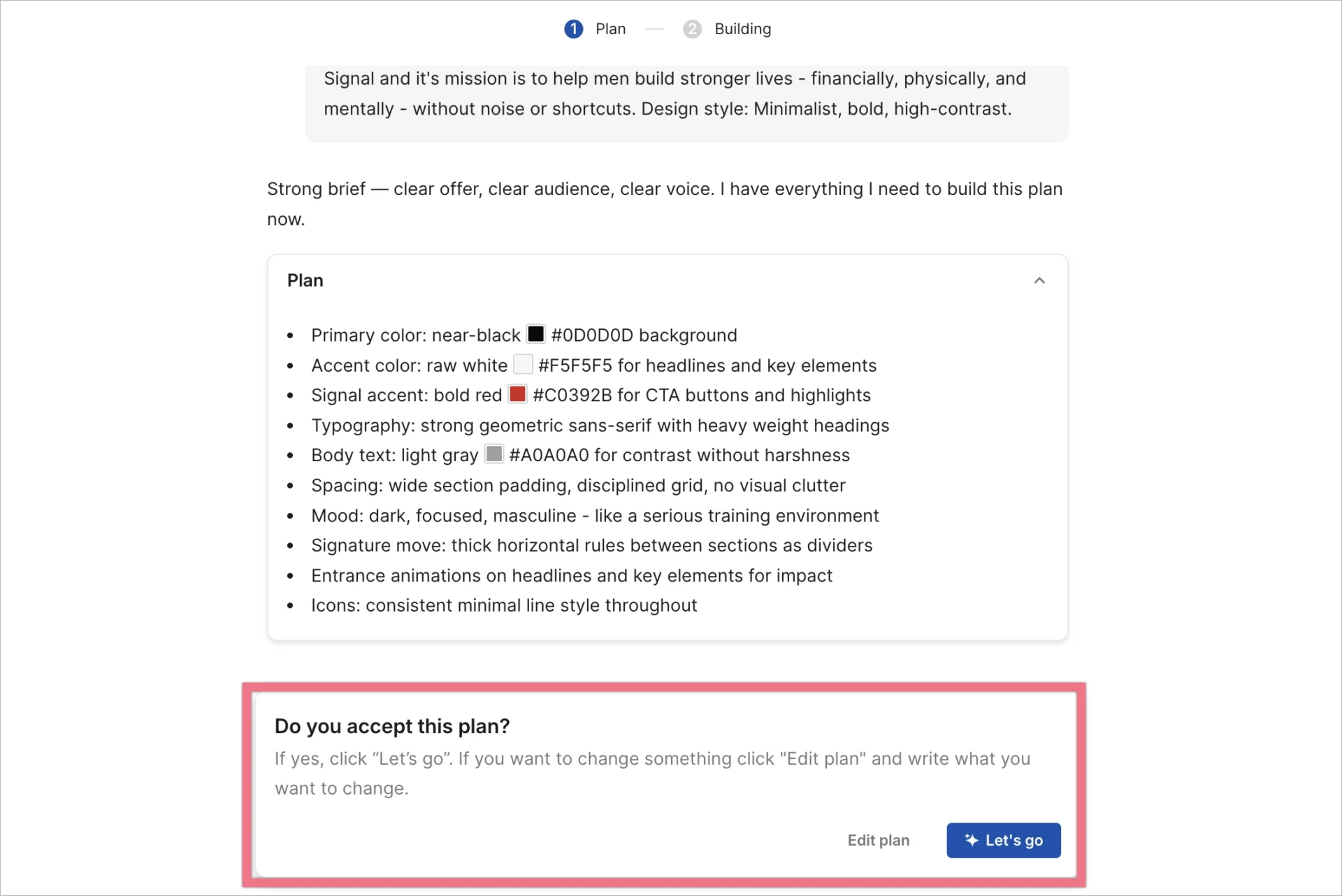
6. After clicking Edit plan, you can enter your changes and submit them, and Lunar will prepare a revised plan for your approval. You can edit it again or accept it.
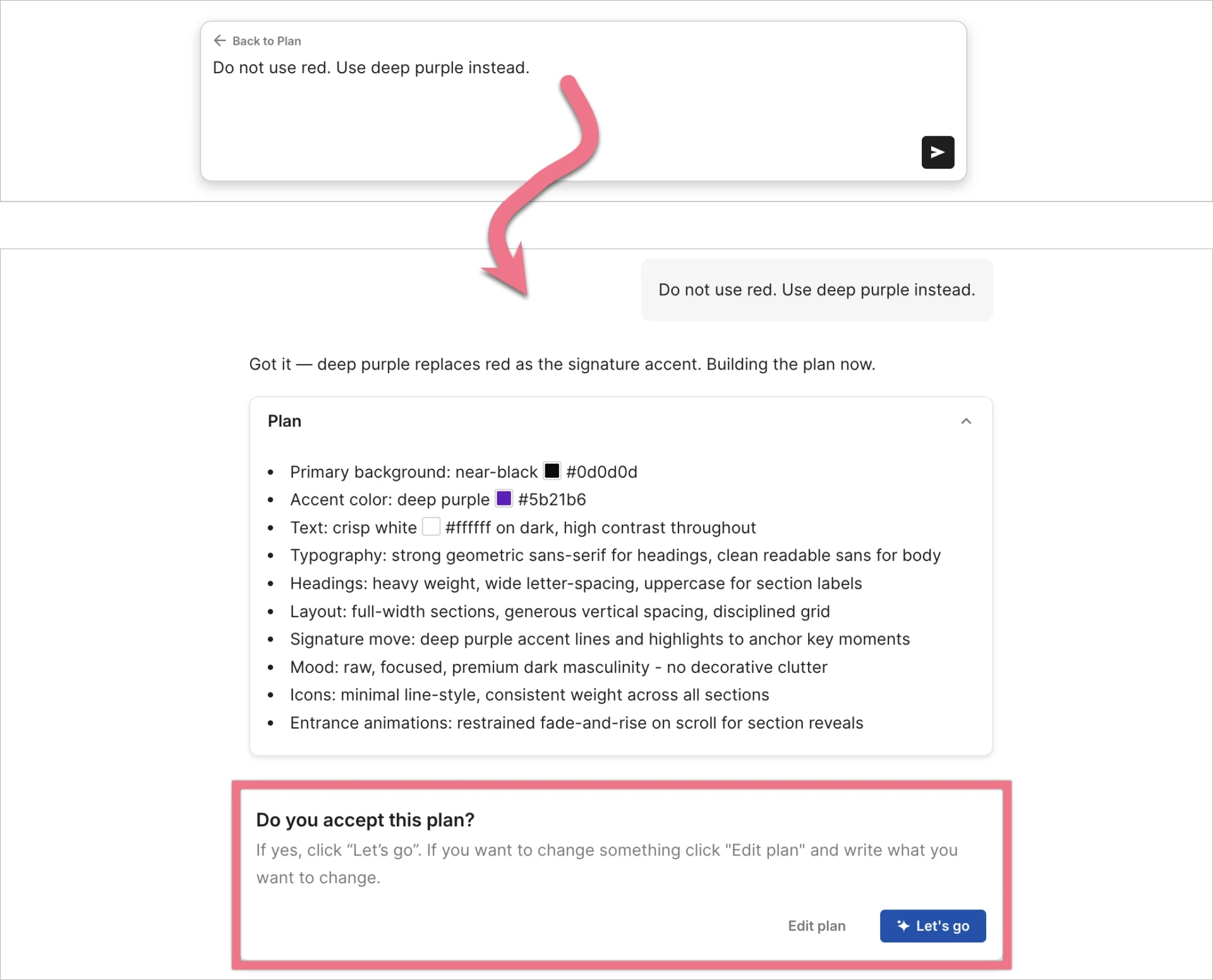
Generation of your landing page will take a couple of dozen seconds.
Edit your AI-generated page
After Lunar generates your landing page, you can continue editing it in two ways: by chatting with Lunar or by using manual Edit Mode (or mixing both).
From the top bar, you can:
- Use the chat to send further prompts to Lunar.
- Click on the Lunar icon to access the navigation menu (from which you can go to your landing page list, leave feedback, change theme appearance, or check system status).
- Click the clock icon to view page history.
- Click Edit to turn on manual Edit Mode.
- Click the gear icon to navigate to page settings.
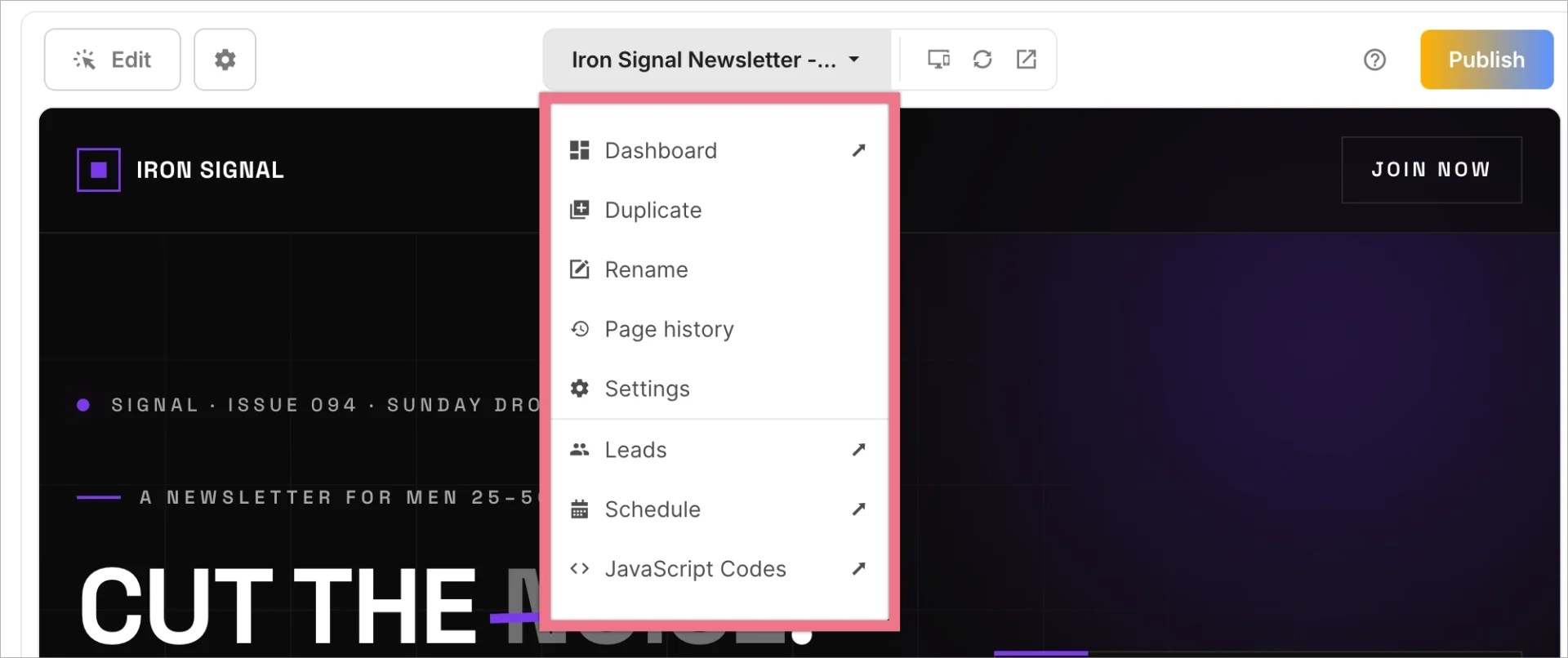
- Click on the landing page name to unfold the option menu for this page.
- Use responsive mode, reload preview, and open preview in a new tab.
- Click the question mark icon to see help options (such as Help Center, consultation, or support).
- Click Publish to publish your landing page.
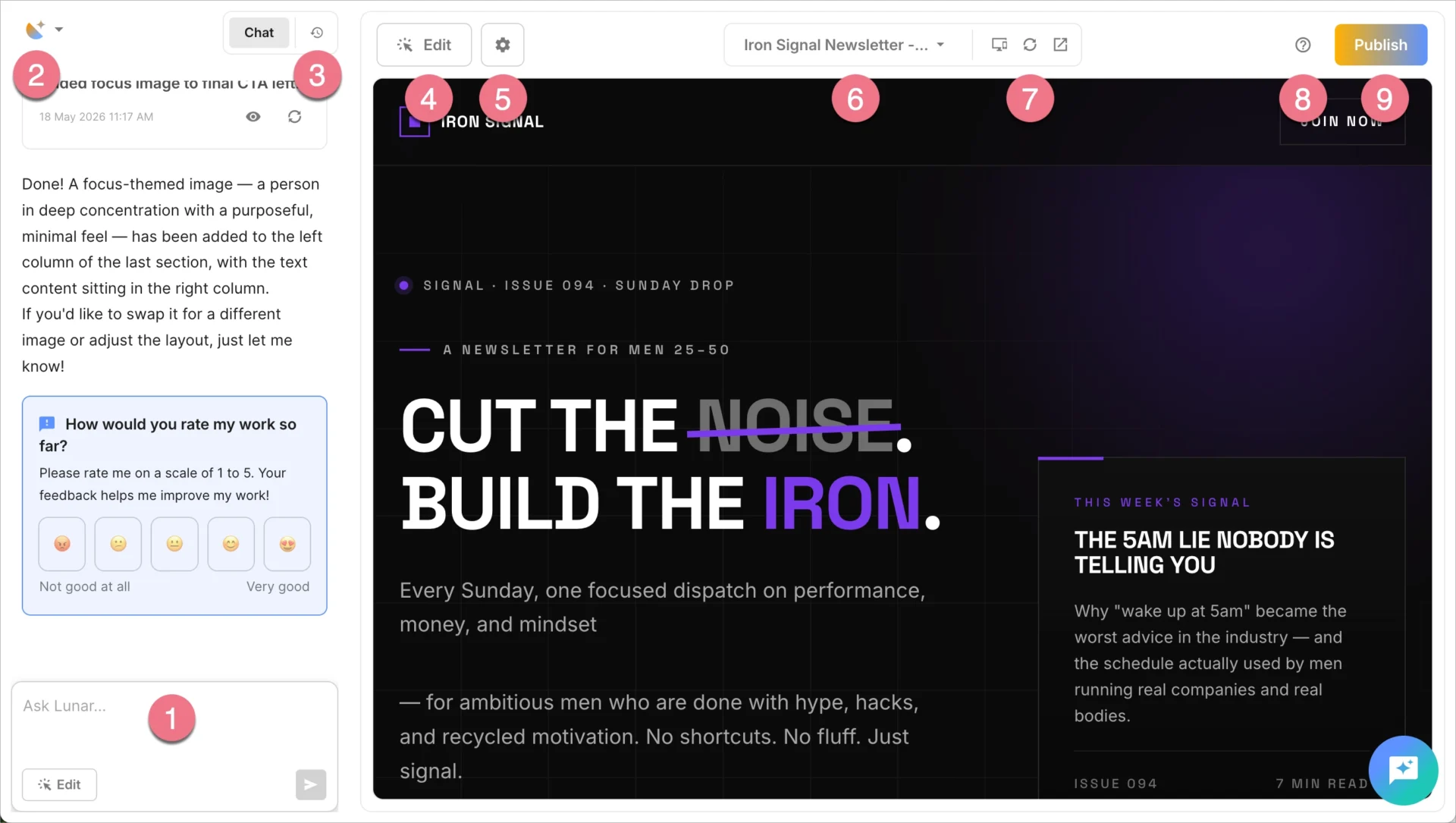
From the page option menu, you can navigate to the landing page’s Dashboard, duplicate the page, rename it, check page history, go to settings, lead lists, schedule options, and JavaScript codes.
Edit your page with chat
To modify your landing page with Lunar, enter your prompt in the chat. All changes are saved automatically.
NOTE: Remember that every prompt sent to Lunar uses credits from your account pool, so it’s best to describe your changes as clearly as possible. The more specific your prompt is, the easier it is for Lunar to update your page according to your goal.
Edit your page manually with Edit Mode
You can also make quick changes manually without asking Lunar to update the page.
To turn on manual Edit Mode, click Edit in the top bar. After you enter Edit Mode, the elements on your landing page become editable.
In manual Edit Mode, you can:
- move elements up, down, left, and right,
- delete and duplicate elements,
- navigate between layers,
- change image by selecting a new one from your gallery, by uploading a new image, or by choosing one from Unsplash gallery,
- change button URLs,
- edit text.
TIP: Some elements may have a parent-child relationship. For example, an image might be layered behind a gradient or a link. To edit an image, click the arrow located in the upper left corner of the element to toggle between parent and child views, allowing you to adjust its settings.
Watch a video that demonstrates how Edit Mode works:
All manual changes are saved automatically.
Manual changes made in Edit Mode do not use credits.
NOTE: If you enter a prompt in the chat while editing the page manually, you will leave manual Edit mode. To return to manual editing, click Edit again.
Restore a previous version
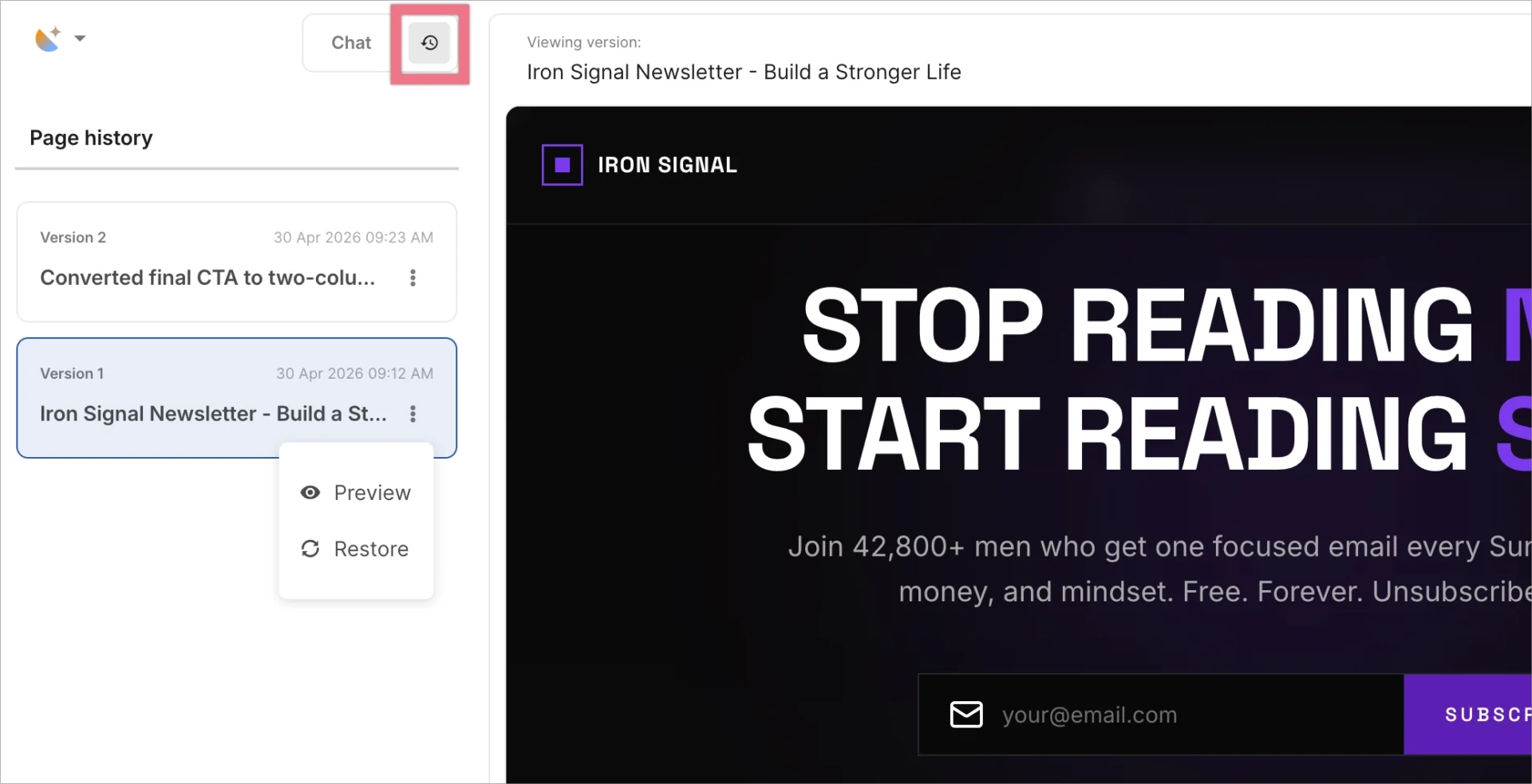
To restore a previous version of your landing page, click the clock icon and select the version you want to revert to.
Manage your AI-generated page settings
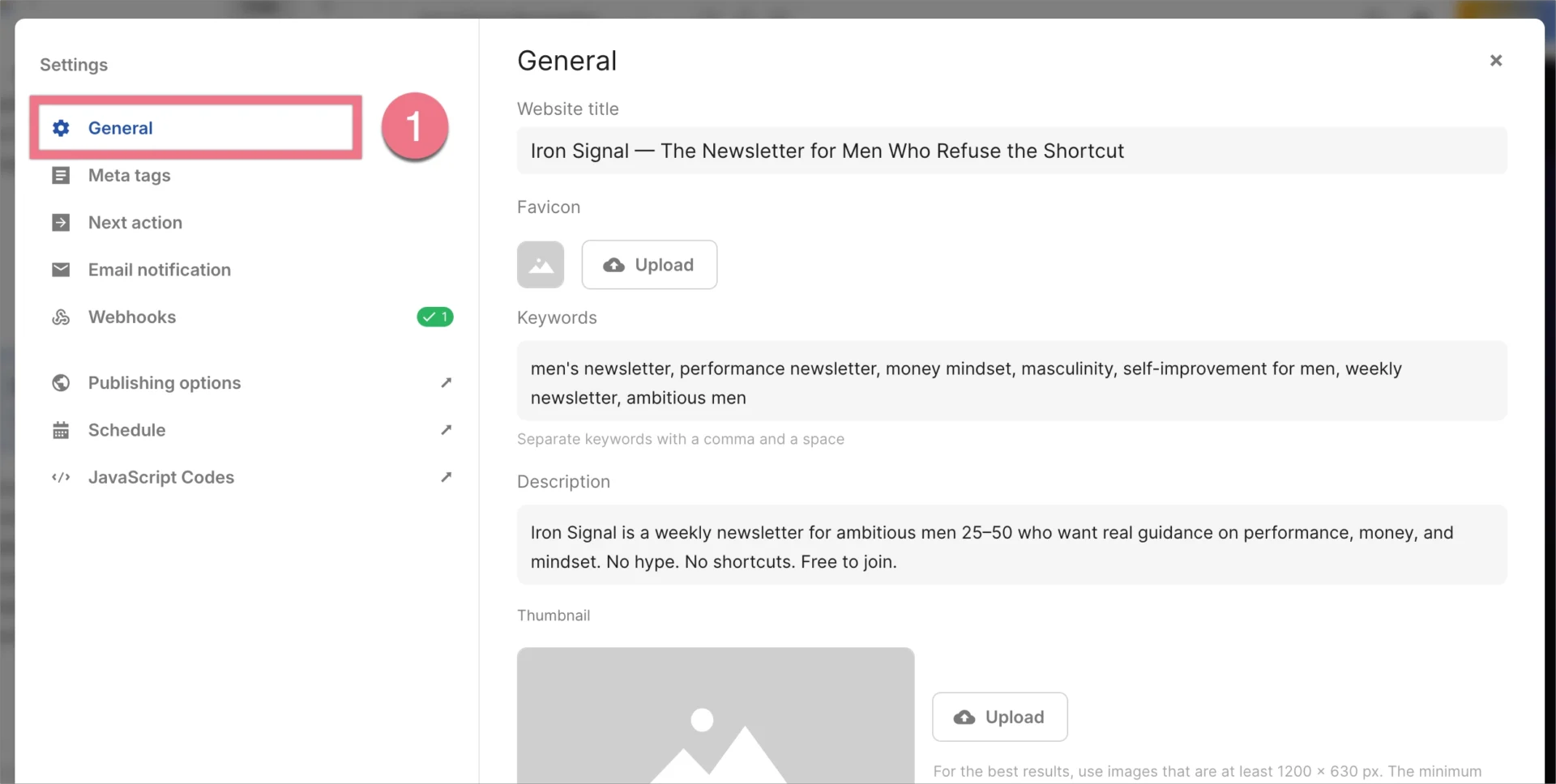
After clicking the gear icon, you will see a window with page settings. Selecting the Publishing options, Schedule, and JavaScript Codes tabs will open a new page with those settings.
1. In the General tab, you can edit the page title, add a favicon, change keywords and description, and upload a thumbnail. The SEO content (title, keywords, and description) is automatically generated by Lunar during the initial creation of your landing page. If you modify the page content through a conversation with Lunar, these fields will not be updated automatically; you will need to update them manually.
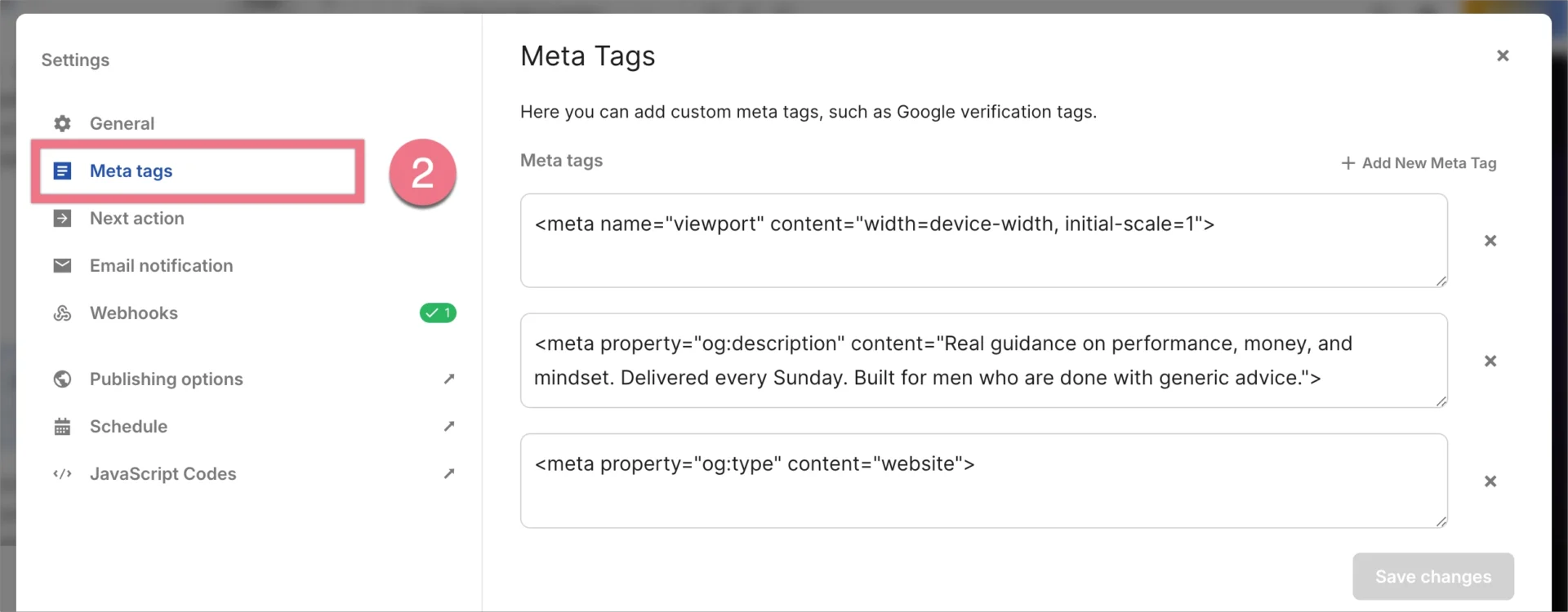
2. In the Meta tags tab, you can modify, delete, or add new tags. Remember to save changes.
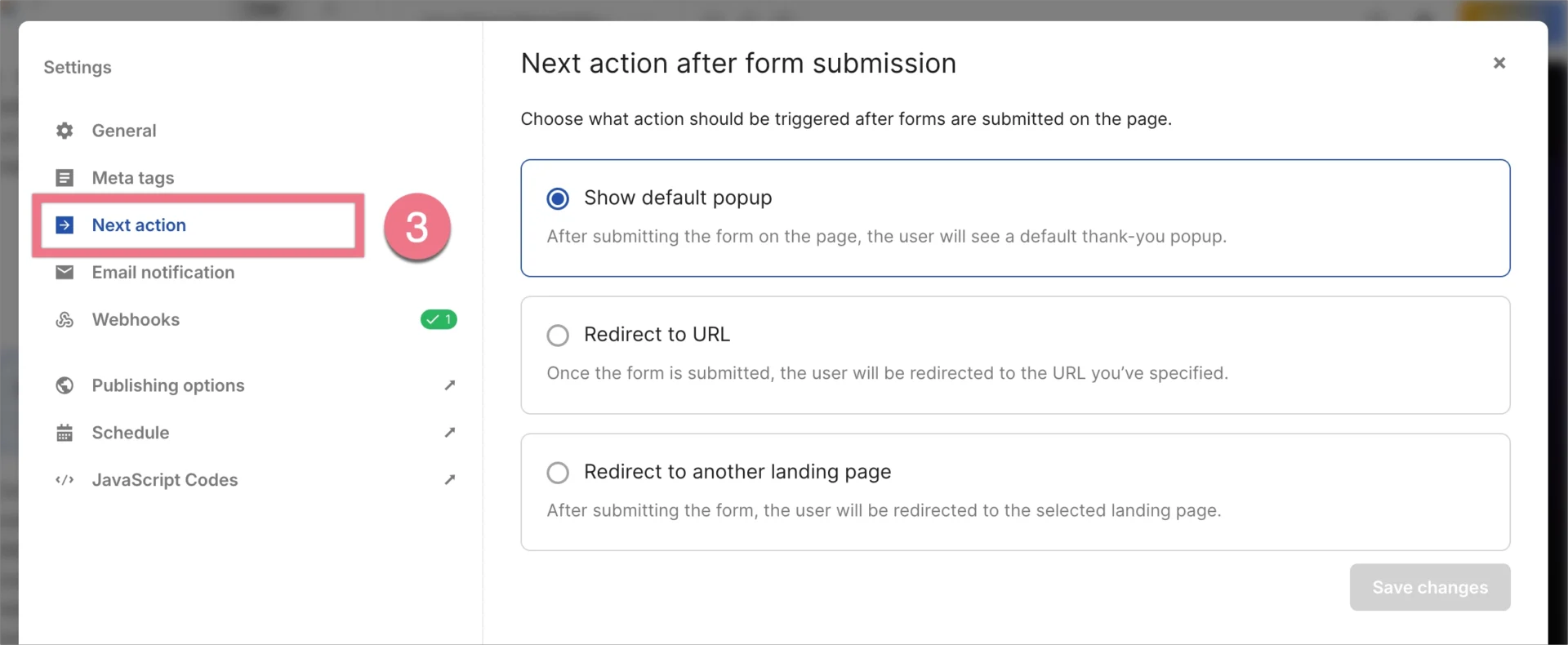
3. In the Next action tab, you can choose what action will happen after the form is submitted. There are three options: Show default thank-you pop-up, Redirect to URL, and Redirect to another landing page. Remember to save changes.
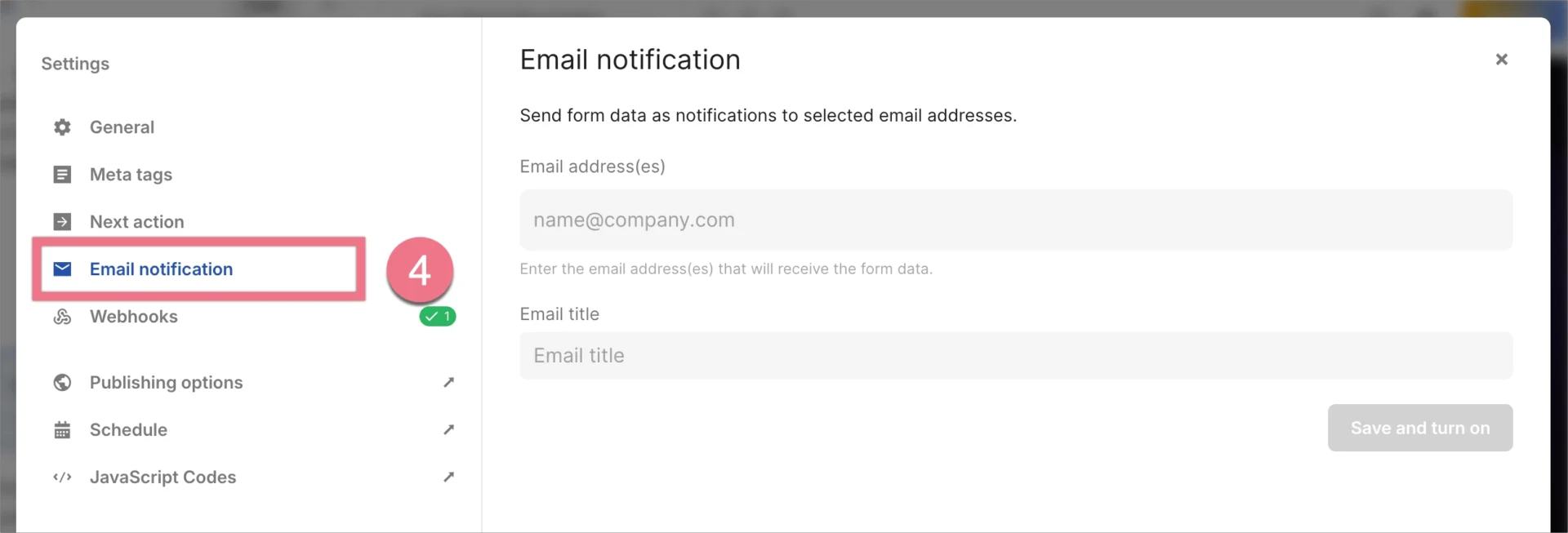
4. In the Email notification tab, you can configure an email integration. Enter your email address and a title to receive notifications that include the data submitted by users. Remember to save changes.
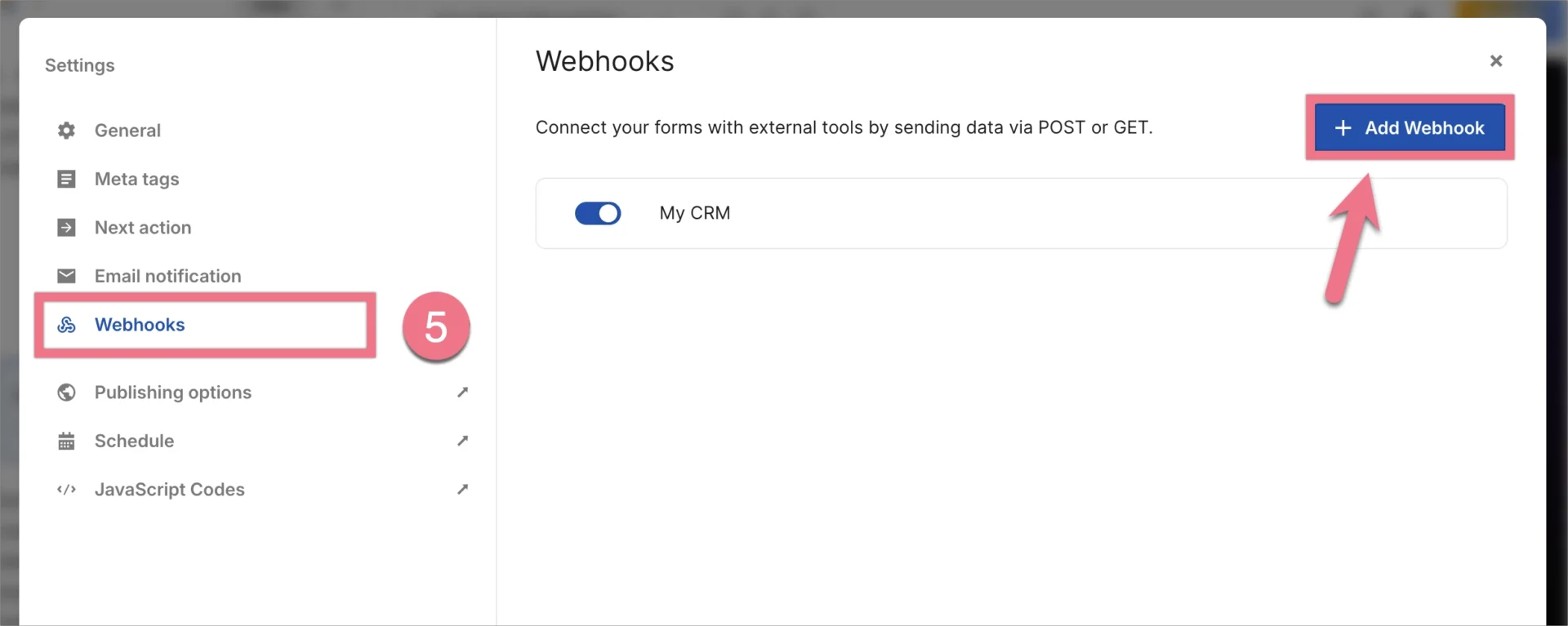
5. In the Webhooks tab, you can send form submission data from your Lunar landing page to external tools and systems. This lets you create more advanced automations, for example, sending lead data to your CRM, marketing automation platform, internal database, or another app that supports webhooks.
In this tab, you can enable, disable, edit, and delete webhooks. To add a new webhook, click Add Webhook.
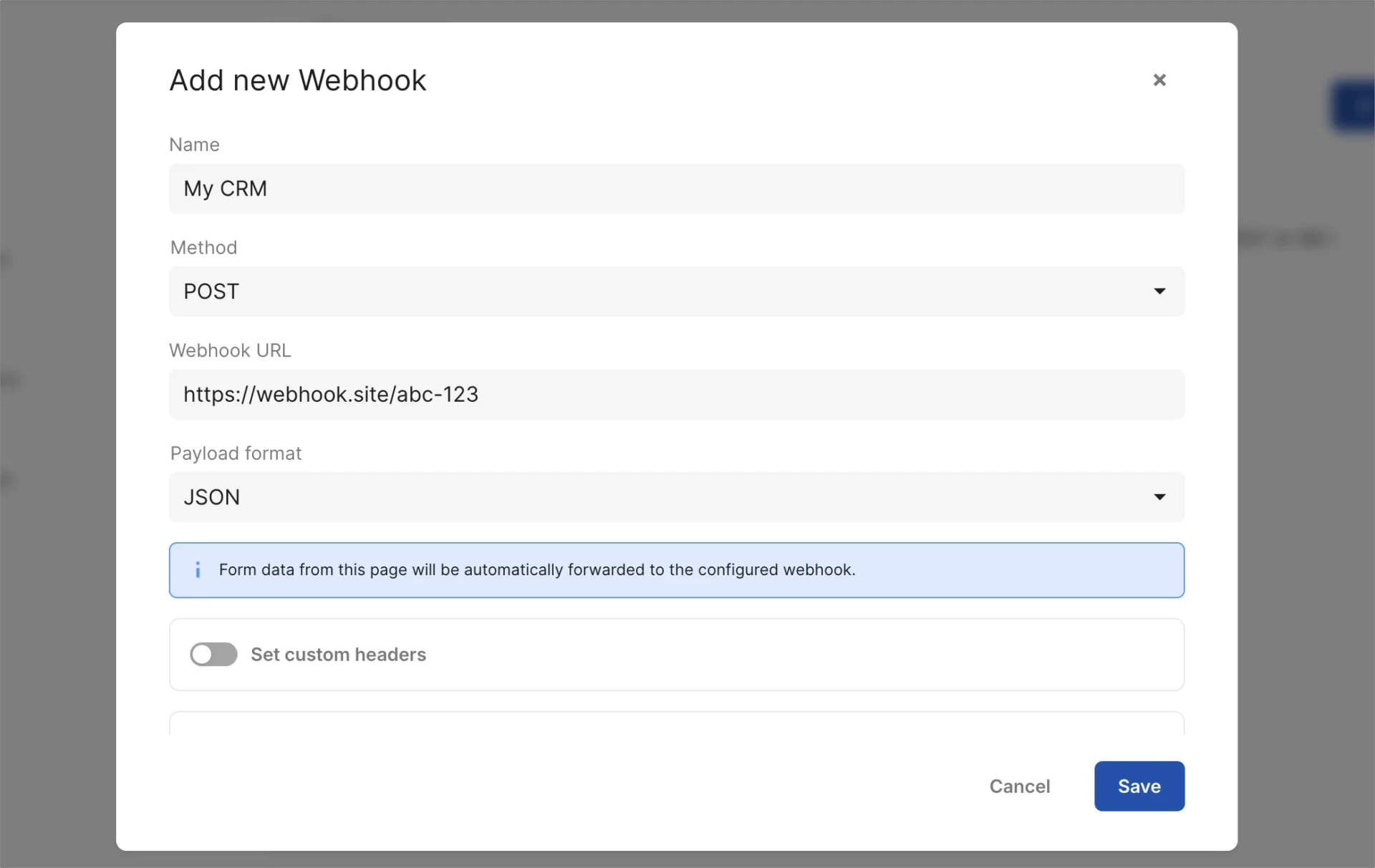
In the new window:
- Enter a webhook name.
- Select the request method: GET or POST.
- Paste the webhook URL.
- Choose payload format: JSON or Form when the selected method is POST.
- Optionally, add custom headers and/or parameters to be sent with the request.
Remember to save your changes after configuring the webhook.
Publish your AI-generated page
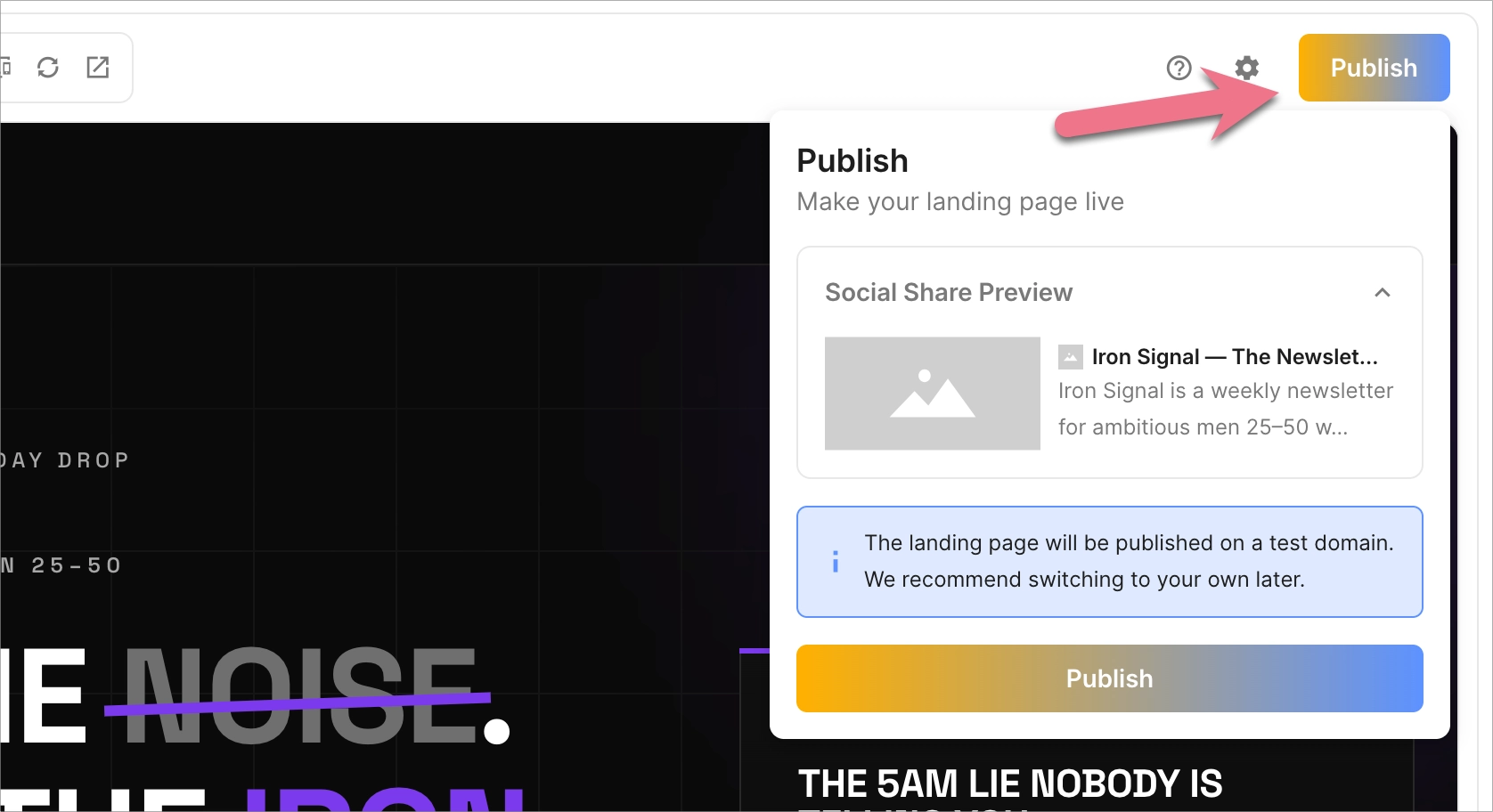
When you click the Publish button, you will see information that the landing page will be published on a test domain (unless you have already set different publishing options). Confirm by clicking Publish.
You can return to the publishing options at any time, from the Lunar editor settings or the main landing page list.
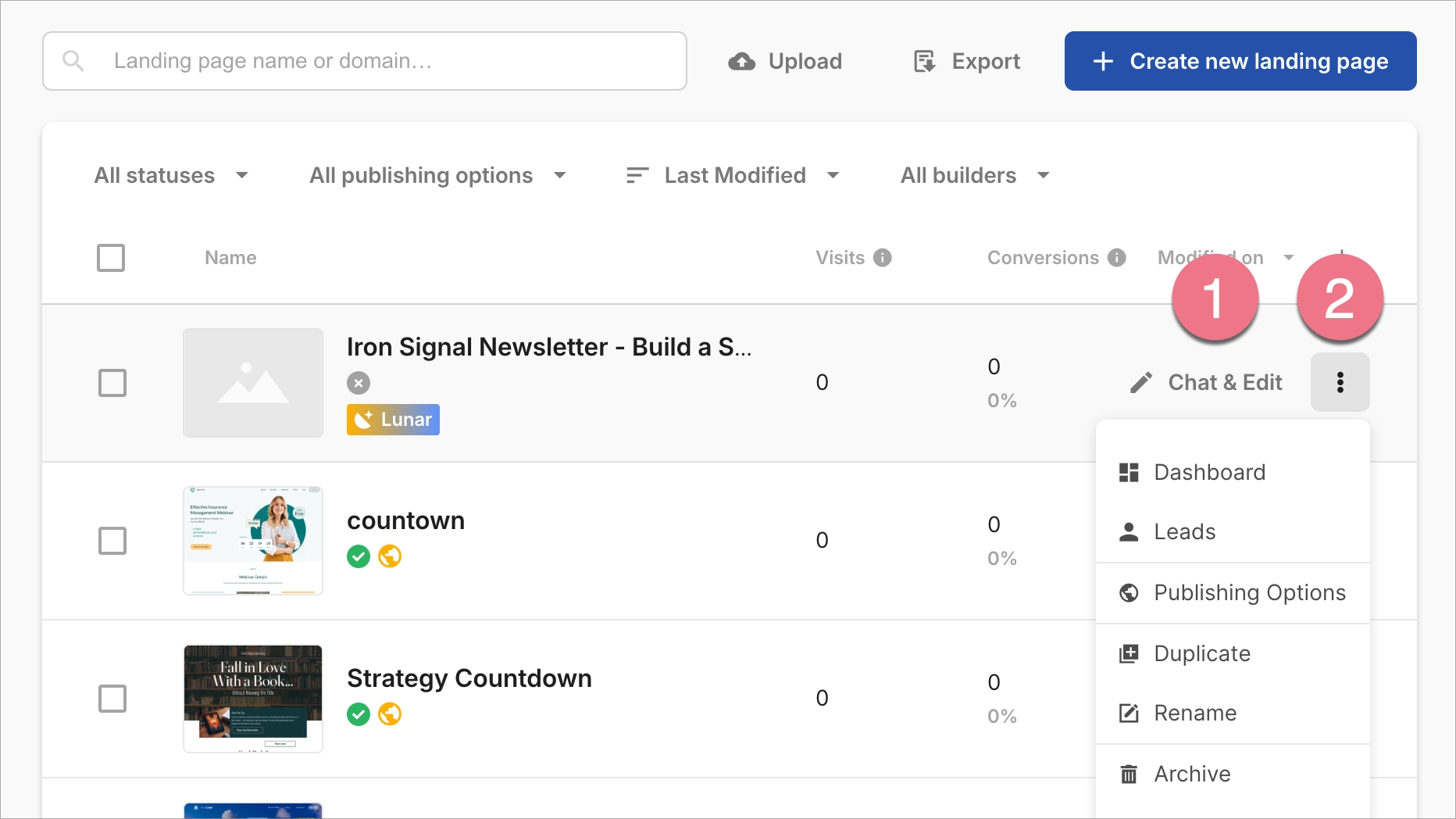
Landing pages generated by Lunar feature a Lunar label in your landing page list, making them easy to identify. When you hover over a landing page, a button appears that lets you access Chat & Edit (1). Additionally, by clicking the three dots icon (2), you can access a menu with more options: Dashboard, Leads, Publishing Options, Duplicate, Rename, and Archive.
What’s next for Lunar AI?
Lunar is designed to support the entire landing page creation process in Landingi – from the first idea to a page that is ready to publish. The current version focuses on generating complete landing pages from prompts and letting you edit them through a conversation with AI.
Lunar will continue to evolve. Upcoming improvements will focus on giving you more control over the generated page, making editing even more flexible, and helping you move faster from campaign idea to optimization.
Lunar is also part of Landingi’s broader AI ecosystem. Together with Solis, an AI optimization tool that helps you analyze landing page performance and find optimization opportunities, and Orbit, Landingi’s MCP server that connects AI agents with your landing page data, Lunar supports a more connected AI workflow inside and around Landingi.
This means you can use AI in Landingi not only to build landing pages faster, but also to understand how they perform and make better decisions for your campaigns.

