


EventTracker data can be exported from Landingi as Parquet files. This lets you work with raw session and event data outside the platform – for example, in your own analytics environment or with AI tools and LLM-based agents.
This guide explains how to export EventTracker data, what a Parquet file is, what information the export contains, and how you can use AI to analyze or convert the data.
NOTE: Exporting EventTracker data is available on Enterprise plans.
What is a Parquet file?
Parquet is a file format designed for storing and processing large amounts of structured data efficiently. It stores data by columns and supports compression, which makes it well suited for large analytics datasets.
Analyze the data with AI
Unlike CSV, a Parquet file is not designed to be opened and read directly as plain text or a regular spreadsheet. You can upload Parquet files to AI tools that support this format and use them to analyze your EventTracker data.
Upload the export to an AI tool and ask it to:
- explain the data and its structure,
- analyze sessions and events,
- compare behavior across devices, page variants, or UTM parameters,
- look for patterns and optimization opportunities,
- prepare summaries or further calculations.
You can also ask an AI agent to convert the file to CSV.
NOTE: EventTracker exports may contain visitor-level information, including IP addresses. Before uploading the files to an external AI service, make sure your workflow meets your organization’s privacy and data security requirements.
You can also use Solis to analyze EventTracker data directly in Landingi and get AI-powered insights based on visitor behavior.
Export EventTracker data
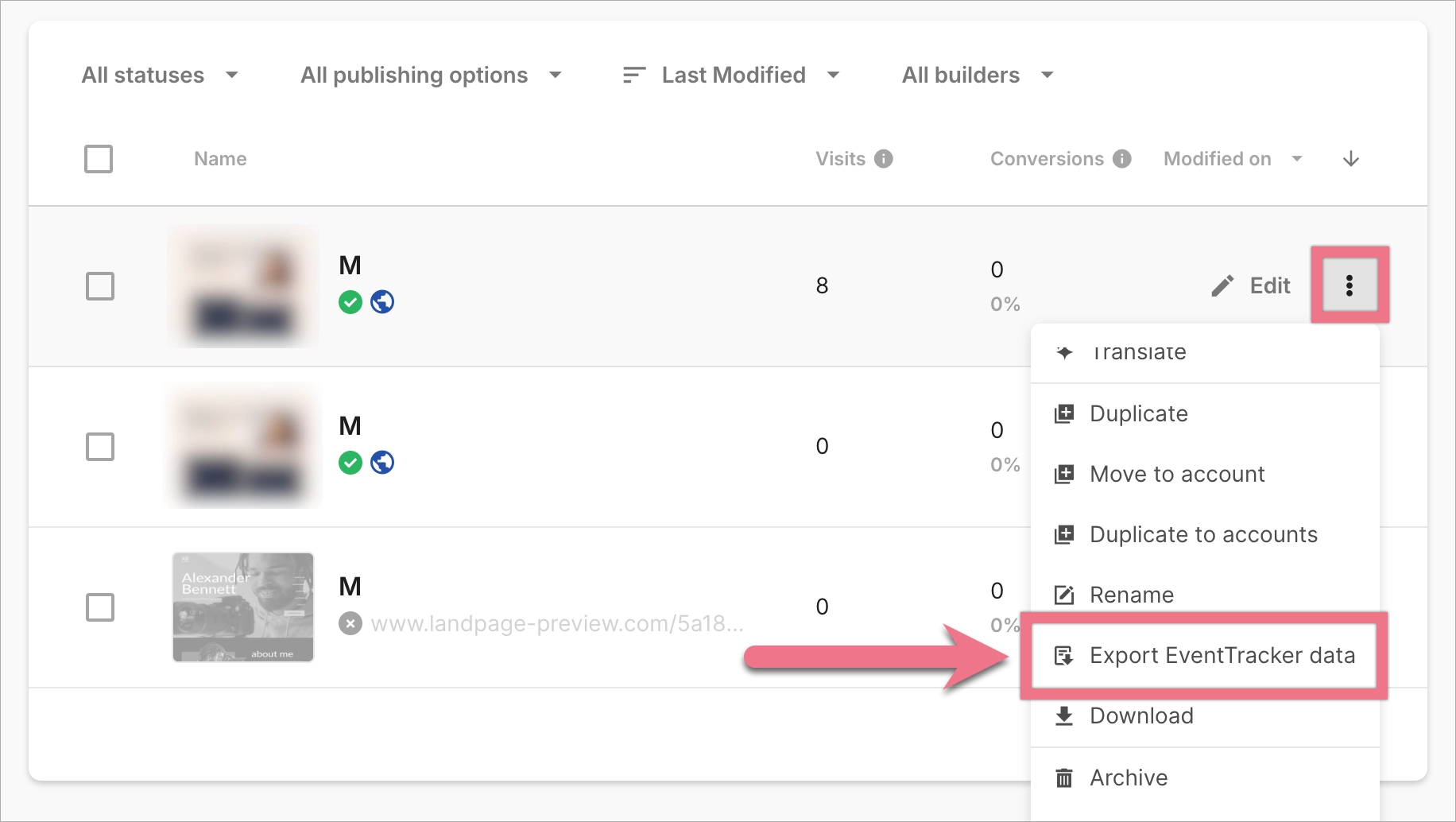
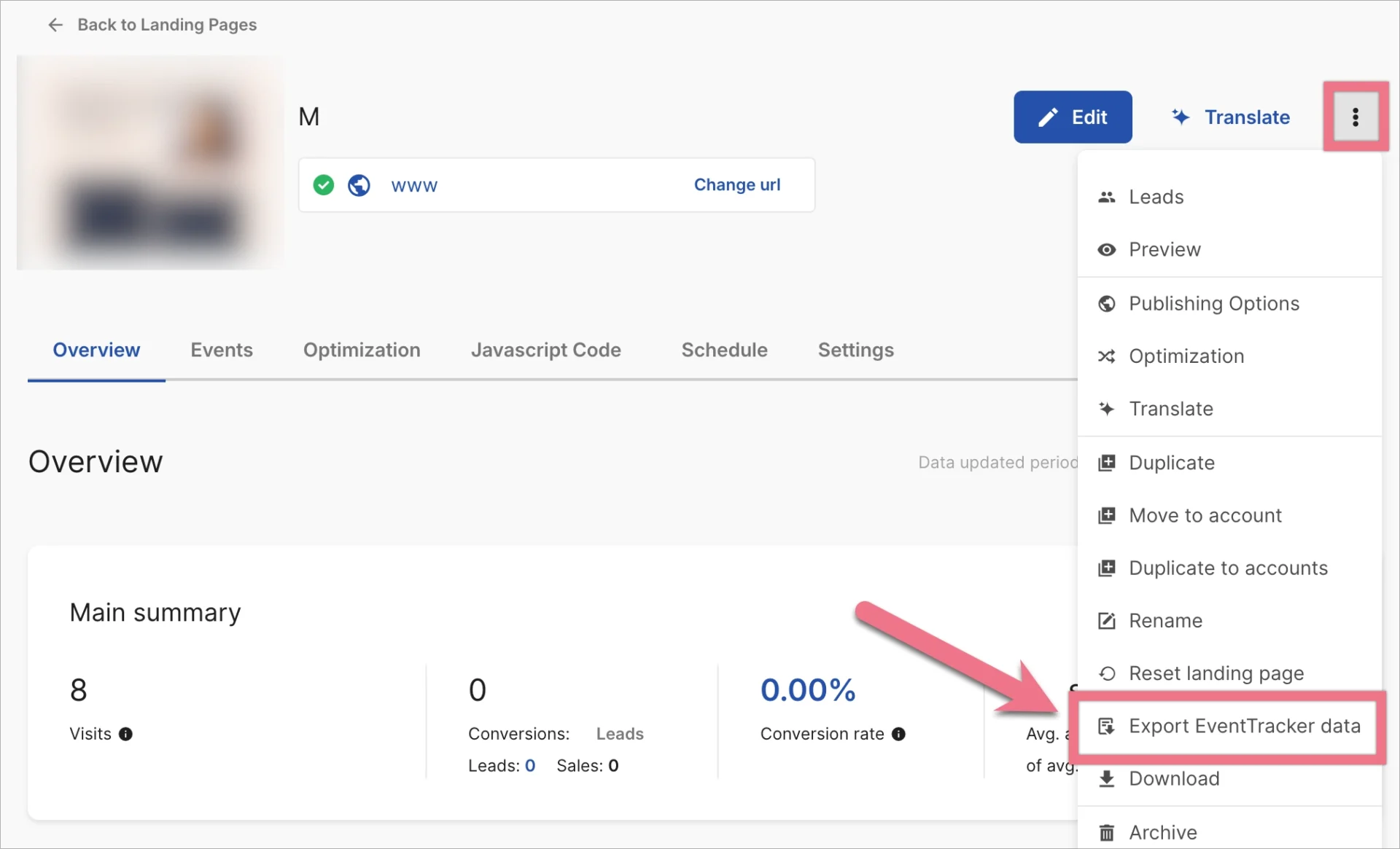
1. Start the export in one of two ways:
On the landing page list, click the three-dot icon next to the landing page and select Export EventTracker data.
or
Open the landing page Dashboard, click the three-dot icon, and select Export EventTracker data.
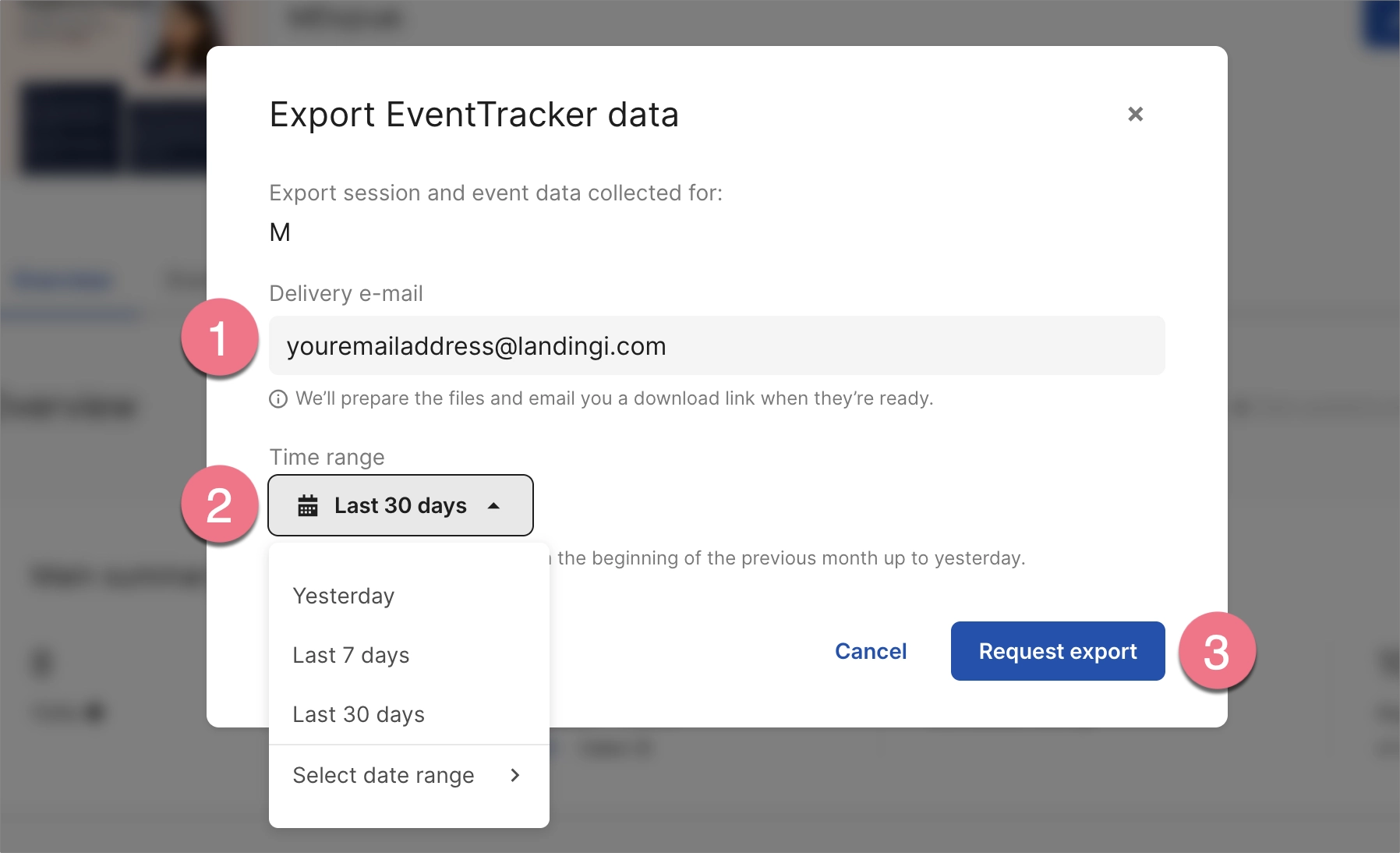
2. In the export window, enter the email address (1) where you want to receive the data.
Select the period you want to export (1). You can select any date from the beginning of the previous month up to yesterday.
Then click Request export (3).
3. Preparing the files may take a few minutes, depending on the amount of data. When the export is ready, you will receive an email with a link to download a ZIP archive.
What is included in the export?
The ZIP archive contains one or more Parquet files. Session data and event data are exported separately.
If the selected period contains sessions but no recorded events, the archive will contain only the session data, and vice versa. If both sessions and events are available, you will receive separate files for each data type.
The files can include information such as:
| Data type | Examples of exported data |
|---|---|
| Sessions | Session ID, date, IP address, device, page variant, UTM parameters |
| Events | Session ID, element ID, event type, date, label |
The session ID can be used to connect events with the session in which they occurred when analyzing both datasets together.
To learn more about EventTracker and the data it collects, see our EventTracker guide.
